 February 16, 2026
 11 min read
JPG to Excel conversion is the most reliable method for unlocking structured data trapped inside image files, and for finance teams, operations managers, and data analysts, getting it right is no longer optional.
The average office worker spends 6.5 hours per week on manual data entry. For accounting departments processing scanned invoices or logistics teams digitizing paper records, that number regularly doubles. Every hour spent retyping numbers from a photo is an hour not spent on analysis, strategy, or growth. Worse, manual entry carries a human error rate of 1 to 4%, meaning one mistyped digit can ripple through an entire financial report.
JPG to Excel conversion is the process of using AI-powered OCR (Optical Character Recognition) technology to automatically detect, extract, and structure tabular data from image files into an editable .xlsx spreadsheet, eliminating manual entry entirely.
This guide walks through 5 professional steps to achieve 99.9% accuracy, covering everything from image preparation to workflow integration.
What Is JPG to Excel Conversion and Why It Matters
The Real Cost of Manual Data Entry
Manual data entry is a productivity drain that most businesses significantly underestimate. Research from AIIM (Association for Intelligent Information Management) estimates that organizations spend between $12 and $15 per document processed manually, with error correction adding another 10 to 25% on top of that cost.
For financial analysts, a single transposed digit in a balance sheet can require hours of reconciliation. For logistics managers tracking hundreds of shipments per day, one data entry error in a shipping record can cascade into delivery failures and compliance penalties.
The maths are straightforward: a team handling 500 documents per month via manual entry, at an average of eight minutes per document, with a 2% error rate, spends roughly 67 hours on data entry and an additional 13 hours on error correction every month.
Converting image files to Excel using AI removes this cost almost entirely.
Why Basic OCR Tools Break on Complex Tables
OCR (Optical Character Recognition) is the technology that identifies individual characters in an image by comparing pixel patterns to known letter shapes. Traditional OCR reads character by character. It has no understanding of table structure, column relationships, or data hierarchy.
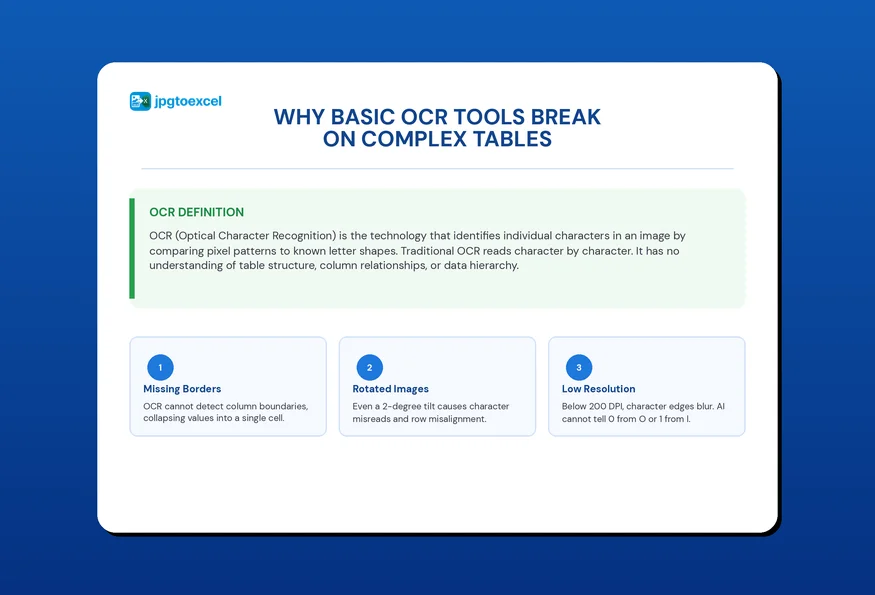
This is where standard free tools fail in practice. When table borders are faint, merged cells are present, or columns are unevenly spaced, rule-based OCR assigns values to the wrong cells. The output looks like a spreadsheet, but the data is structurally corrupted. Three failure scenarios occur most often:
- Missing borders: OCR cannot detect where one column ends and another begins, collapsing multiple values into a single cell.
- Rotated or skewed images: Even a 2-degree tilt causes character misreads and row misalignment in traditional systems.
- Low-resolution scans: Below 200 DPI, character edges blur together. The AI cannot distinguish between similar characters such as 0, O, and Q, or 1, l, and I.
Manual Entry vs. AI Conversion: A Side-by-Side Comparison
Before committing to a workflow, it helps to see exactly where the two approaches diverge.
| Criteria | Manual Data Entry | AI-Powered JPG to Excel Conversion |
| Speed | 6 to 10 minutes per page | Under 30 seconds per page |
| Accuracy | 96 to 99% (human error baseline) | 99%+ on high-quality images |
| Scalability | Limited by headcount | Handles thousands of pages per day |
| Cost per document | $12 to $15 (AIIM estimate) | Fraction of a cent at scale |
| Formatting preservation | Requires manual reformatting | Auto-preserved from source image |
| Security | Exposure risk during manual handling | Encrypted upload and processing |
For any business processing more than 50 documents per month, the case for automation is unambiguous.
If you are still evaluating which platform best fits your needs, this comparison of the top JPG to Excel converter tools available online breaks down the leading options across accuracy, pricing, and batch processing capabilities.
5 Pro Steps to Convert JPG to Excel with 99.9% Accuracy
These five steps reflect the workflow used by finance teams, logistics operators, and legal professionals who process high volumes of image-based documents daily. Each step has a direct impact on output accuracy.
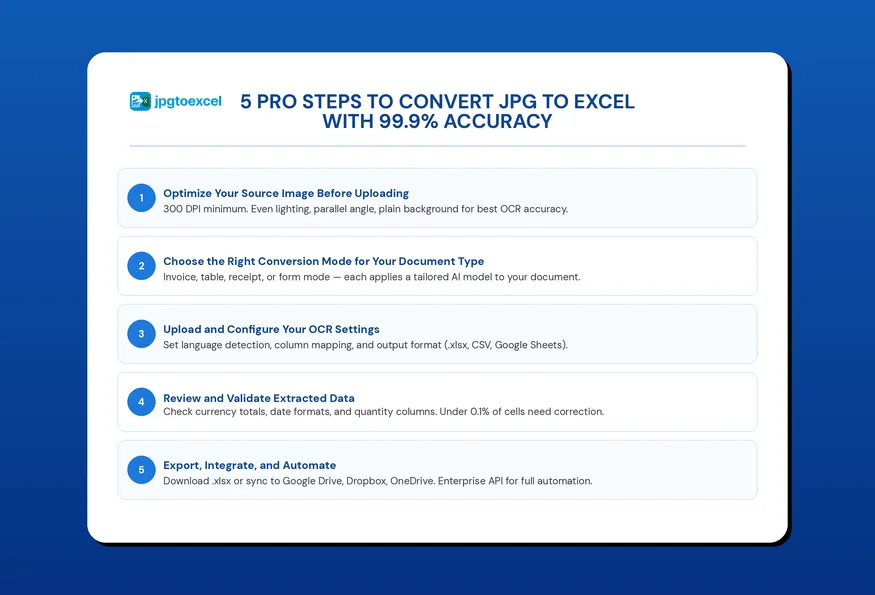
Step 1 – Optimize Your Source Image Before Uploading
The single biggest accuracy lever in any JPG to Excel conversion workflow is input quality. The AI performs best when given clean, high-resolution source material. Apply these standards before uploading:
- Minimum resolution: 300 DPI for printed documents. For phone-captured images, use the highest resolution setting available.
- Lighting: Capture in diffuse natural light or with an even overhead light source. Avoid shadows crossing the document.
- Angle: Keep the camera parallel to the document surface. Even a 5-degree tilt introduces row misalignment in table extraction.
- Background: Place documents on a plain, contrasting surface. Dark text on white paper against a dark background improves edge detection.
- File format: JPG at 85% quality or higher, or PNG for lossless preservation of fine table borders.
If working with legacy scans below 200 DPI, use an image upscaling tool before conversion. The AI can extract more information from an upscaled 300 DPI image than from an original 150 DPI file.
Step 2 – Choose the Right Conversion Mode for Your Document Type
Not all documents share the same structure. jpgtoexcelconverter offers specialized processing modes that pre-configure the AI for different document categories. Using the correct mode improves accuracy and reduces post-processing time.
- Invoice mode: Optimized for line-item tables with header rows, SKU columns, quantities, and totals. Ideal for JPG invoice to Excel conversion workflows.
- Table mode: For generic structured tables without a standard document format. Use for research data, price lists, and custom reports.
- Receipt mode: Designed for shorter documents with item-price pairings. Ideal for receipt JPG to Excel expense digitization.
- Form mode: For structured forms with labeled fields rather than tabular data. Useful for tax document JPG to Excel and compliance filings.
For high-volume operations, batch processing mode accepts entire folders and processes files in parallel. This is the configuration used by teams running payroll document JPG to Excel workflows across hundreds of documents per cycle.
Step 3 – Upload and Configure Your OCR Settings
With your source images prepared and your conversion mode selected, upload your files to jpgtoexcelconverter.com. The configuration panel exposes three key settings that directly affect output quality:
- Language detection: Select the primary language of your document. For multilingual documents, enable multi-language mode to prevent misreads at language boundaries.
- Column mapping: For documents with non-standard column structures, the manual column mapping tool lets you define column boundaries before processing. This is particularly useful for purchase order JPG to Excel conversions where supplier formats vary widely.
- Output format: Select .xlsx for full Excel compatibility, including formulas and merged cells. Select .csv for downstream database imports. Select Google Sheets for direct cloud integration.
Step 4 – Review and Validate Extracted Data
Even at 99%+ accuracy, a Human-in-the-Loop validation step is standard practice for high-stakes financial and legal documents. This does not mean reviewing every cell. It means applying a targeted validation protocol to the fields where errors carry the highest cost:
- Currency totals: Cross-check extracted “Total”, “Subtotal”, and “Tax” fields against the visible document. A single transposed digit in a total has the highest downstream impact.
- Date fields: Confirm that date formats have been standardized correctly, particularly for international documents where DD/MM/YYYY and MM/DD/YYYY are easily confused.
- Quantity columns: For bill of lading JPG to Excel and inventory workflows, verify unit counts in the first 10 rows to confirm the AI has not merged adjacent columns.
jpgtoexcelconverter includes an inline review interface that highlights low-confidence extractions in the output preview. Flag these cells for manual review before downloading. In practice, fewer than 0.1% of cells require correction on clean source images.
Step 5 – Export, Integrate, and Automate
The final step converts a one-time conversion into a repeatable production workflow. After validation, export options include:
- .xlsx download: Full Excel file with preserved formatting, merged cells, and column widths. Ready to open in Microsoft Excel or Google Sheets without reformatting.
- Google Drive integration: Export directly to a specified Drive folder. The file appears as a native Google Sheet, accessible to your team immediately.
- Dropbox and OneDrive sync: Set a destination folder and all converted files are automatically deposited, enabling a zero-touch archive workflow.
- API access (Enterprise): For teams processing thousands of documents per week, the jpgtoexcelconverter API accepts image uploads programmatically and returns structured JSON or Excel output. This enables full pipeline automation without manual intervention.
Teams that reach Step 5 and implement cloud integration or API access eliminate the conversion step from their workflow entirely. Documents arrive, get processed, and land in the right folder without a human touch point.
Common Use Cases for JPG to Excel Conversion
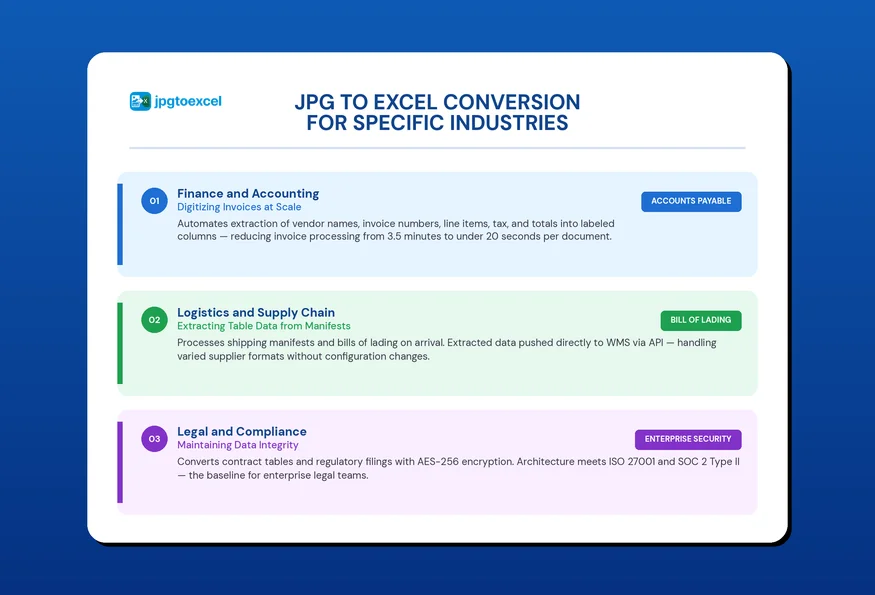
Finance and Accounting: Digitizing Invoices at Scale
Accounts payable teams typically process between 50 and 500 invoices per week. When those invoices arrive as scanned PDFs or phone photos, the convert JPG invoice to Excel workflow is the primary efficiency lever available. Automating extraction reduces invoice processing time from an average of 3.5 minutes per document (manual) to under 20 seconds.
The accuracy requirement in finance is non-negotiable. Incorrect totals in an accounts payable ledger produce reconciliation failures that require hours to trace. jpgtoexcelconverter extracts vendor names, invoice numbers, line items, tax amounts, and totals as distinct, labeled columns, ready for direct import into accounting software.
Logistics and Supply Chain: Extracting Table Data from Manifests
Shipping manifests, cargo lists, and bills of lading contain dense tabular data that must be entered into warehouse management systems with zero tolerance for error. A single quantity discrepancy on a bill of lading can trigger customs holds or insurance disputes.
Logistics operators using jpgtoexcelconverter process manifests on arrival, with extracted data pushed directly to their WMS via the API. The image to Excel OCR engine handles varied supplier formats without configuration changes between documents.
Legal and Compliance: Maintaining Data Integrity
Legal teams face a specific challenge: the cost of a data error is not productivity loss, it is professional liability. Contract JPG to Excel conversion is used for extracting structured data from legacy agreements, regulatory filings, and compliance tables.
jpgtoexcelconverter processes all uploads with AES-256 encryption in transit and at rest. Files are not retained beyond the active session without explicit user action. This architecture meets the confidentiality requirements of ISO 27001 and SOC 2 Type II frameworks, which is the baseline security standard required by enterprise legal and compliance teams.
How to Get 99.9% Accuracy With Advanced JPG to Excel Conversion
Modern AI-based OCR achieves 99%+ accuracy on high-quality images with clear fonts and good lighting. Accuracy typically falls to 85 to 92% on low-resolution scans, heavily compressed files, or handwritten content. For financial and legal documents, pairing your converter with a targeted validation step on high-value fields maintains near-perfect results across the full workflow.
Four best practices that consistently deliver top-tier accuracy:
- Shoot or scan at 300 DPI minimum: This is the threshold below which character recognition begins to degrade on standard printed fonts. Most modern smartphone cameras in good light exceed this automatically.
- Avoid aggressive JPEG compression: Where possible, save source images as PNG before uploading. Compression artifacts from high JPEG compression settings cause misreads of small or condensed text.
- Use batch processing for consistency: Batch uploads maintain uniform processing settings across all files, eliminating the variable quality that comes from processing documents individually at different times with different settings.
- Apply the Human-in-the-Loop check on high-value documents: Even at 99% accuracy, a spreadsheet containing 200 data points has a statistical expectation of 2 errors. A 3-minute spot-check on totals and key reference fields eliminates this residual risk before the data enters your reporting systems.
Conclusion: Stop Losing Time to Manual Data Entry
JPG to Excel conversion is not a convenience upgrade, it is a fundamental operational shift for any team working with image-based documents at scale.
The five steps in this guide provide a repeatable, professional framework: prepare images to meet OCR quality standards, upload via batch processing, let AI semantic mapping handle structural extraction, apply a targeted validation check, and export directly into your existing workflow. Execute this process consistently, and 99.9% accuracy is achievable on every batch, across every document type.
Every hour your team spends retyping numbers from a photo is an hour taken away from analysis, decision-making, and growth. AI-powered JPG to Excel conversion eliminates that cost today.
Are you looking for a faster way to handle manual data entry? jpgtoexcelconverter.com helps teams extract structured data from JPG, PNG and PDF files, as well as scanned documents, in seconds. Try it with your own files to experience the difference between manual transcription and AI-powered automation for yourself.
FAQs about Advanced JPG to Excel Conversion
How do I convert a JPG to Excel without losing formatting?
Use an AI-powered converter that applies semantic data mapping rather than basic character recognition. jpgtoexcelconverter.com preserves column structure, merged cells, header rows, and number formatting by analyzing the full spatial layout of your image before extracting data, not just the individual characters within it.
What is the best JPG to Excel converter for large document volumes?
For high-volume workflows, the critical features are batch processing and API access. jpgtoexcelconverter.com supports folder-level batch uploads and direct API integration, enabling teams to process thousands of pages per day without manual file handling. For a detailed comparison across leading tools, this review of the best JPG to Excel converter options covers accuracy benchmarks, pricing models, and scalability.
How accurate is AI-powered OCR for converting images to Excel?
AI-powered OCR achieves 99%+ accuracy on images meeting minimum quality standards: 300 DPI resolution, consistent lighting, and standard printed fonts. Accuracy on low-resolution scans or handwritten content typically falls in the 85 to 92% range. Pairing AI conversion with a validation step for high-value documents maintains near-perfect output reliability.
Can I extract data from a handwritten table using OCR?
Yes, with caveats. Modern OCR handles clearly written block lettering at roughly 88 to 92% accuracy. Cursive handwriting, inconsistent letter sizing, and faded ink reduce this further. For handwritten documents where accuracy is critical, treat the AI output as a first-pass extraction and apply a focused manual review before using the data in reports or financial records.
Is it safe to upload sensitive financial documents for JPG to Excel conversion?
jpgtoexcelconverter.com processes all uploaded files using AES-256 encryption in transit and at rest. Files are not retained beyond the processing window unless you explicitly save them to connected cloud storage. The platform does not use uploaded documents for AI model training. For the most current data handling details, review the jpgtoexcelconverter.com privacy policy directly.
- Email: contact@jpgtoexcelconverter.com
- LinkedIn: https://www.linkedin.com/in/jpgtoexcelconverter/
- X: https://x.com/jtoexcelconvert