 December 5, 2025
 11 min read
No code OCR integration is the practice of connecting an OCR engine to your everyday business apps through a drag-and-drop automation platform, with zero custom code required. Instead of hiring engineers to write API scripts, you assemble a workflow from four pre-built blocks: a trigger, an OCR engine, a connector, and an action. The result is a system that reads a scanned invoice, receipt, or form and pushes clean data into a spreadsheet or database in seconds, not minutes.
Every business that handles paper or scanned documents eventually hits the same wall: someone has to retype that information by hand. Industry research puts the error rate for manual data entry at roughly 1.6% per invoice, and manual invoice processing typically costs $15 to $16 per document once labor, routing, and correction time are factored in. Automated workflows cut that figure to roughly $3 per document, which is why demand for a reliable no-code data extraction tool has grown across finance, HR, and logistics teams alike.
For years, this kind of automation required a developer. Now it doesn’t. This guide breaks down how no code OCR integration works, which tools to use, where it delivers the fastest return, and how to integrate OCR without coding skills, starting with your very first workflow.
What Is No Code OCR Integration?
No code OCR integration is defined as a method of connecting an OCR engine to other business software using visual, rule-based automation tools instead of custom-written code. Optical Character Recognition, or OCR, is the underlying technology that reads pixels in an image and converts them into machine-readable text. What makes a workflow “no-code” is the layer on top: a platform like Zapier or Make.com that lets you assign triggers, map fields, and route data using menus and toggles rather than programming languages.
How It Differs From Traditional OCR Development
Traditional OCR integration requires a developer to write code against an OCR provider’s API, handling authentication, error states, and data mapping manually. That approach is flexible but slow and expensive to maintain. A no-code data extraction tool flips this: the platform manages the API connection behind the scenes, and your job is to configure logic visually. This is the practical difference between traditional software engineering and the ability to integrate OCR without coding skills, and it is why non-technical teams in operations, HR, and finance can now own these workflows without filing an IT ticket.
How No Code OCR Works: The Anatomy of a Workflow
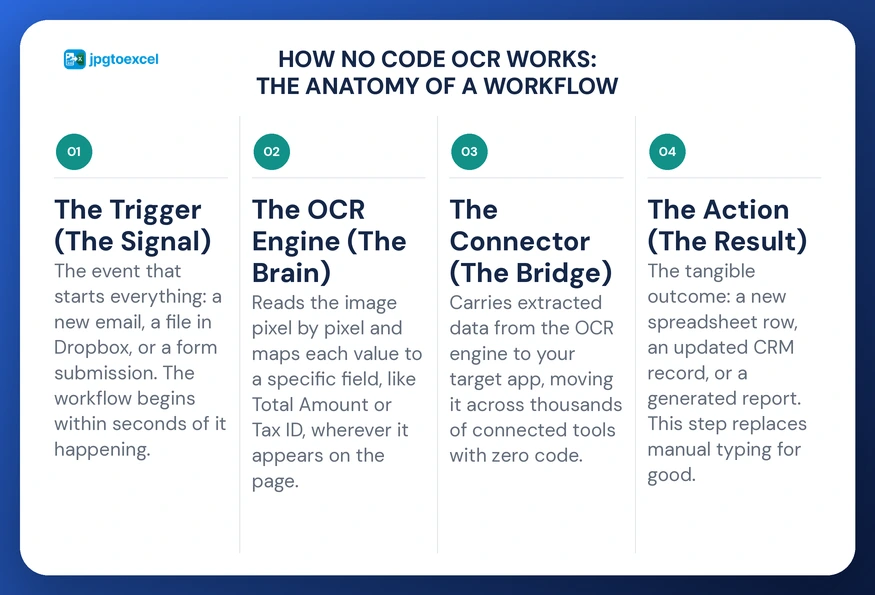
Every workflow automation platform follows the same four-part anatomy, regardless of which specific tools you choose. Think of it as building with digital building blocks, where each piece serves one clear function in the sequence, moving from signal to processing to delivery, to result.
1. The Trigger (The Signal)
The trigger is the event that starts the automation. Common triggers include a new email landing in a Gmail inbox, a new file dropping into a Dropbox folder, or a form submission on your website. Most platforms detect a new trigger event within seconds of it happening, so the moment a document arrives, the workflow is already running.
2. The OCR Engine (The Brain)
Once triggered, the document is routed to an OCR engine, the component that actually reads the image. Modern engines use machine learning to scan pixels, identify characters, and map them to specific fields rather than simply dumping raw text. This is what allows the same engine to correctly read a “Total Amount” field on an invoice and a “Tax ID” field on a completely different document, regardless of where each one appears on the page.
3. The Connector (The Bridge)
Extracted text has no value until it reaches its destination. The connector, the integration layer inside platforms like Zapier or Make.com, carries that data from the OCR engine to your target app. An OCR Zapier workflow, for example, can move data between more than 5,000 connected apps without writing a single line of code.
4. The Action (The Result)
The action is the final, tangible outcome: a new row in a Google Sheet, an updated CRM record in Salesforce, or a generated report. This is the step that actually replaces manual typing, turning what used to take a person several minutes per document into a process that finishes in single-digit seconds.
Zapier vs. Make.com vs. AI OCR Engines: Which Tool Is Right for You?
Choosing the right stack means pairing an automation platform, the glue, with an OCR engine, the reader. Each option below fits a different team size and level of workflow complexity.
| Tool | Best For | Complexity | Native OCR Accuracy |
| Zapier | Beginners; simple “if this, then that” workflows | Low | Relies on a connected third-party OCR app |
| Make.com | Multi-step logic, branching, and data filtering | Medium | Relies on a connected third-party OCR app |
| Dedicated AI OCR engine | High-volume or layout-sensitive documents | Low to Medium | Built-in extraction, typically 95%+ on printed text |
When to Choose a Dedicated AI OCR Engine
General automation platforms move data well but usually depend on a separate OCR add-on, which means extra setup steps and another monthly bill. A dedicated AI OCR engine, such as jpgtoexcelconverter, builds extraction and spreadsheet output into a single step, which is usually the faster path when your main goal is converting images into usable Excel data rather than orchestrating a ten-step automation. For a side-by-side look at how different converters compare, see our breakdown of the top OCR tools.
Top Use Cases for No Code OCR Integration
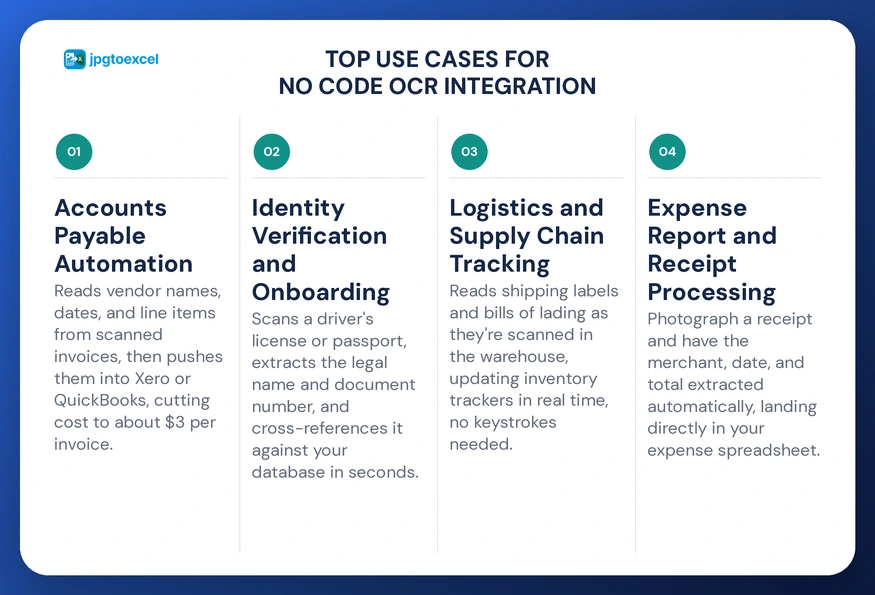
The versatility of no code OCR integration means it applies to nearly every department that touches paperwork. Here are the use cases delivering the fastest payback, ranked roughly by how quickly teams typically adopt them.
Accounts Payable Automation
Processing invoices is the most common entry point for this technology. A workflow can read the vendor name, invoice date, and line items from a scanned or JPG invoice, then push them directly into accounting software like Xero or QuickBooks. Teams that automate this step typically see processing costs fall from the $15 to $16 manual range down toward $3 per invoice, a difference that compounds quickly once volume passes a few hundred documents a month. For a closer look at this exact workflow, see convert JPG invoice to Excel.
Identity Verification and Onboarding
Finance and real estate businesses that verify customer identity documents face a different challenge: speed without sacrificing accuracy. A no-code data extraction tool can scan a driver’s license or passport, pull the legal name and document number, and cross-reference it against an internal database in seconds rather than the minutes a manual review takes.
Logistics and Supply Chain Tracking
Shipping labels and bills of lading remain mostly paper-based even at large freight operators. An OCR Zapier setup can read these documents as they are scanned in the warehouse, updating inventory trackers in real time without a single human keystroke. See convert bill of lading JPG to Excel for a deeper walkthrough, and for procurement teams handling supplier paperwork, purchase order JPG to Excel covers the same logic.
Expense Report and Receipt Processing
Beyond large-scale logistics, no code OCR integration works just as well for everyday expense tracking. An employee photographs a receipt, the OCR engine extracts the merchant, date, and total, and that data lands directly in an expense spreadsheet. See convert receipt JPG to Excel for a focused guide to this exact use case.
Step-by-Step Guide: Building Your First No-Code OCR Automation
Here is a standard invoice-to-spreadsheet workflow using Gmail, an AI OCR engine, and Google Sheets. Each step below maps directly to one block in the trigger, engine, connector, action anatomy described earlier.
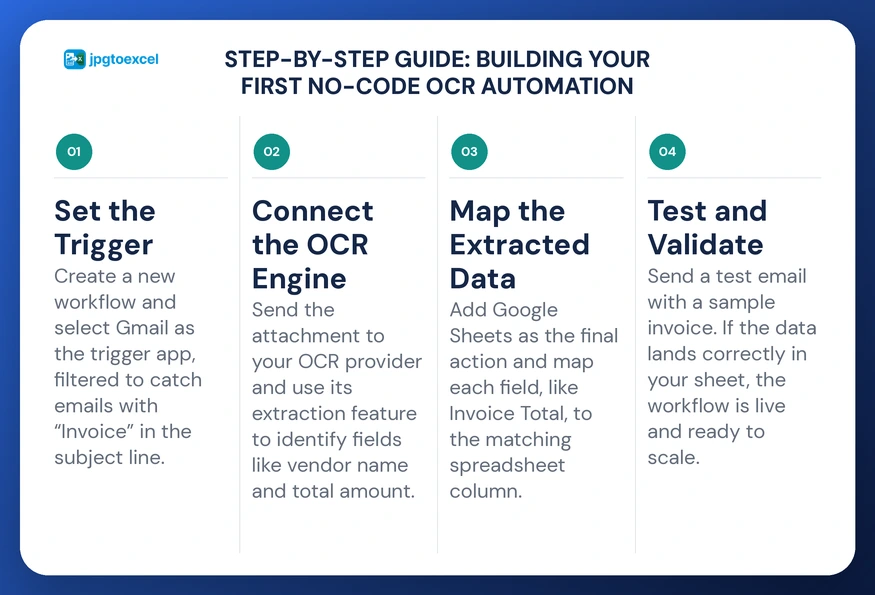
Step 1: Set the Trigger
In your automation platform, create a new workflow and select Gmail as the trigger app. Choose “New Attachment” and filter it to only catch emails containing the word “Invoice” in the subject line.
Step 2: Connect the OCR Engine
Add a step that sends the attachment to your OCR provider. Use its data extraction feature to identify the specific fields you need, such as vendor name, invoice number, and total amount.
Step 3: Map the Extracted Data
Add Google Sheets as the final action and map each extracted field, like “Invoice Total,” to the matching column in your spreadsheet.
Step 4: Test and Validate
Send a test email with a sample invoice attached. If the data lands correctly in your sheet, your no code OCR integration workflow is live and ready to scale to your full document volume.
Accuracy, Security, and Best Practices
Handling Handwritten Documents (ICR vs. OCR)
Standard OCR is optimized for printed text and struggles with handwriting. Intelligent Character Recognition, or ICR, is defined as a specialized form of character recognition trained specifically to interpret handwritten input. If your documents are frequently handwritten, confirm your OCR engine supports ICR before building an entire workflow around it.
Human-in-the-Loop: When to Add Manual Review
No automation should run on blind trust, especially with financial data. A confidence score is defined as the percentage likelihood that the OCR engine read a given field correctly. Set a logical filter so that any extraction below roughly 90% confidence routes to a person for quick manual approval instead of straight into your system of record.
Data Formatting and Standardization
Dates and currency formats vary by region and by document. Use a formatter step inside your OCR Make integration, or the equivalent feature in your chosen platform, to standardize these fields before they reach your spreadsheet, so your data stays clean and ready for analysis instead of needing cleanup later.
Data Security and Compliance Considerations
Documents like invoices, IDs, and lab results often contain personal or financial data, which means compliance matters as much as accuracy. Under the EU’s General Data Protection Regulation, businesses processing personal data, including data extracted through OCR, must apply appropriate technical safeguards and avoid retaining that data longer than necessary. Before connecting any OCR engine to a workflow, confirm where extracted data is stored and how long it is kept.
Why jpgtoexcelconverter Is the Right Fit for No-Code OCR
Choosing the right partner matters as much as choosing the right workflow. jpgtoexcelconverter focuses on one specific job: turning a JPG, PNG, or scanned document into a clean, structured Excel file, without requiring a separate automation platform or a developer to set it up. It is built for teams whose main need is fast, accurate image-to-spreadsheet conversion rather than a ten-step, multi-app automation.
That focus comes with a tradeoff worth stating honestly: jpgtoexcelconverter, like most OCR tools, performs best on printed and clearly scanned text, and accuracy drops on heavily degraded images or dense handwriting, where a human review step is still the safer choice. For everything else, printed invoices, receipts, forms, and reports, it gives small teams the same speed and accuracy that used to require an enterprise IT budget.
Conclusion
The era of manual data entry is ending. No code OCR integration has put enterprise-grade automation within reach of any business owner or office manager, without waiting for a developer or a large IT budget. By choosing to integrate OCR without coding skills, you reclaim hours every week and reduce the risk of the kind of manual error that costs businesses real money.
Start with your most repetitive task, whether that is invoices, receipts, or onboarding documents, and build your first no code OCR integration workflow this week.
Try jpgtoexcelconverter and convert your first document into a finished spreadsheet in minutes.
FAQs: Common Questions About No Code OCR Integration
What is no code OCR integration?
No code OCR integration is a method of connecting an OCR engine to business software using visual automation platforms instead of custom code. A trigger event sends a document to the OCR engine, which extracts text and structured fields, then a connector pushes that data into a destination app like a spreadsheet or CRM, all configured through drag-and-drop tools.
Can I use OCR without writing any code?
Yes. Platforms like Zapier and Make.com connect OCR engines to thousands of other apps using visual workflows instead of programming. You configure triggers, map extracted fields, and choose destination actions through menus, which is exactly what lets non-technical teams integrate OCR without coding skills or hiring a developer.
Is Zapier or Make.com better for OCR automation?
Zapier generally works better for simple, single-path workflows and has the larger app library, making it a strong fit for beginners. Make.com suits teams that need branching logic, conditional filters, or multi-step calculations inside one workflow. Most teams start with Zapier and move to an OCR Make integration as their automation needs grow more complex.
How accurate is no-code OCR for handwritten text?
Standard OCR engines are optimized for printed text and perform inconsistently on handwriting. For handwritten documents, you need a model built for Intelligent Character Recognition, which is trained specifically on handwritten input. Even with ICR, pairing automation with a human-in-the-loop review step for low-confidence extractions keeps error rates low.
What is the best no-code OCR tool for small businesses?
The best choice depends on the task. For document-to-spreadsheet conversion specifically, a dedicated tool like jpgtoexcelconverter is faster to set up than a multi-app automation. For broader workflows connecting several business tools together, Zapier paired with an OCR-capable app offers more flexibility at a similar cost.
- Email: contact@jpgtoexcelconverter.com
- LinkedIn: https://www.linkedin.com/in/jpgtoexcelconverter/
- X: https://x.com/jtoexcelconvert