 December 5, 2025
 11 min read
OCR accuracy is the single number that decides whether a digitized document is actually usable or just a pile of garbled text you have to fix by hand. Optical Character Recognition can turn a photo or scan into editable text in seconds, but the result is only as good as the pipeline behind it. A blurry photo, the wrong file format, or a default engine setting can quietly wreck your data before you even notice.
This guide breaks down what that number means, how it is measured, what typically causes it to drop, and the practical steps that raise it back up, from the moment you capture an image to the moment you validate the final output. Whether you are digitizing a stack of invoices or building your own extraction pipeline, the same principles apply.
What is OCR Accuracy and Why Does It Matter?
OCR accuracy measures how correctly a recognition engine converts an image into text, checked against what the document actually says. A high score means the software read the page the way a person would. A low score means characters, words, or whole fields came out wrong, and someone has to catch those errors before the data can be trusted.
This matters more than it sounds. A single misread digit on an invoice total or a swapped character in an account number can throw off a financial report or fail a compliance check. Once you understand how that score is calculated, it becomes much easier to spot where a workflow is breaking down and fix the right stage instead of guessing.
How accuracy is measured: character error rate vs. word error rate
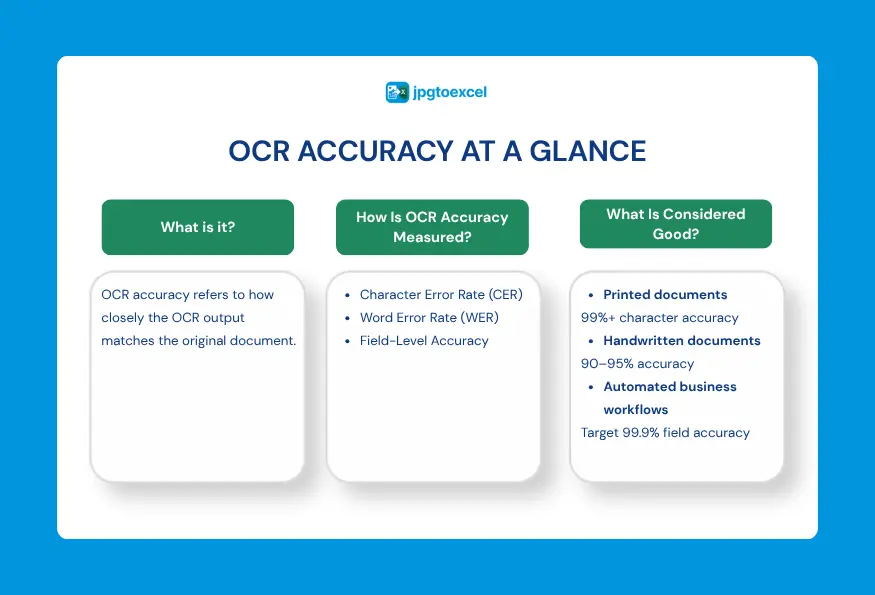
The standard technical metric is character error rate, or CER. It counts how many individual letters or digits the engine got wrong, calculated from the number of insertions, deletions, and substitutions needed to turn the OCR output into the correct text. If the engine reads “Bank” as “B4nk,” that single substitution counts as one character error.
Word error rate, or WER, tends to run higher than CER, because one wrong character ruins the entire word. Tracking both numbers is useful: a low CER means the engine is recognizing shapes correctly, while a low WER means its dictionaries and language models are catching and correcting mistakes before they reach you.
What counts as a good accuracy rate today
Clean, high-resolution scans of printed text commonly reach character-level accuracy above 99 percent with modern engines. Handwriting is a different story, since even strong systems often land in the 90 to 95 percent range, and messy or cursive handwriting can push the error rate higher still. For workflows where no human reviews the output at all, teams generally aim for field-level accuracy near 99.9 percent before they trust the process to run unattended.
What Causes Low Accuracy in The First Place?
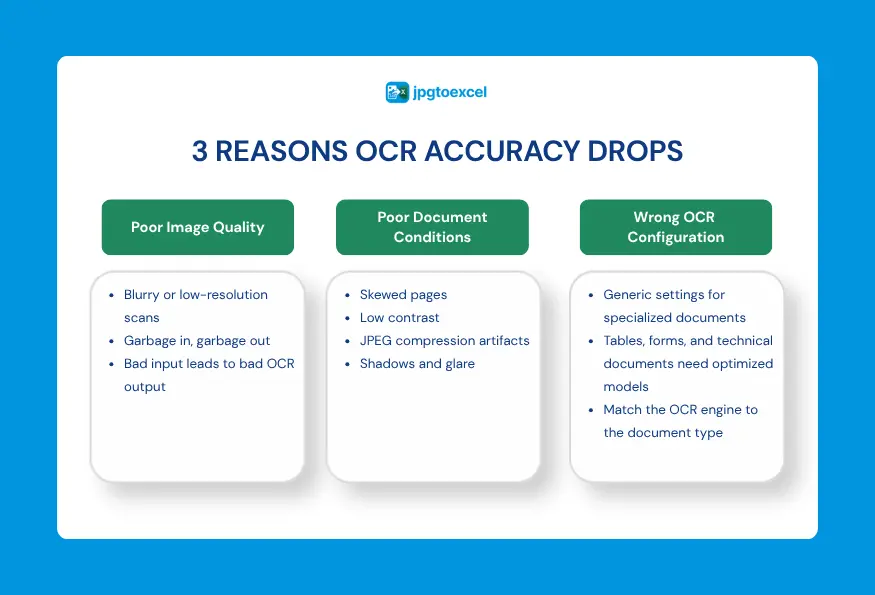
Most OCR accuracy problems trace back to one of three root causes, and knowing which one you are dealing with saves a lot of trial and error.
Poor source image quality: the garbage in, garbage out principle
The quality of your source image is the single biggest factor in your results, and no amount of software polish fully makes up for a bad photo. This is often summed up as garbage in, garbage out: feed the engine a blurry, low-resolution image, and even the best tuning in the world will not save it. Fixing input quality first prevents the majority of errors before they happen, which is far cheaper than chasing them afterward.
Skewed, low-contrast, or compressed scans
A document scanned at even a slight angle confuses the engine’s ability to follow a straight line of text. Low contrast, where the text and background are close in tone, has a similar effect, and heavy JPEG compression adds blur artifacts around each letter that make edges harder to detect. Any one of these issues on its own can meaningfully drag down recognition quality, and they often show up together.
Generic engine settings applied to specialized documents
Most OCR engines ship with default settings built for ordinary paragraphs of text. Point that same default configuration at a dense financial table, a form with checkboxes, or a document full of technical jargon, and accuracy drops, not because the technology is weak, but because the settings do not match the document type. This is a common blind spot: teams blame the engine when the real issue is a mismatched configuration.
How Do You Improve OCR Accuracy Before You Even Scan?
The earliest stage in the pipeline, image acquisition, offers the cheapest, highest-impact wins for accuracy. Everything downstream depends on what you capture here.
Choosing the right resolution for your document type
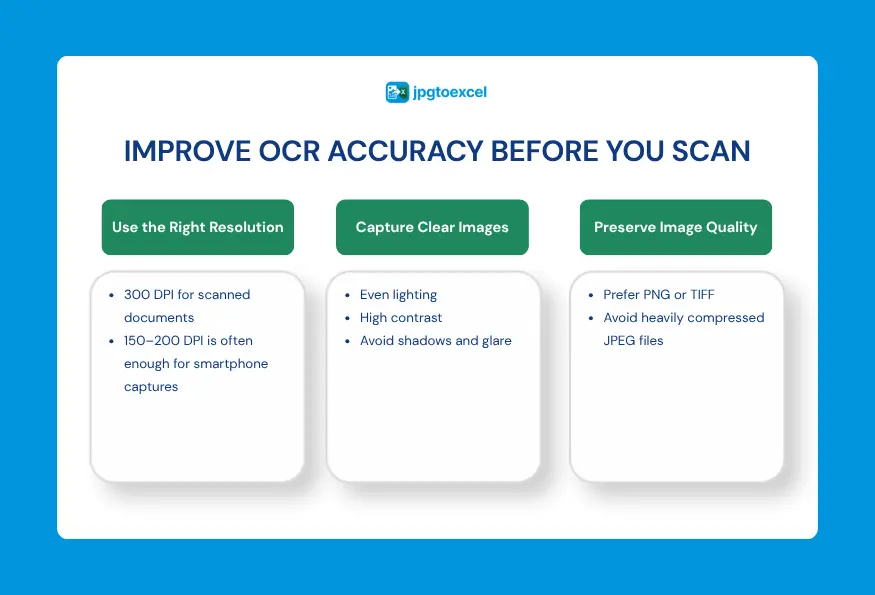
Resolution, measured in dots per inch or DPI, controls how sharp the letters appear once digitized. For professional scanning of dense or small text, 300 DPI is the widely used standard, since anything meaningfully below that causes letter edges to blur or “alias,” which the engine can misread. That said, if you are photographing a document with a modern smartphone rather than running it through a flatbed scanner, a well-lit shot at typical camera resolution already exceeds 150 to 200 DPI in practice, which is enough for a table-aware OCR engine with built-in image enhancement to work with comfortably.
Lighting, contrast, and avoiding glare
Uneven lighting creates shadows that the engine can mistake for graphic elements or missing text. Bright, even light across the whole page keeps contrast high and consistent, and high contrast, where text sits clearly darker than its background, is one of the simplest levers you have. If you are photographing glossy paper, skip the direct flash; the glare it creates can blot out entire lines of text.
Why lossless formats like PNG or TIFF beat JPEG for scanning
JPEG compression trims file size by discarding some image data, and that trade-off shows up as soft, blurred edges around each character. Lossless formats such as PNG or TIFF preserve every pixel captured, giving the engine a crisp, unaltered version of the page to read. If your workflow allows it, saving scans in a lossless format is one of the easiest OCR preprocessing wins available, especially for documents with small or dense text.
What Pre-processing Techniques Boost OCR Accuracy The Most?
Once you have a decent source image, cleaning it up before recognition runs is where a lot of the real accuracy gains happen. This stage is often overlooked, yet it can noticeably improve results even on imperfect scans.
- Binarization converts a color or grayscale image into a high-contrast black-and-white version, which isolates text from background texture and makes each character easier to separate from its surroundings.
- Deskewing detects and corrects the tilt in a crooked scan, straightening text lines so the engine can follow them the way it was trained to.
- Despeckling removes small dots and digital noise, often left behind by old paper or a dusty scanner glass, that the engine might otherwise mistake for stray punctuation.
- Zoning, sometimes called region of interest cropping, focuses the engine on the actual content area instead of margins, logos, and other visual clutter that adds noise without adding value.
Applied together, these four steps form the backbone of most production OCR pipelines, and they are a major reason why a purpose-built table OCR tool consistently outperforms a generic reader on messy real-world documents.

How Do You Tune The OCR Engine For Higher Accuracy?
If you are building your own extraction pipeline rather than using a ready-made tool, engine-level configuration is the next lever worth pulling. This section is aimed at developers and technical teams; if you just need accurate results from a browser, the online conversion steps later in this guide cover that path.
Page segmentation mode and how it changes results
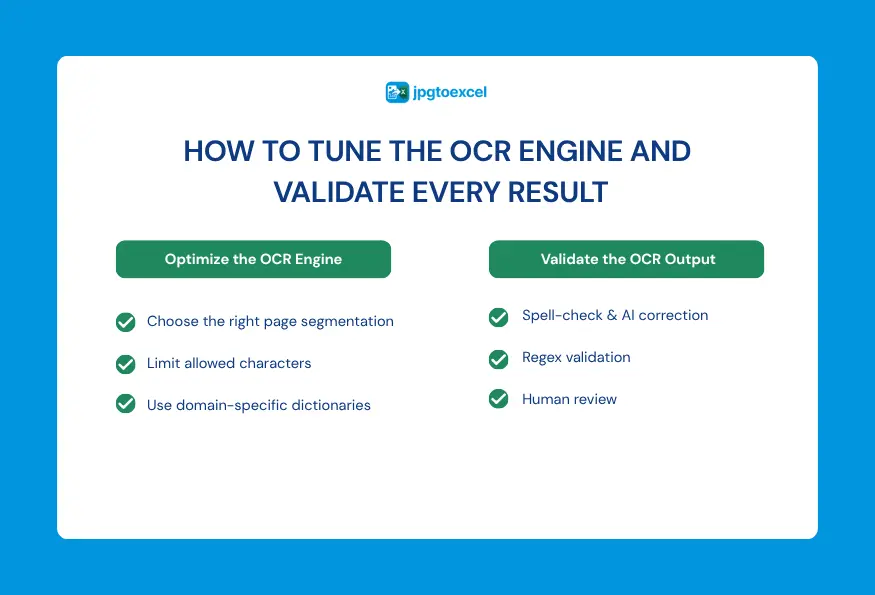
Engines like Tesseract offer several page segmentation modes, letting you tell the software whether to treat an image as a single block of prose, a single line, or a sparse layout with scattered text. Picking the mode that matches your document, rather than leaving the default in place, is one of the more technical but effective ways to raise recognition accuracy. A spreadsheet screenshot, for example, benefits from a sparse mode that avoids trying to read gridlines as characters.
Character whitelisting for structured fields
When a field is known to contain only digits, such as an invoice number or a phone number, restricting the character set to 0 through 9 prevents a common failure mode where the engine confuses a “1” with a lowercase “l.” This kind of whitelisting is a small change with an outsized effect on structured, predictable fields.
Domain-specific dictionaries for specialized documents
A general-purpose dictionary works fine for a novel but struggles with medical terminology or legal language, where a generic word list has never seen the correct spelling. Loading a custom dictionary built around your industry’s vocabulary lets the engine make a smarter guess when a character is genuinely ambiguous.
If you want to see how this fits into a broader integration, our guide on choosing and integrating an OCR API for your own pipeline walks through the selection criteria in more depth.
How Do You Validate OCR Output After Conversion?
Recognition does not end when the engine finishes reading. Post-processing catches the errors that slip through everything above, and skipping it is one of the most common reasons a pipeline looks fine in testing but falls apart in production.
Spell-checking and Levenshtein distance correction
Running a spell checker against the raw output catches obvious mistakes automatically. Many correction tools use Levenshtein distance, a measure of how many single-character edits separate two strings, to fix errors like “1nvoice” back to “Invoice” based on how close the misread word is to a known correct one.
Regex validation for structured fields like phone numbers or IDs
Regular expressions act as a quality gate for predictable formats. If an extracted phone number or ID does not match the expected pattern, regex flags it instantly, which turns validation into something systematic rather than something a person has to eyeball.
Human-in-the-loop review for critical data
Reliable systems assign a confidence score to every extracted word or field, and anything below a set threshold gets routed to a person for a quick check instead of being accepted blindly. This human-in-the-loop step matters even more once you are flagging low-confidence results across a large batch, where a single overlooked page can quietly corrupt an otherwise clean dataset.
Quick-reference checklist: OCR Accuracy Factors at a Glance
Seeing every factor side by side makes it easier to diagnose a specific problem instead of rereading the whole guide each time.
| Cause | Fix | Typical impact |
| Low-resolution scan | Capture at 300 DPI for scanners, or a well-lit smartphone photo | Can prevent a double-digit percentage drop in accuracy |
| Skewed or tilted image | Apply deskewing before recognition | Restores straight text lines the engine can follow |
| Low contrast or JPEG artifacts | Use binarization and lossless formats like PNG or TIFF | Sharper character edges, fewer misreads |
| Background noise or dust specks | Apply despeckling | Removes false punctuation marks |
| Generic engine settings on a specialized document | Tune the page segmentation mode and use a domain dictionary | Better handling of tables, forms, and jargon |
| No review step for critical data | Add confidence scoring and human-in-the-loop checks | Catches errors before they reach a report or ledger |
How Accurate is jpgtoexcelconverter.com Without Manual Tuning?
Not everyone wants to configure page segmentation modes or write regex rules, and that is a reasonable place to land. If you just need a clean, accurate spreadsheet from a photo or scan, a table-aware OCR tool can handle the technical tuning for you.
What the AI already handles for you automatically
jpgtoexcelconverter.com runs image enhancement, contrast correction, and noise reduction automatically before the OCR engine reads the file, so you do not have to apply binarization or despeckling by hand. The engine is also built specifically to detect rows, columns, and merged cells, rather than reading a table as one long, unstructured paragraph the way a generic OCR tool does.
What you can still control to get better results
Even with automatic enhancement, a few habits still make a measurable difference: keep the table straight in frame, avoid heavy shadows or glare, and crop out unrelated background clutter before uploading. You can see these accuracy settings applied in a real conversion walkthrough if you want a step-by-step look at how image quality translates into a cleaner output file.
Frequently Asked Questions about OCR Accuracy
What is a good OCR accuracy percentage?
For clean, printed documents, character-level accuracy above 99 percent is a reasonable benchmark for a modern OCR engine. Field-level accuracy near 99.9 percent is the threshold many teams look for before letting a workflow run without human review.
Why is my OCR accuracy low even with a clear image?
A clear image rules out the most common cause, but engine settings still matter. Generic configurations struggle with dense tables, unusual fonts, or specialized vocabulary, so a mismatch between your document type and the engine’s settings can hold accuracy back even when the source photo looks fine.
Does OCR work well on handwriting?
It depends on the handwriting. Standard OCR accuracy on neat, printed handwriting can reach into the 90s, but cursive script, corrections, or inconsistent letter shapes push error rates noticeably higher. Specialized handwriting recognition engines perform better than general-purpose OCR here, though a human review step is still worth building in for anything critical.
Can OCR accuracy reach 100 percent?
Realistically, no. Even the best engines occasionally misread a character on a genuinely ambiguous or damaged source image. The practical goal is not perfection; it is getting accuracy high enough and pairing it with a validation step so that errors get caught before they cause a real problem.
Bring It All Together and Test Your Own Scans
OCR accuracy is not a fixed property of the software; it is the result of everything that happens from the moment you capture an image to the moment you validate the output. Start with a clean, well-lit, high-resolution source, apply pre-processing like deskewing and binarization, tune the engine to match your document type, and add a review step for anything that matters. Each stage compounds, and skipping one usually shows up as a problem you end up chasing later.
If you want strong results without building any of this yourself, upload a photo or scan and let the AI handle the enhancement, table detection, and cleanup in the background.
Convert your first image to Excel free
- Email: contact@jpgtoexcelconverter.com
- LinkedIn: https://www.linkedin.com/in/jpgtoexcelconverter/
- X: https://x.com/jtoexcelconvert