 August 13, 2025
 11 min read
You have a table trapped in an image. Maybe it’s a screenshot from a financial report, a scanned invoice your client sent over, or a photo you took of a printed price list at a trade show. The data is right there, you just can’t touch it.
Retyping it manually isn’t just slow. On a 200-row table, it takes 45 minutes on average and introduces transcription errors that quietly corrupt your formulas downstream. There’s a faster, more reliable way.
The fastest way to convert image to Excel free: Upload your file to a dedicated table OCR converter, let the AI engine detect and map every row, column, and cell, then download a fully editable .xlsx file, no manual entry, no reformatting, no sign-up required. The entire process takes under 30 seconds.
What Is Table OCR? And Why Generic Tools Fail at Spreadsheets
Most people try a generic OCR tool first. It reads the image, extracts the text, and delivers a wall of unstructured characters that’s completely useless as a spreadsheet.
Standard OCR engines are designed to read text sequentially, left to right, top to bottom. They have no concept of a grid. A table with 6 columns becomes a single run-on paragraph. You end up with more cleanup work than if you’d just typed it yourself.
Table OCR (Optical Character Recognition for tables) is a specialized form of OCR technology trained to detect grid structures, rows, columns, and cell boundaries, rather than simply reading text left to right. Instead of extracting raw characters, it maps the spatial relationship between data points and places each value into its correct cell in the output spreadsheet.
That structural awareness is what makes the difference between a tool that works and one that wastes your time.
How Table-Aware OCR Reads Your Image Differently
A dedicated table OCR engine processes your image in four distinct stages:
- Grid detection: The AI scans the image to identify horizontal and vertical lines, cell borders, and whitespace patterns that define the table structure
- Cell mapping: Each detected cell is assigned a row and column coordinate in the output grid
- Value extraction: Text and numbers within each cell boundary are read and transcribed with confidence scoring to flag low-certainty results
- xlsx assembly: The mapped values are written into a structured Microsoft Excel file, preserving headers, column widths, and row order
Why Preserving Cell Structure Matters for Your Data
Consider a 5-column financial table with revenue figures by quarter. If a generic OCR tool reads it as plain text, your Q3 and Q4 figures might land in the same cell, or in the wrong column entirely. Any SUM or AVERAGE formula you build on top of that data will silently produce wrong results. A table-aware converter eliminates that risk by locking every value to its correct coordinate before it ever reaches Excel.
How to Convert Image to Excel Free: Step-by-Step Guide
The process at JPGtoExcelConverter.com is designed to require zero technical knowledge. Here’s exactly what happens at each step.
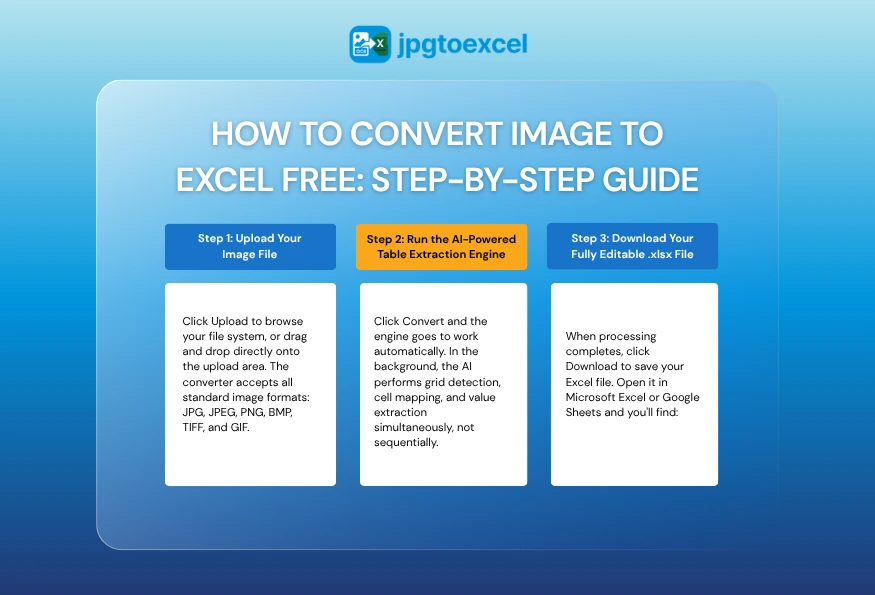
Step 1: Upload Your Image File (JPG, PNG, Screenshot, or Scan)
Click Upload to browse your file system, or drag and drop directly onto the upload area. The converter accepts all standard image formats: JPG, JPEG, PNG, BMP, TIFF, and GIF.
For best results:
- Use images with a minimum resolution of 150 DPI (300 DPI recommended for scanned documents)
- Ensure the table fills the majority of the image frame
- Avoid cropping that cuts off column headers or row labels
Max file size and batch limits depend on your plan; free users can convert individual files immediately with no account required.
Step 2: Run the AI-Powered Table Extraction Engine
Click Convert, and the engine goes to work automatically. In the background, the AI performs grid detection, cell mapping, and value extraction simultaneously, not sequentially, which is why most tables complete processing in under 15 seconds, even for dense financial statements with 50+ columns.
You don’t need to define the table area, draw selection boxes, or configure any settings. The engine identifies the table structure automatically, including merged cells and multi-row headers.
Step 3: Download Your Fully Editable .xlsx File
When processing completes, click Download to save your Excel file. Open it in Microsoft Excel or Google Sheets and you’ll find:
- All values in their correct cells
- Column headers preserved as row 1
- Numeric data stored as numbers (not text strings), meaning your SUM formulas work immediately
- No phantom merged cells or misaligned columns
One recommended check: Scan 5–10 random cells against the original image to confirm accuracy, particularly for tables with unusual fonts or low-contrast backgrounds.
5 Real-World Use Cases That Save Hours of Manual Work
Table OCR isn’t a niche tool. These are the five scenarios where it delivers the most immediate time savings:
- Scanned invoices to accounts payable spreadsheet: Extract vendor name, line items, quantities, and totals directly into your AP workflow without touching a keyboard
See the full walkthrough in our guide to converting JPG invoices to Excel.
- Competitor pricing screenshots to comparison Excel: Turn a screenshot of a competitor’s published price list into a side-by-side analysis model in seconds
- Printed survey results to an analyzable dataset: Digitize physical survey forms or printed research tables for immediate statistical analysis
- Expense receipts from business trips: When it comes to converting receipt photos to Excel, the best OCR tools can turn photos of itemised receipts into formatted expense reports ready for accounting review.
- Data tables from PDF reports: Extract market research tables, government statistics, or industry benchmarks from PDF screenshots into live Excel models
In each case, the alternative is manual retyping, which for a 100-row table typically runs 20–40 minutes and carries a 3–5% error rate even for careful typists.
JPG to Excel vs. Other Methods: Which One Actually Works?
Several tools claim to handle image-to-spreadsheet conversion. Here’s how they compare on the metrics that actually matter:
| Method | Accuracy | Speed | Free | Preserves Structure |
| JPGtoExcelConverter.com | ⭐⭐⭐⭐⭐ | Under 15 sec | ✅ | ✅ |
| Microsoft Excel (Insert Data from Picture) | ⭐⭐⭐ | 1–3 min | ✅* | ⚠️ Partial |
| Google Sheets OCR (via Drive) | ⭐⭐ | 2–5 min | ✅ | ❌ |
| Generic OCR tools (non-table-specific) | ⭐⭐ | 30 sec | ⚠️ | ❌ |
| Manual retyping | — | 20–90 min | ✅ | ✅ |
*Microsoft Excel’s built-in “Insert Data from Picture” feature requires a Microsoft 365 subscription on mobile and produces inconsistent results with complex multi-column tables.
Google Sheets OCR converts images to text but does not interpret table structure, the output requires significant manual cleanup before it’s usable as a spreadsheet.
For straightforward, high-accuracy conversion with zero configuration, a purpose-built table OCR converter outperforms every alternative on this list.
Tips for Getting the Best OCR Accuracy Results
The converter handles the heavy lifting, but image quality directly affects output accuracy. These inputs consistently produce the cleanest results.
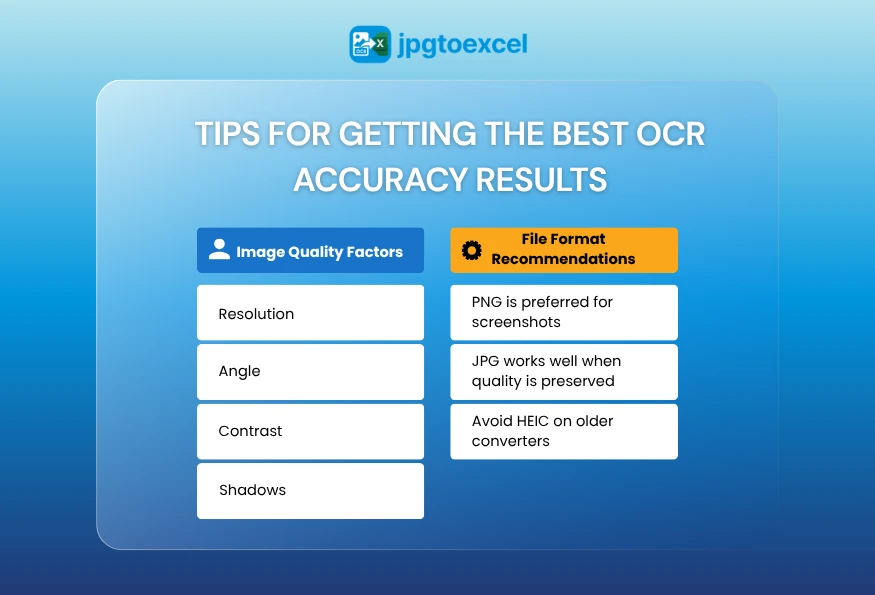
Image Quality Factors That Directly Affect Accuracy
- Resolution: 150 DPI minimum for acceptable results; 300 DPI for complex tables with small text. Images taken with a modern smartphone camera in good lighting typically meet this threshold automatically
- Angle: Photograph tables straight-on. Even a 10–15° tilt introduces keystone distortion that degrades cell boundary detection. If you’re photographing a physical document, flatten it completely before shooting
- Contrast: High contrast between text and background (black text on white paper) produces near-perfect results. Low-contrast combinations, grey text on cream paper, reduce confidence scores and increase the chance of misread characters
- Shadows: A shadow across one corner of a table can render 2–3 columns unreadable. Use diffuse lighting or a flatbed scanner for physical documents
File Format Recommendations for Cleaner Output
- PNG is preferred for screenshots: PNG is lossless, meaning there’s no compression artifact blurring text edges. Always use PNG when capturing screen content
- JPG works well when quality is preserved: JPG files saved at 80% quality or higher produce reliable results. The issue is downstream compression: images shared via WhatsApp, Messenger, or email clients are often automatically recompressed to 50–60% quality, which visibly degrades text sharpness
- Avoid HEIC on older converters: If your iPhone saves in HEIC format, convert to JPG or PNG first to ensure compatibility
Is It Safe to Upload My Files? Security & Privacy Explained
Business users uploading invoices, financial statements, or client data have a legitimate reason to ask this question before using any online tool.
Here’s how JPGtoExcelConverter.com handles your files:
- Encrypted transfer: All file uploads are transmitted over HTTPS with TLS encryption, the same standard used by online banking platforms
- Automatic deletion: Uploaded files and converted outputs are permanently deleted from servers automatically after processing completes. No file is retained for training, analysis, or any secondary purpose
- No account required: Because no user account is created, there is no profile, no stored history, and no data linkage between sessions
- No third-party sharing: Files are never shared with, sold to, or accessible by any third party
For enterprise users handling regulated data (HIPAA, GDPR, SOC 2 environments), review the full privacy policy before use. [EXTERNAL SOURCE: JPGtoExcelConverter.com Privacy Policy]
Closing Thoughts
Manually transcribing table data from images is one of the most common and most avoidable time sinks in office workflows. A 200-row table that takes 45 minutes to retype takes 20 seconds to convert with the right tool.
The technology to convert image to Excel accurately, securely, and for free exists right now. You don’t need a subscription, a software download, or technical knowledge to use it. You need a clear image and 30 seconds.
Stop retyping data manually. Convert image to Excel for free right now.
FAQs about converting an image to Excel
How do I convert an image to Excel for free?
Go to JPGtoExcelConverter.com, upload your JPG, PNG, or screenshot file, and click Convert. The AI engine extracts your table data and delivers a fully editable .xlsx file in under 30 seconds. No account, no credit card, and no software installation required. Free conversions are available immediately on the homepage.
Can I turn a photo of a table into an Excel spreadsheet?
Yes, as long as the photo is reasonably clear and well-lit. Table OCR technology detects the grid structure of your table from the image, maps each cell’s value to the correct row and column, and outputs a structured .xlsx file. A photo taken with a modern smartphone in good lighting is typically sufficient for accurate conversion.
What is the best free JPG to Excel converter online?
The best converter combines three things: table-aware OCR (not generic text extraction), high accuracy on complex multi-column tables, and strong privacy practices. JPGtoExcelConverter.com is purpose-built for table conversion; it preserves cell structure, handles headers correctly, and permanently deletes your files after processing, making it a strong choice for both personal and business use.
How accurate is OCR when converting tables from images?
With a high-quality source image, good lighting, straight angle, 150+ DPI, a dedicated table OCR engine achieves over 99% character-level accuracy. Accuracy drops with low-resolution images, significant skew, shadows, or compressed JPGs. For critical data, always spot-check 5 –10 cells against the original image after conversion, especially for tables with numeric data that will feed into formulas.
How do I extract data from a picture into Excel without retyping?
Upload the image to a table OCR converter like JPGtoExcelConverter.com. The tool automatically detects your table’s structure, reads every cell, and generates a downloadable .xlsx file, no retyping, no copy-paste, no manual formatting. The entire process takes three clicks and under 30 seconds for most standard table sizes.