 December 13, 2025
 11 min read
Batch OCR is the fastest way to convert large collections of scanned documents, PDFs, or images into searchable, editable data. Instead of processing one file at a time, batch OCR reads dozens or even hundreds of files in a single run, saving hours of repetitive work and making large document collections usable.
Whether you are dealing with scanned invoices, receipts, bank statements, forms, or archived reports, manually opening each file quickly becomes the bottleneck. Batch processing removes that friction by extracting text from multiple documents simultaneously and exporting the results into formats such as Excel, CSV, or searchable PDFs.
This guide explains what batch OCR is, how it differs from single-file OCR, and which method fits your workload, whether that means desktop software, a developer API, or a free online tool. You will also find a step-by-step walkthrough for converting a batch of images to Excel, tips for keeping accuracy high at scale, and answers to the questions people ask most about bulk OCR processing.
Whether you are clearing out a filing cabinet, catching up on a quarter of unfiled receipts, or building an automated intake pipeline for a growing business, the method you pick should match the volume and sensitivity of what you are processing. The sections below break each option down so you can match the right tool to the job instead of guessing.
What is batch OCR and how is it different from single-file OCR?
Batch OCR, short for batch Optical Character Recognition, is the automated process of converting many scanned documents or images into searchable, editable text at once, rather than one file at a time. A single-file OCR tool asks you to scan a page, wait, and copy the result before moving to the next document. That works fine for one letter or a short PDF, but it breaks down the moment you have a month of invoices or a company archive to process.
The difference is not only speed. Batch OCR treats a whole folder as one job, applying the same settings, language, and output format to every file, so results stay consistent across hundreds of documents instead of varying page by page depending on who ran the scan.
How multi-threaded processing speeds up large batches
Standard OCR usually runs one page at a time, finishing each before starting the next. Batch OCR tools use multi-threading instead, splitting the workload across several processor cores so multiple files are read in parallel. If you want to understand how OCR engines read and structure text before they ever hit that parallel-processing stage, our deeper breakdown covers the recognition steps in detail.
That parallel approach is the reason a batch that would take a week by hand can finish in minutes with the right software. A folder of flat JPEGs or scanned PDFs is what most teams call a dead archive: you cannot search it, and no client name or invoice number hidden inside it means anything to a computer. Running batch OCR turns that folder into a live database where every word is indexed and every table becomes usable data.
Common use cases for batch OCR across industries
Batch OCR shows up wherever paper or scanned images pile up faster than anyone can type them out. A few examples make the pattern clear.
- Accounting teams use it to pull line items from stacks of supplier invoices and bank statements.
- Research teams use it to digitize data tables from old journals, textbooks, and printed surveys.
- HR departments use it to convert attendance sheets and legacy employee records into searchable files.
- Logistics teams use it to extract data from bills of lading and shipping manifests.
- Students and educators use it to turn textbook tables or printed handouts into editable spreadsheets for homework and grading.
Finance and audit teams in particular rely on batch OCR for recurring, high-volume work, since invoices and statements arrive on a predictable schedule and follow a similar layout. If you want to see how this plays out in practice, our guide on automating financial document reviews walks through a full audit workflow built around bulk OCR, from intake through reconciliation.
Why does batch OCR matter for time and accuracy?
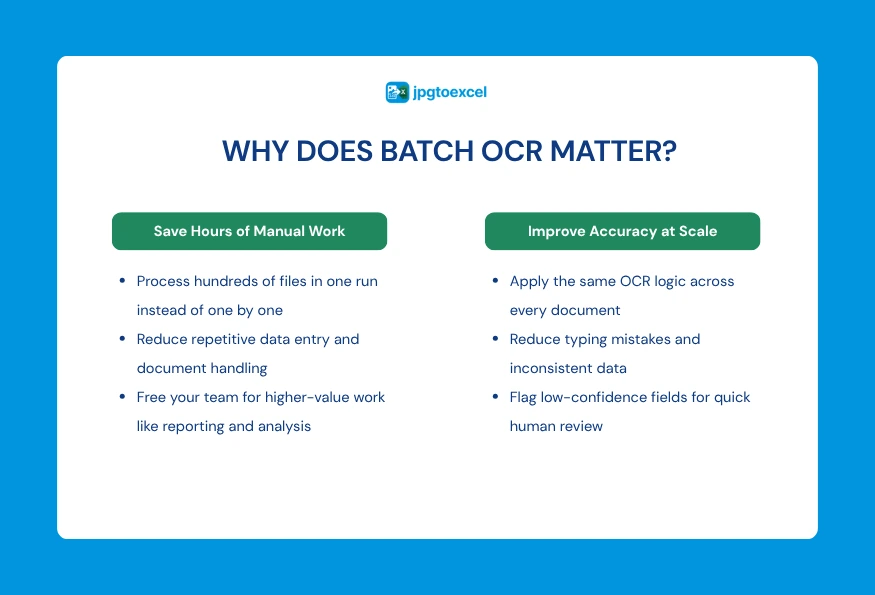
The case for batch OCR comes down to two things: how much time it saves, and how many mistakes it removes from the process. Both matter more as document volume grows, which is why the benefit compounds for busy teams rather than staying flat.
Time and cost savings at scale
Typing data from a single invoice by hand might take two or three minutes once you count locating the file, reading it, and entering each field correctly. Multiply that by 200 invoices in a month, and a bookkeeper can lose six to ten hours to a task that batch OCR finishes in well under an hour. That reclaimed time goes toward reconciliation, reporting, and other work that genuinely needs a person’s judgment.
The same math holds for a research assistant digitizing 150 pages of printed survey data, or an HR coordinator converting a decade of paper attendance sheets. In each case, the manual version of the task scales in a straight line with document count, while a batch OCR run adds only a few extra minutes as the batch size grows.
Fewer errors than manual data entry
Manual entry is tiring, and tired people mistype numbers. A misread digit on an invoice or bank statement can throw off a report or trigger a compliance flag further down the line. Batch OCR applies the same recognition logic to every file in the batch, and modern tools flag low-confidence results for human review instead of letting them slip through silently.
How do you choose the right batch OCR method?
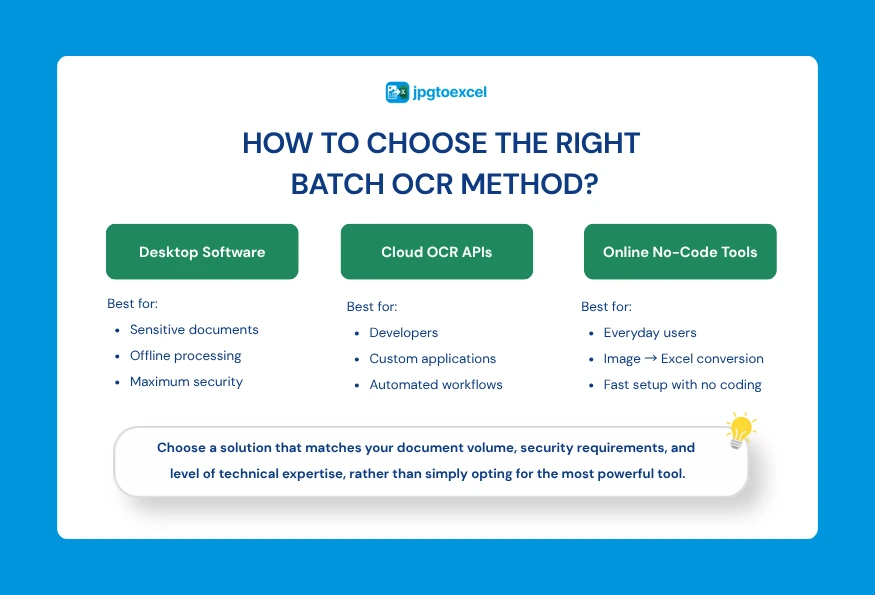
Not every batch OCR job needs the same tool. The right choice depends on how sensitive your documents are, how many files you process each month, and whether you have a developer available to build a custom integration.
Desktop software for maximum security
For law firms, clinics, and other organizations handling sensitive files, desktop batch OCR software keeps everything on a local machine or office network, so nothing has to leave the building. ABBYY FineReader is the most established option here, letting you point the software at a source folder and an output folder and let it work through every file automatically. Adobe Acrobat Pro offers similar automation through its Action Wizard, and NAPS2 is a solid open-source alternative for teams working with a tight budget.
Cloud APIs built for developers
When a team has engineers on staff and needs OCR built directly into an internal app, cloud APIs make more sense than desktop software. Google Cloud Vision handles printed and handwritten text across dozens of languages, and Amazon Textract goes a step further by recognizing tables and form fields, which makes it well-suited to bulk image-to-Excel-style extraction inside a custom pipeline.
No-code online tools for everyday users
Not everyone needs an API or a desktop install. If you just need to turn a batch of receipts or a stack of scanned tables into a spreadsheet without writing a line of code, a browser-based tool does the job in a few clicks. jpgtoexcelconverter.com falls into this category: upload up to 100 images at once, and the tool reconstructs each table’s rows and columns before handing you an XLSX file, with no account required.
If you are still deciding between a paid desktop suite and a free browser tool, our detailed comparison of free versus paid OCR software breaks down where each option actually makes sense for your budget and volume.
Batch OCR methods compared
Each method trades off cost, scale, and technical effort differently, and seeing them side by side makes the choice easier than reading three separate product pages.
| Method | Best for | Setup effort | Typical cost |
| Desktop software | Sensitive, local files | Install and configure once | One-time license, roughly $100 to $200+ per year |
| Cloud API | Custom apps, very large scale | Requires a developer to integrate | Pay per page or per API call |
| Online tool | Quick conversions, no code needed | None, upload and go | Free for small batches, paid plans for higher volume |
A simple rule of thumb helps here: pick desktop software when data cannot leave your network, pick a cloud API when you are building the OCR step into your own product, and pick an online tool when you just need a clean spreadsheet today without installing anything or writing code.
How do you batch OCR images to Excel in three steps?
Converting a stack of images into a working spreadsheet does not require any technical setup on your end. Here is what the process looks like using a no-code online batch OCR tool.
Step 1: Upload your batch of images
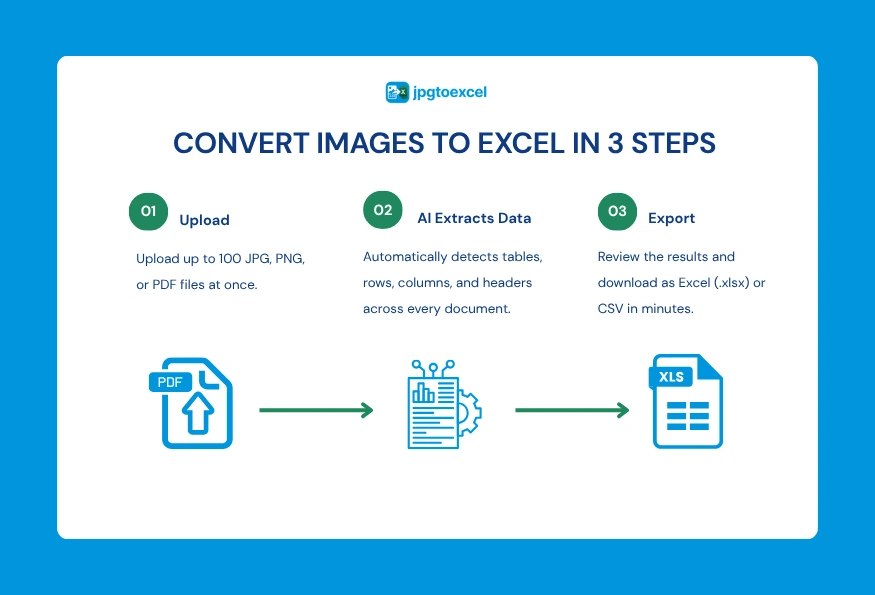
Drag your JPG, PNG, or PDF files into the upload area, or click to browse your folder. jpgtoexcelconverter.com accepts up to 100 images in a single batch, which covers most invoice runs, receipt stacks, or scanned report sets in one pass.
Step 2: Let the AI extract the table structure
Once the files are uploaded, the OCR engine scans each image, detects rows and columns, and reconstructs merged cells and headers the way they appeared in the original document. This step runs across the whole batch at once instead of one file at a time, which is what makes it a true batch OCR process rather than a queue of single conversions.
Step 3: Review and export your spreadsheet
When processing finishes, you can preview each extracted table before downloading it. Export the result as XLSX or CSV, or copy it as HTML straight into Google Sheets. The whole batch, from upload to download, typically finishes in under a minute for a standard set of images.
How do you automate batch OCR with hot folders?
Teams that process the same type of document every day can skip manual uploads entirely by setting up a hot folder, also known as a watched folder. This is where batch OCR moves from an occasional task to a background process.
Setting up a watched folder
A hot folder is a directory that batch OCR software monitors continuously. The moment a new scan lands in it, perhaps sent there directly by a network scanner, the software wakes up and starts processing automatically. Once finished, it saves the searchable version to an output folder and archives the original, with no one touching a mouse.
Connecting batch OCR to Zapier or Power Automate
Automation platforms like Zapier and Microsoft Power Automate can trigger a batch OCR job whenever a file lands in a connected folder, such as a Dropbox or Google Drive folder. From there, the extracted data can flow straight into a spreadsheet or accounting tool, turning what used to be a manual task into a process that runs itself.
A typical setup looks like this: an email attachment saves to a Dropbox folder, that save triggers a batch OCR API call, and the extracted rows land directly in a Google Sheet a few seconds later. No one on the team has to open the file, run a conversion, or copy a single number by hand.
How do you keep batch OCR accurate at scale?
Running OCR on thousands of files only helps if the output is trustworthy. A messy scan produces a messy result, no matter how fast the software runs, so accuracy starts before the OCR engine ever sees the file.
Pre-processing steps that improve recognition
Three adjustments make the biggest difference before recognition begins:
- Deskewing straightens crooked scans, which helps the engine read text lines correctly.
- Binarization converts grey, low-contrast images into clean black and white, separating text from background noise.
- Despeckling removes small dots and digital dust that can be mistaken for punctuation marks.
Scanning at 200 DPI or higher, with even lighting and minimal glare, gives the OCR engine a far better starting point than a quick phone photo taken at an angle.
Post-processing checks before you trust the data
Reliable batch OCR tools assign a confidence score to each word or field they extract. Anything below a set threshold gets flagged for a quick human check instead of being accepted automatically. Building that review step into your workflow keeps one blurry page from quietly corrupting an otherwise clean batch.
Frequently asked questions about batch OCR
Is batch OCR free?
Free batch OCR tools exist and work well for smaller volumes. jpgtoexcelconverter.com, for example, lets you convert up to 100 images per batch at no cost and without creating an account, while high-volume enterprise workflows built on APIs like Amazon Textract typically charge per page processed.
How accurate is batch OCR?
Accuracy depends heavily on image quality. Clean, high-resolution scans of printed text commonly reach over 99 percent character accuracy, while blurry photos or handwritten notes need more pre-processing and a human review step to reach the same level of reliability.
Can batch OCR convert images directly to Excel?
Yes. Tools built specifically for table extraction, rather than plain text OCR, detect rows, columns, and merged cells, then export the result directly as an XLSX or CSV file ready to open in Excel or Google Sheets. This is different from a generic OCR engine, which often returns a wall of unstructured text that still needs manual cleanup.
Is my data safe with an online batch OCR tool?
Reputable online OCR tools encrypt files in transit and delete them from their servers shortly after processing, so the images are never stored or shared. If your documents contain sensitive financial or medical information, check the provider’s privacy policy directly, or consider a desktop tool that keeps files on your own machine instead of a remote server.
How many files can I process in one batch?
Limits vary by tool. Free online converters, including jpgtoexcelconverter.com, commonly cap a single batch at 100 images, while paid plans and enterprise APIs raise that ceiling into the thousands, since they run on dedicated cloud infrastructure rather than a browser session.
Conclusion
The goal of every batch OCR workflow is the same: to spend less time typing and more time using your data.
As you have seen throughout this guide, successful bulk document processing involves more than just text recognition. It begins with selecting the appropriate OCR approach for your workload, creating high-quality scans and choosing a workflow that aligns with your technical requirements. For occasional conversions, a free online tool may be all you need. However, teams handling thousands of documents each month may benefit from desktop software, cloud APIs or fully automated pipelines using hot folders and workflow automation.
The good news is that you do not have to build an enterprise system to reap the benefits. Even automating the first step, which is extracting structured data from large batches of images, can eliminate hours of manual data entry while improving consistency and reducing errors.
If your goal is to convert scanned tables, invoices, receipts or other documents into editable spreadsheets, you can start with a simple no-code workflow and scale up as your document volume increases.
Ready to batch OCR your files for free with jpgtoexcelconverter.com
Stop retyping tables one row at a time. Upload up to 100 images at once and download a clean Excel file in under a minute, with no signup required.
- Email: contact@jpgtoexcelconverter.com
- LinkedIn: https://www.linkedin.com/in/jpgtoexcelconverter/
- X: https://x.com/jtoexcelconvert