 October 16, 2025
 11 min read
Mobile scanning and OCR apps are fundamentally redefining personal and professional productivity in 2026. Not long ago, the simple task of turning a physical paper document into a high-quality digital file required a large, expensive, and noisy machine known as a flatbed scanner. These hardware devices occupied valuable desk space and were permanently tethered to a desktop computer, creating a significant bottleneck for professionals on the move. Today, that powerful digitization technology has shrunk to fit inside the one device we carry everywhere: our smartphone.
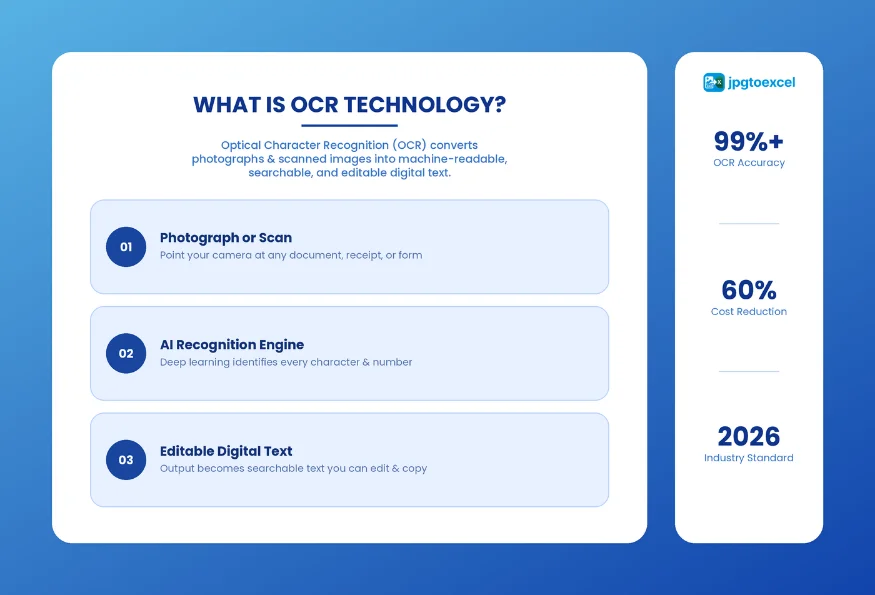
With global smartphone ownership reaching billions, the dedicated scanner has become a niche product. This technological shift has democratized scanning, making it accessible to everyone—from students digitizing lecture notes to small business owners archiving multi-page invoices. This modern convenience is made possible by high-precision mobile scanning and OCR apps, utilizing Optical Character Recognition to act as a digital translator that reads text in a photo and converts it into words you can edit, search, and analyze. In 2026, automating data entry with these tools has become a strategic advantage, reducing processing costs by as much as 60% and freeing employees from hours of manual typing.
What Is OCR Technology and Why Does It Matter in 2026?
Optical Character Recognition (OCR) is a technology that analyzes the pixels in a photograph or scanned image, identifies letter and number shapes, and converts them into machine-readable, editable text. In practical terms, it is what transforms a photo of a printed invoice into a Word document you can search, copy, and edit.
For most of computing history, OCR required dedicated flatbed hardware and expensive enterprise software, permanently anchoring document digitization to a desk. That changed when smartphone cameras surpassed 12 megapixels and AI-powered image processing became fast enough to run on a mobile chip. Today, a free app on your phone outperforms scanning hardware that cost thousands of dollars a decade ago.
The market data reflects this shift. According to a Grand View Research OCR market report, the global OCR market was valued at $13.38 billion in 2023 and is projected to grow at a compound annual rate of 16.7% through 2030, driven primarily by mobile adoption and enterprise AI integration. Businesses that have adopted mobile OCR tools consistently report reducing document processing costs by up to 60% compared to manual entry workflows.
In 2026, the technology has matured into something genuinely reliable. Deep learning models now handle degraded text, thermal paper receipts, and printed non-cursive handwriting with accuracy rates that were unachievable just three years ago. The question is no longer whether mobile OCR works. The question is which app works best for your specific use case.
The 5 Best Mobile Scanning and OCR Apps in 2026 at a Glance
The top mobile scanning and OCR apps in 2026 are Adobe Scan, Microsoft Lens, CamScanner, Genius Scan, and Google Lens. Adobe Scan delivers the best overall image quality for free. Microsoft Lens integrates natively with the Office 365 suite at zero cost. CamScanner offers the most comprehensive feature set for power users. Genius Scan leads on in on-device privacy. Google Lens excels at real-time visual search and translation.
| App | Best For | OCR Accuracy | Languages | Free Plan | Cloud Integration |
| Adobe Scan | General users, Adobe ecosystem | 99%+ on printed text | 25+ | Yes, unlimited scans | Adobe Document Cloud |
| Microsoft Lens | Microsoft 365 users | 99%+ on printed text | 30+ | Yes, fully free | OneDrive, SharePoint, OneNote |
| CamScanner | Power users, high volume | 98%+ on standard docs | 40+ | Yes, with ads | Google Drive, Dropbox, Box |
| Genius Scan | Legal, healthcare, finance | 97%+ on clean docs | 15+ | Yes, core features | Optional, on-device by default |
| Google Lens | Android users, quick lookups | 98%+ on printed text | 100+ | Yes, fully free | Google Drive, Google Photos |
How We Tested These Apps
Our evaluation covered four performance dimensions: scan quality on varied surfaces, OCR accuracy across document types, workflow speed from capture to export, and privacy architecture. Test documents included printed business letters, thermal paper receipts, crumpled forms, handwritten notes, and multi-column financial tables. Each app was tested on both iOS and Android under identical controlled lighting conditions, and results were scored on a standardized rubric across all four dimensions.
Need to turn your scanned document into a structured Excel file? Upload your JPG or PDF at jpgtoexcelconverter.com and get a clean, column-accurate spreadsheet in seconds.
Adobe Scan vs Microsoft Lens: A Direct Comparison
Adobe Scan and Microsoft Lens are the two most searched apps in this category, and for good reason. Both are free, both are backed by global technology companies, and both solve the core scanning problem exceptionally well. Where they diverge is in their ecosystem integration and the type of professional they are designed for.
Adobe Scan: Full Review 2026
Adobe Scan is the strongest free option for users who need professional-grade image output. Its AI image enhancement engine, powered by Adobe Sensei, automatically detects document edges, removes hand shadows, corrects perspective distortion, and sharpens text in a single processing step. The result is a scan that looks like it came from a flatbed machine, not a smartphone held at an angle under office lighting.
Key strengths:
- Unlimited free scans with no ads or watermarks
- Automatic shadow removal, contrast enhancement, and perspective correction
- Scan-to-sign workflow with integrated Adobe Acrobat Sign support
- Multi-page PDF creation directly within the app
- Automatic cloud sync to Adobe Document Cloud for desktop access
Key limitations:
- Excel export requires an Acrobat Pro subscription ($19.99/month in 2026)
- Password-protecting PDFs is a paid feature, not available on the free plan
- Strong ecosystem dependency means non-Adobe users get less value from integrations
Best for: General users, creative professionals, and anyone already using Adobe Acrobat or Acrobat Sign.
Microsoft Lens: Full Review 2026
Microsoft Lens is the most generous free scanning app available in 2026. There are no subscriptions, no hidden feature gates, and no ads. Every capability the app offers is available to every user at zero cost. In a market where most competitors use freemium models to restrict their most useful features, that alone makes Microsoft Lens remarkable.
Key strengths:
- Completely free with no paid tiers on any platform
- Business Card Mode captures contact details and saves them directly to your phone’s address book
- Whiteboard Mode converts meeting diagrams and brainstorm notes into editable PowerPoint slides
- Native integration with Teams, SharePoint, OneNote, and OneDrive
- Strong OCR accuracy on clean, standard business documents
Key limitations:
- No advanced annotation, watermarking, or in-app OCR text editing
- Image enhancement is less aggressive than Adobe Scan on degraded or shadowed documents
- Delivers the most value specifically to users already in the Microsoft 365 ecosystem
Best for: Corporate users, Microsoft 365 subscribers, and teams that rely on Teams, SharePoint, or OneNote as their primary collaboration tools.
Adobe Scan vs Microsoft Lens: Which One Should You Choose?
| Criteria | Adobe Scan | Microsoft Lens |
| Image quality | Excellent (AI-powered enhancement) | Very Good |
| OCR accuracy | 99%+ on printed documents | 99%+ on printed documents |
| Cost | Free (some features require Acrobat Pro) | Completely free, no upsell |
| Best ecosystem | Adobe Document Cloud, Acrobat Sign | Microsoft 365, Teams, OneDrive |
| Excel export | Paid (Acrobat Pro required) | Via Word conversion only |
| Whiteboard scan | Basic | Excellent (converts to PowerPoint) |
Decision framework: three questions to pick the right app.
- Do you use Adobe Acrobat for document signing or advanced PDF editing? Choose Adobe Scan.
- Do you use Microsoft Teams, SharePoint, or OneNote as your daily work hub? Choose Microsoft Lens.
- Do you rely on neither ecosystem? Adobe Scan wins on raw image quality alone.
CamScanner and Genius Scan: The Specialist Alternatives
CamScanner: Full Review 2026
CamScanner is the most feature-complete scanning app on the market. No other mobile tool offers the same breadth of document management capabilities in a single interface, which is why it has maintained a loyal user base for over a decade despite intense competition from better-funded rivals.
Key strengths:
- OCR text editing directly within the app, allowing you to fix errors before exporting
- Custom watermarking for professional correspondence and branded document output
- Document collage, annotation, and markup tools built into the core app
- OCR support for over 40 languages, including complex scripts
- Team collaboration features, including shared document libraries and access controls
Key limitations:
- Free version includes ads and places watermarks on exported documents
- A 2019 security incident involving malware in an ad library damaged user trust, though the company resolved the issue and has maintained a clean record since
- Most valuable features require a paid subscription
Best for: Power users, teams that need in-app OCR editing, and high-volume document processors who require maximum feature control and multi-language support.
Genius Scan: Full Review 2026
Genius Scan is built around a single design principle: your documents should never leave your device unless you explicitly choose to send them. All scanning, image processing, and OCR runs locally on your phone. Nothing is uploaded to a third-party server. For professionals handling sensitive documents, this is not a convenience feature. It is a compliance requirement.
Key strengths:
- Fully on-device processing with zero cloud dependency by default
- Batch scanning mode captures multiple pages sequentially without interruption
- Fast, clean interface optimized for high-volume scanning sessions
- One-time purchase model with no recurring subscription fees
- PDF encryption and password protection included in the base app
Key limitations:
- Fewer collaboration and team-sharing features compared to CamScanner or Microsoft Lens
- AI image enhancement is less advanced than Adobe Scan’s Sensei-powered processing
Best for: Legal professionals, healthcare workers, financial advisors, and anyone working with documents subject to HIPAA, GDPR, or attorney-client privilege requirements.
How to Choose the Right Scanning App for Your Use Case
For Business and Finance Teams
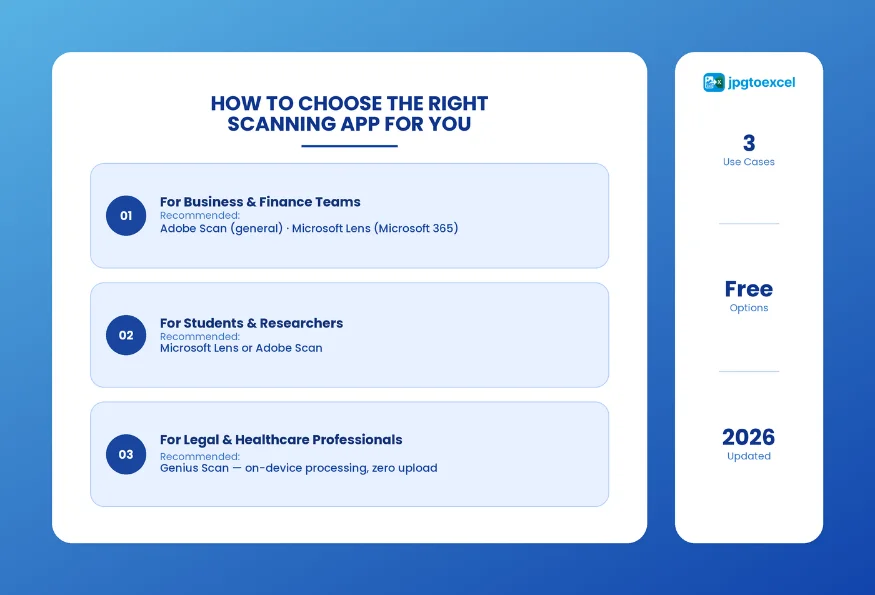
Recommended app: Adobe Scan for general teams; Microsoft Lens for Microsoft 365 environments.
A complete finance workflow looks like this: scan a supplier invoice with Adobe Scan, export as PDF to Document Cloud, review in Acrobat on desktop, then upload the JPG or PDF to jpgtoexcelconverter.com to extract all line items into a structured Excel file ready for import into your accounting software. This workflow eliminates manual data entry at every stage, from capture to reporting.
For a deeper look at automating your entire document intake process, see our guide to automating invoice processing workflows.
For Students and Researchers
Recommended app: Microsoft Lens or Adobe Scan.
Students scanning library materials, printed lecture slides, or handwritten notes benefit most from apps with strong multi-page handling and fast cloud sync. Microsoft Lens integrates directly with OneNote, making it simple to organize scanned content into subject-specific notebooks. Adobe Scan’s clean, high-fidelity PDF output is ideal for submitting digitized sources in academic work or attaching to research submissions.
For Legal and Healthcare Professionals
Recommended app: Genius Scan.
Any document containing protected health information (PHI) or privileged legal communication requires processing that stays on the device. Genius Scan is the only major scanning app in this category that guarantees zero server-side data handling. Before deploying any scanning tool in a regulated environment, verify that the app’s data architecture aligns with your organization’s HIPAA, GDPR, or sector-specific compliance obligations.
For a full breakdown of compliance requirements by industry, see our guide to document security for regulated industries.
From Scan to Spreadsheet: The Complete Digitization Workflow
Scanning a document is the first step in a larger process. For business users, the real value is not the PDF itself. It is the structured, actionable data inside that PDF, extracted cleanly and ready for analysis. Manual retyping introduces errors, consumes hours, and creates a bottleneck that defeats the purpose of going digital in the first place. Here is the complete five-step workflow that eliminates manual data entry from capture to final report:
- Capture: Use your preferred mobile scanning app to photograph the document. Apply automatic edge detection and image enhancement.
- Export: Save the finished scan as a JPG or PDF to your preferred cloud storage or local device folder.
- Upload: Go to jpgtoexcelconverter.com and upload your JPG, PNG, or PDF file directly from your browser.
- Convert: The platform extracts all text and numerical data, preserving the original row-and-column structure of tables, line items, and financial data.
- Import: Download the clean Excel or CSV file and import it directly into your reporting dashboard, accounting platform, or database.
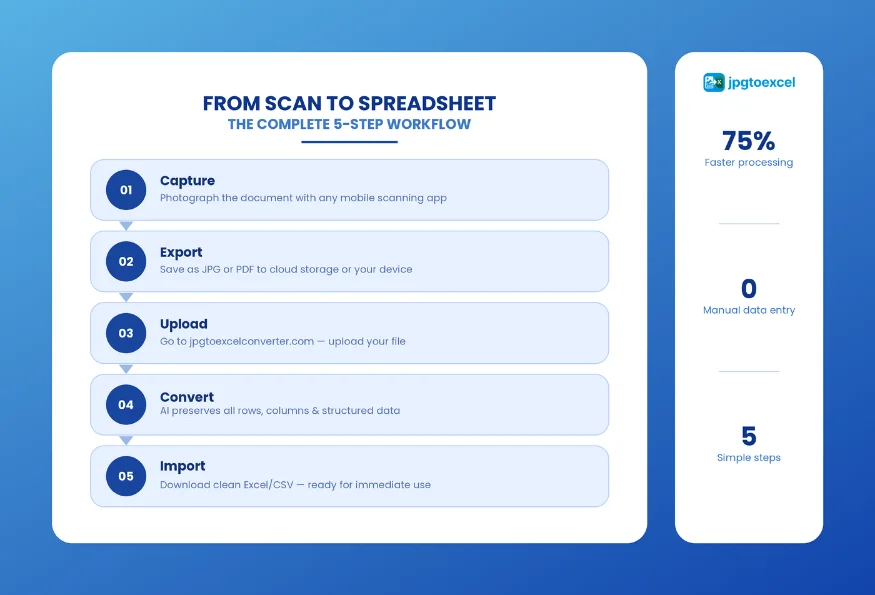
This workflow delivers the most value for financial tables, inventory lists, survey response grids, and any document where structured numerical data needs to move into a spreadsheet without human retyping. According to a McKinsey Global Institute report on document automation, organizations that implement end-to-end digitization workflows report reducing document processing time by an average of 75%.
For a step-by-step walkthrough of the full conversion process, see our guide to converting PDF and scanned images to Excel accurately.
Conclusion: Which App Should You Download?
Choosing the right tool from the available mobile scanning and OCR apps comes down to three variables: your ecosystem, your security requirements, and the output format your workflow demands. Adobe Scan wins on image quality and suits most general users who want the best free scan with minimal friction. Microsoft Lens is the clear choice for any professional operating inside a Microsoft 365 environment. Genius Scan is the only defensible option for regulated industries where documents must never leave the device.
The era of desk-bound scanners is over. Mobile scanning and OCR apps have made professional-grade document digitization available to anyone with a smartphone and ten seconds to spare. The final step in the process is converting those scans into structured, workable data. For that, jpgtoexcelconverter.com turns your scanned JPGs and PDFs into clean, column-accurate Excel files instantly, with no manual entry and no reformatting required.
Start your free conversion at jpgtoexcelconverter.com. No signup required. Paste your scan, get your spreadsheet.
FAQ: Mobile Scanning and OCR Apps, Your Questions Answered
What is the best free scanning app in 2026?
Adobe Scan is the best free scanning app in 2026 for most users. It offers unlimited scans, AI-powered image enhancement, and automatic cloud sync at no cost. Microsoft Lens is the strongest alternative for users in the Microsoft 365 ecosystem, and it is also completely free with no feature restrictions or paid tiers.
Is Adobe Scan better than Microsoft Lens?
Adobe Scan produces superior image quality and is the better choice for users who need professional-grade scans or work within the Adobe ecosystem. Microsoft Lens is better for corporate users embedded in Microsoft 365, offering tighter integration with Teams, SharePoint, and OneNote. The right choice depends entirely on your existing workflow, not on objective superiority.
Which OCR app has the highest accuracy?
Adobe Scan and Microsoft Lens both achieve over 99% OCR accuracy on clean, printed documents in standard fonts. CamScanner supports more than 40 languages and performs well on complex layouts. For degraded documents such as thermal receipts or crumpled forms, Adobe Scan’s AI preprocessing delivers a measurable accuracy advantage over competitors.
How do I scan a document to Excel on my phone?
Scan your document using any mobile OCR app and export it as a JPG or PDF. Then upload the file to jpgtoexcelconverter.com. The platform converts your scanned image into a structured Excel or CSV file within seconds, preserving all rows, columns, and numerical data. No manual retyping or formatting cleanup required.
Is Microsoft Lens completely free?
Yes. Microsoft Lens is completely free on both iOS and Android, with no paid tiers, no ads, and no feature restrictions. All functionality, including Business Card Mode, Whiteboard Mode, and full Office 365 integration, is available to every user at no cost.