 December 12, 2025
 11 min read
JPG to Excel conversion is the cornerstone of modern document digitization, allowing businesses to unlock valuable data trapped within static image files. In the current era of Big Data, many companies struggle with mountains of paper invoices, receipts, and reports that hinder rapid analysis. You simply cannot perform complex calculations or run pivot tables on a physical piece of paper or a flat image file. To bridge this gap, moving data from a JPG to Excel format has become a technical necessity. While manual data entry was once the only option, it is notoriously slow, expensive, and prone to human errors that can compromise the integrity of your entire database.
To solve this bottleneck, Optical Character Recognition (OCR) technology has evolved to provide a high-speed solution. An advanced JPG to Excel conversion tool can change pixels into editable text and numbers in seconds.
This guide provides a deep technical dive into how OCR works, the security implications of cloud vs. local processing, and how to scale your workflow through automation.
How JPG to Excel Conversion Actually Works: The OCR Pipeline Explained
OCR (Optical Character Recognition) is the technology that enables software to detect, interpret, and extract text and numerical data from image files, converting visual pixel patterns into machine-readable characters that can be exported into structured formats like Excel.
Understanding the three-stage pipeline helps you diagnose conversion failures and choose the right tool for your document type.
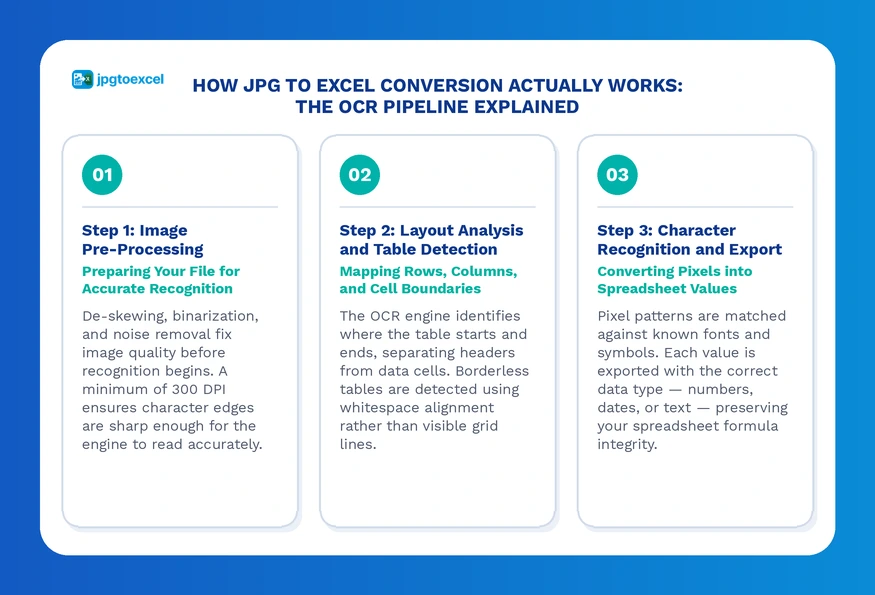
Step 1: Image Pre-Processing, Preparing Your File for Accurate Recognition
Before the engine reads a single character, it must repair the image. This stage determines the accuracy ceiling of everything that follows.
De-skewing straightens documents that were scanned at an angle. Even a 2-degree tilt is enough to throw off column alignment across an entire table. Binarization converts the image to high-contrast black and white, stripping out shadows, background gradients, and color noise so the engine sees only the text. Resolution normalization ensures the image is at a minimum of 300 DPI. Below that threshold, character edges become too blurry for reliable recognition.
If your source image is low quality, no OCR engine will compensate fully. Fix the input before you run the conversion.
Step 2: Layout Analysis and Table Structure Detection
Reading individual characters is the easy part. Identifying where a table begins and ends, and correctly mapping every cell to its row and column, is what separates a capable image to Excel converter from a basic text extractor.
The software performs a layout analysis to locate grid lines, column separators, and row boundaries. It then segments the document into zones: headers, data cells, footers, and any surrounding body text. Borderless tables are significantly harder to parse because the engine must infer structure from whitespace alignment rather than visible lines.
According to research published by Google AI on document understanding models, table detection in real-world scanned documents remains one of the most technically challenging tasks in computer vision, with commercial engines outperforming open-source alternatives by 15% to 30% on complex layouts.
Step 3: Character Recognition and Spreadsheet Export
With the structure mapped, the engine matches pixel patterns against a library of known fonts and symbols. Modern engines assign a confidence score to each recognized character. Any value below the threshold is flagged for human review rather than silently inserted, which is a critical feature to look for when evaluating any photo to Excel spreadsheet tool.
The final export maps data to the correct cell type: numbers as numeric values, dates as date-formatted cells, and text strings as general format, preserving the integrity of any formulas you apply afterward.
Cloud vs Local OCR Processing: Which Architecture Fits Your Workflow?
Your choice of processing architecture directly affects conversion speed, accuracy, cost, and data security. There is no universally correct answer, but there is a correct answer for your specific use case.
Cloud-Based JPG to Excel Tools: Speed and AI Power
Cloud converters send your file to a remote server where a large AI model handles the heavy lifting. The advantages are real: you get access to the latest neural network models without any installation, and these tools consistently outperform local software on complex, multi-column documents.
The trade-off is data sovereignty. When you upload a file to an online converter, that file travels across a network and sits on a third-party server during processing. For non-sensitive documents such as product catalogs or public data tables, this is an acceptable risk. For financial records, medical data, or anything containing PII, you need to read the provider’s data retention policy before uploading a single file.
Best for: SMBs, one-off conversions, non-sensitive documents, teams without a dedicated IT infrastructure.
Local and On-Device OCR Software: Privacy-First Processing
Local processing runs entirely on your own hardware. Your data never leaves your network, which makes this the only compliant option for workflows subject to GDPR, HIPAA, or CCPA regulations.
The performance ceiling is tied directly to your CPU or GPU. On modern hardware, local engines handle standard invoices efficiently. Where they fall behind cloud tools is on degraded or complex documents, where the latest AI models available to cloud providers have a measurable accuracy advantage.
Best for: Financial records, medical imaging data, legal contracts, any document containing PII.
Comparison Table: Top JPG to Excel Converter Tools in 2025
| Tool | Type | Best For | Free Tier | GDPR Ready |
| jpgtoexcelconverter.com | Cloud | Invoices, receipts, tables | Yes | Yes |
| Microsoft Excel “Data from Picture” | Local/Native | Simple single tables | Yes (built-in) | Yes |
| ABBYY FineReader | Local/Cloud | Enterprise, high-volume | No | Yes |
| Google Drive OCR | Cloud | Basic text extraction | Yes | Partial |
| Tesseract (open-source) | Local | Developer pipelines | Yes | Yes |
| Adobe Acrobat | Cloud/Local | PDF and image hybrid | No | Yes |
Microsoft Excel’s Built-In JPG to Excel Feature: Step-by-Step Guide
Excel’s “Data from Picture” feature is a native OCR tool built directly into Microsoft Excel for Microsoft 365 subscribers. It allows users to import an image of a table and convert it into editable spreadsheet cells without third-party software.
How to Use the “Data from Picture” Feature in Excel
This workflow suits simple, clean tables. For complex layouts or batch processing, a dedicated convert JPG to Excel tool will outperform it significantly.
- Open Excel and navigate to Data > Data from Picture > Picture from File (or Picture from Camera on mobile).
- Select your JPG file. Excel scans the image and overlays a grid showing its interpretation of the table structure.
- Review the highlighted cells in the right-hand panel. Any cell marked with a warning icon contains a value Excel is uncertain about. Correct these manually before proceeding.
- Click Insert Data. Excel maps the recognized values into your active worksheet, preserving row and column structure.
Key limitation: This feature has no batch mode and performs poorly on borderless tables, rotated text, or images below 200 DPI. If you are processing more than five files per week, the manual review overhead makes a dedicated tool a better investment.
Scaling Up: How to Automate Bulk JPG to Excel Conversion
Processing one invoice at a time is manageable for a small team. For operations handling 50 or more files per day, a manual workflow is a bottleneck, not a process.
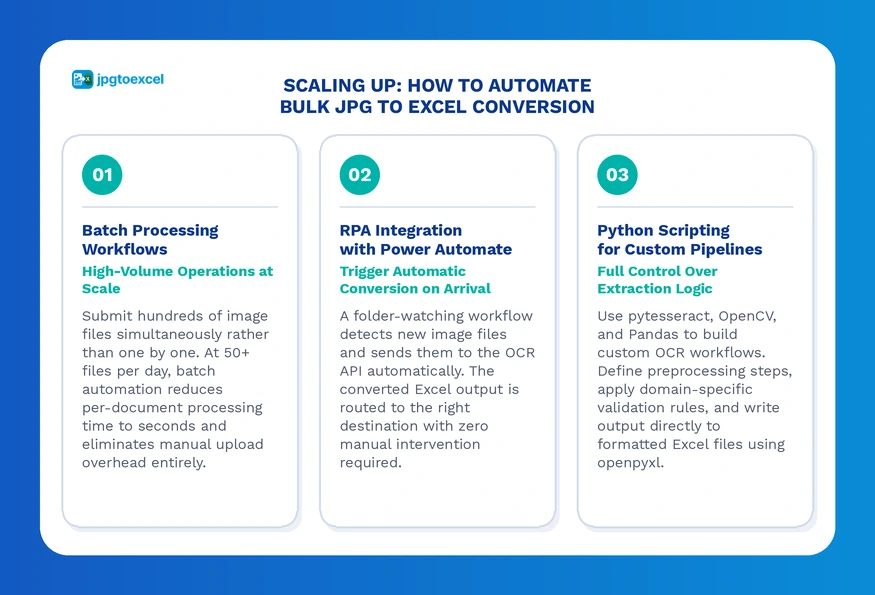
Batch Processing Workflows for High-Volume Operations
Batch processing submits multiple image files to an OCR engine simultaneously, rather than queuing them one by one. The output is a set of structured Excel files that can be merged, validated, or routed directly into downstream systems.
The practical threshold for investing in batch automation is roughly 50 files per day. Below that, a well-organized manual workflow using a fast online converter is often more cost-efficient. Above it, the ROI on automation compounds quickly. jpgtoexcelconverter.com supports batch mode natively, letting you upload entire folders and receive structured output without per-file manual handling. For HR-specific workflows, see the detailed breakdown in the guide to payroll document JPG to Excel automation.
RPA Integration: Triggering Automatic Conversion with Power Automate
Robotic Process Automation connects your file sources directly to your conversion engine, removing the human trigger entirely. A standard workflow looks like this:
- A new image file lands in a monitored SharePoint folder or email inbox.
- Power Automate detects the new file and sends it to the OCR API.
- The converted Excel file is routed to the appropriate output folder.
- The team receives an automated notification with the file attached.
This architecture eliminates the manual upload step entirely. For procurement teams specifically, this kind of pipeline is covered in depth in the purchase order JPG to Excel guide.
Python Scripting for Custom OCR Pipelines
For development teams that need full control over extraction logic, a Python-based pipeline using pytesseract, OpenCV, and Pandas provides maximum flexibility. You can define custom preprocessing steps, apply domain-specific validation rules, and write output directly to formatted Excel files using openpyxl.
One important caveat: Tesseract is a capable open-source engine, but independent benchmarks consistently show commercial engines outperforming it by 10% to 25% on table detection accuracy, particularly for borderless or multi-column layouts.
Use Tesseract for internal tooling and low-stakes automation. For production workflows where accuracy directly affects financial or legal data, a commercial engine is the safer choice.
Data Validation After JPG to Excel Conversion: Your Post-Processing Checklist
Even a 99% accurate OCR engine produces errors in a 500-row spreadsheet. Validation is not optional; it is the step that makes the conversion production-ready.
Common OCR Errors That Break Your Spreadsheet
Character confusion is the most frequent failure mode. The pairs to watch for:
- “5” misread as “S” (breaks SUM formulas silently)
- “0” misread as “O” (converts numeric cells to text)
- “1” misread as “I” or “l” (especially in sans-serif fonts)
- “1,000” misread as a date value in locale-sensitive Excel settings
Merged cell artifacts are particularly destructive. When the OCR engine fails to detect that two cells share a merged boundary, it inserts an extra row or column offset that shifts every subsequent value in the table. A single merged cell error can corrupt an entire dataset.
How to Clean and Validate Converted Data in Excel
Power Query is the most efficient tool for post-conversion cleanup. Use it to:
- Trim leading and trailing whitespace from all text columns
- Standardize date formats across locale variations
- Convert text-formatted numbers back to numeric type
- Flag values outside an expected range (for example, unit prices above a defined ceiling)
Flash Fill corrects systematic formatting errors across a column in seconds once you demonstrate the pattern on two or three rows. Text to Columns separates values that were incorrectly merged into a single cell during extraction.
For recurring workflows, a simple validation macro that checks each column against its expected data type and flags anomalies saves significant manual review time.
Security and Compliance for JPG to Excel Conversion Workflows
Security is not a feature tier. When you run a JPG to Excel conversion on a document containing employee records, client financial data, or medical information, you are processing Personally Identifiable Information. The legal obligations that follow are non-negotiable.
What Happens to Your Data When You Use an Online Converter?
Every online converter follows a data lifecycle: your file is uploaded, processed, temporarily stored, and (ideally) deleted. The critical variable is what happens during the storage phase and how long it lasts.
Before using any SaaS conversion tool with sensitive documents, get clear answers to these questions:
- Is data encrypted in transit (SSL/TLS) and at rest (AES-256)?
- How long does the provider retain uploaded files after conversion?
- Where are the servers located, and does that affect your data residency obligations?
- Does the provider offer a Data Processing Agreement (DPA) for enterprise customers?
Red flags include: no clearly published privacy policy, no SSL indicator in the browser, file retention periods longer than 24 hours with no opt-out, and no mention of compliance certifications.
GDPR, HIPAA, and CCPA Compliance Checklist for OCR Tools
| Requirement | What to Verify |
| SSL/TLS encryption in transit | Padlock icon + HTTPS in address bar |
| Encryption at rest | AES-256 standard, confirm in privacy policy |
| Data retention policy | Files deleted within 24 hours post-conversion |
| Server location | EU servers for GDPR, US-based for HIPAA BAA |
| Data Processing Agreement | Available on request for enterprise accounts |
| Audit logs | Access logs available for compliance review |
| No third-party data sharing | Confirmed in privacy policy, no ad tracking on uploads |
For medical data specifically, the compliance requirements are substantially more complex. The guide to medical report JPG to Excel conversion covers HIPAA-specific considerations in detail. (European Data Protection Board GDPR Guidelines)
Industry Use Cases: Where JPG to Excel Conversion Delivers the Highest ROI
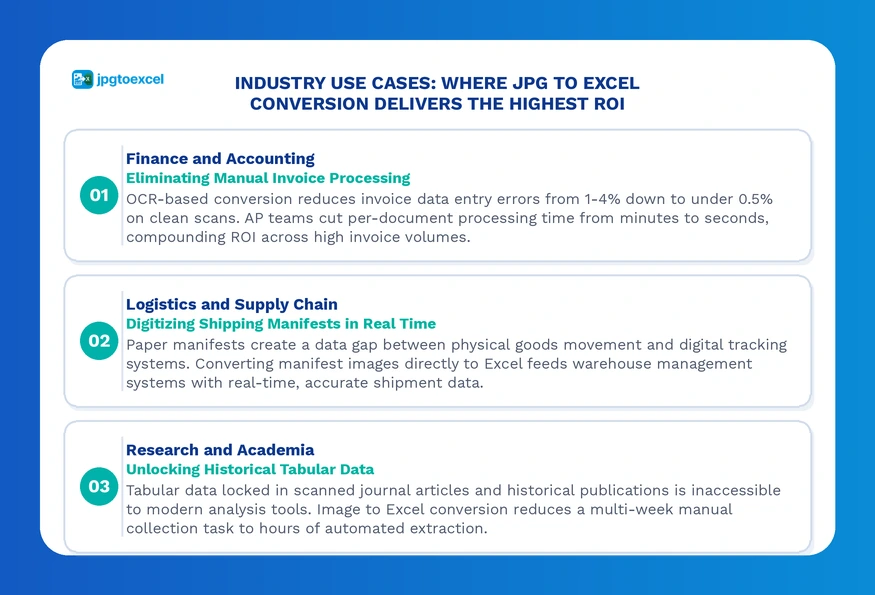
Finance and Accounting: Eliminating Manual Invoice Processing
Accounts payable teams represent the highest-volume use case for scan to Excel software. The average AP team at a mid-size company processes hundreds of invoices per month, with each manual entry taking 3 to 5 minutes and carrying a 1% to 4% error rate.
OCR-based conversion reduces that error rate to below 0.5% on clean scans and brings per-document processing time down to seconds. The ROI compounds fastest for teams handling high invoice volumes with strict payment deadline requirements. For a detailed workflow breakdown, see the convert JPG invoice to Excel guide.
Logistics and Supply Chain: Digitizing Shipping Manifests
Paper-based shipping manifests create a data gap between physical goods movement and digital tracking systems. Every hour a manifest sits undigitized is an hour your warehouse management system is operating on incomplete information.
Converting manifest images directly to Excel and feeding that data into your WMS closes the gap in real time. The bill of lading JPG to Excel guide covers the specific field mapping and validation logic for standard BOL formats.
Research and Academia: Unlocking Historical Tabular Data
Published research from before the digital era is largely inaccessible to modern analysis tools because the data exists only in scanned page images. Extracting tabular data from these sources manually is prohibitively slow for large-scale studies.
Image to Excel conversion technology reduces a multi-week data collection task to hours, enabling researchers to incorporate historical datasets into modern statistical analysis without manual transcription. For medical research specifically, structured lab data extraction is covered in the lab result JPG to Excel guide.
Troubleshooting JPG to Excel Conversion Failures
The most common cause of poor conversion output is not the OCR engine. It is the input image. Fixing the source file before running the conversion resolves the majority of failures.
Low Image Quality: How to Fix It Before Converting
The most common cause of poor conversion output is not the OCR engine. It is the input image. Fixing the source file before running the conversion resolves the majority of failures.
- Low resolution is the top failure driver. If your image is below 300 DPI, resample it upward using a free tool like GIMP or the Preview app on macOS before uploading. This recovers significant character edge clarity on printed text.
- Glare and shadows turn text into white voids or dark smears that no engine can reconstruct. Use a dedicated scanning app such as Microsoft Lens or Adobe Scan instead of a standard phone camera. These apps apply real-time perspective correction and exposure normalization that dramatically improves OCR input quality.
- Rotation is a hard failure condition for most engines. A document scanned sideways will produce garbage output regardless of engine quality. Always verify orientation before submitting.
Complex Table Layouts That Confuse OCR Engines
Complex layouts require a different approach depending on the specific structural issue you are dealing with:
- Merged cells are the most disruptive layout feature for OCR table detection. The most reliable workaround is to crop the image around individual table sections, process each crop separately, and merge the outputs manually in Excel.
- Borderless tables require an engine with AI-based layout detection rather than simple line-detection algorithms. If your current tool fails consistently on borderless formats, switching to a tool trained on diverse document layouts will resolve the issue without requiring image preprocessing changes.
- Multi-page tables should be processed page by page. Attempting to stitch pages into a single image before conversion typically introduces alignment errors at the seam.
Conclusion
The right JPG to Excel conversion strategy depends on two variables: your document volume and your data sensitivity requirements. For low-volume, non-sensitive work, a fast online converter handles the job in seconds. For high-volume operations or workflows involving financial, medical, or legal data, the investment in a compliant, automated pipeline pays back quickly in accuracy, time savings, and reduced compliance risk.
The underlying principle remains constant regardless of scale: JPG to Excel conversion replaces the slowest, most error-prone step in your data workflow with a process that is faster, more accurate, and fully auditable.
Stop losing hours to manual data entry. Start converting your images to Excel now at jpgtoexcelconverter.com — no signup required.
FAQs: JPG to Excel Conversion Common Questions Answered
How do I convert a JPG to Excel for free?
Upload your image to jpgtoexcelconverter.com, which offers free conversions without requiring account creation. Alternatively, Microsoft Excel’s built-in “Data from Picture” feature is available to all Microsoft 365 subscribers at no additional cost. For simple, single-table images, both options deliver reliable results without any software installation.
Can Excel automatically read data from an image?
Yes. Microsoft Excel includes a native “Data from Picture” feature under the Data tab that uses OCR to extract table data from an uploaded image or live camera feed. The feature works well for clean, single-table images but lacks batch processing capability and performs inconsistently on complex or low-quality scans.
Is it safe to upload sensitive documents to an online JPG to Excel converter?
It depends on the provider’s security posture. Before uploading sensitive data, confirm the tool uses SSL encryption in transit, AES-256 encryption at rest, and deletes files within 24 hours of conversion. For documents containing PII, financial records, or medical data, verify GDPR or HIPAA compliance explicitly and request a Data Processing Agreement.
How accurate is OCR when converting images to Excel?
Modern commercial OCR engines achieve 98% to 99.5% accuracy on high-quality printed documents at 300 DPI or above. Accuracy drops significantly on handwritten text, degraded images, or complex borderless layouts. The best JPG to Excel converter tools article benchmarks the top options side by side if you need to compare accuracy across providers.
What is the best way to convert a large batch of images to Excel?
Use a tool with native batch processing support such as jpgtoexcelconverter.com, or build an automated pipeline using Power Automate to trigger conversions when new files arrive in a monitored folder. For developer teams, a Python pipeline using pytesseract and Pandas provides the most flexibility for custom extraction logic and output formatting.
- Email: contact@jpgtoexcelconverter.com
- LinkedIn: https://www.linkedin.com/in/jpgtoexcelconverter/
- X: https://x.com/jtoexcelconvert