 March 10, 2026
 11 min read
Convert JPG Invoice to Excel: The Ultimate Guide to Automated Data Entry
Convert JPG Invoice to Excel technology is the cornerstone of modern administrative efficiency, allowing businesses to escape the slow and painful cycle of manual data entry. In today’s data-driven world, accounting departments and small business owners often find themselves buried under a mountain of paperwork—smartphone photos of receipts, scanned PDF invoices, and digital image files. Historically, the only way to manage this information was to have an employee spend hours manually typing rows of numbers from pictures into their computers. This legacy process is not only notoriously boring but also extremely prone to costly human errors that can derail financial reporting and tax compliance.
Choosing to convert JPG Invoice to Excel using intelligent software is the most effective way to reclaim your time. This digital transformation uses sophisticated Optical Character Recognition (OCR) to read text from a static image and organize it into a structured, pliable table. In this comprehensive guide, we will explore the deep mechanics of AI-powered extraction and provide a roadmap to help you turn your static images into fully editable spreadsheets in seconds.
Why You Should Convert JPG Invoices to Excel
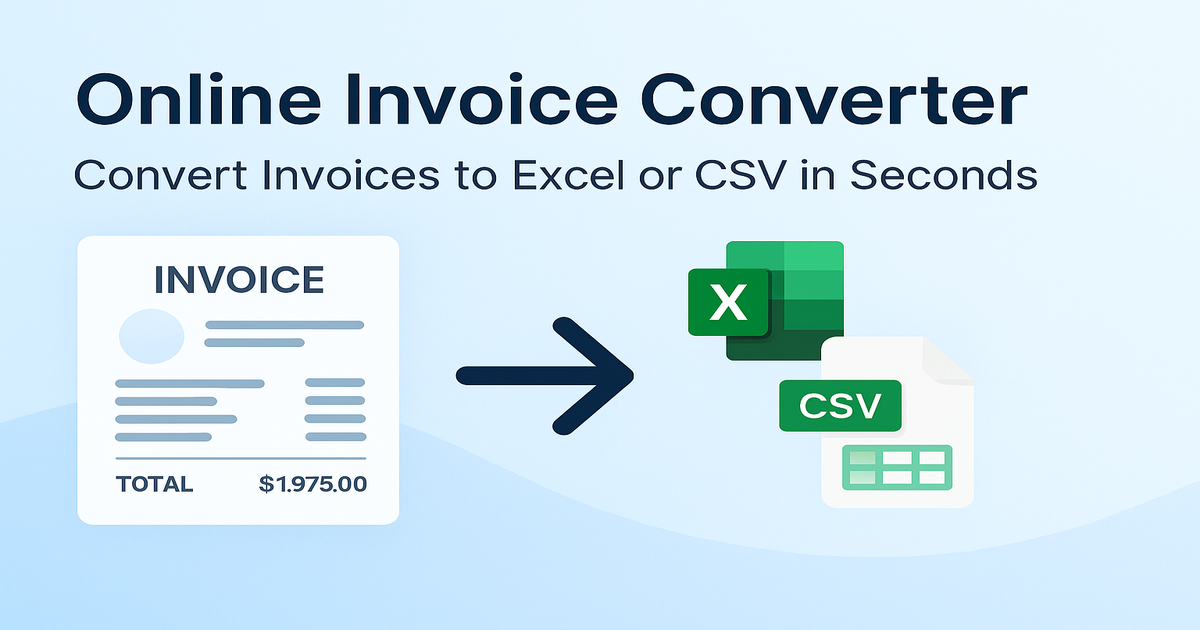
The transition from manual typing to an automated ocr invoice converter provides immediate strategic benefits for any organization. Speed is the most obvious advantage; you can transform a week’s worth of paper invoices into digital data in just a few minutes. This efficiency allows your finance team to focus on strategic analysis rather than repetitive “grunt work.”
1. Accuracy and Data Integrity
Data accuracy is a critical reason to convert JPG Invoice to Excel. Human workers inevitably get tired or distracted, leading to transposition errors or misplaced decimal points. A single digit error on a high-value invoice can lead to failed audits or payment disputes with vendors. Modern AI software does not suffer from fatigue; it reads small numbers and complex dates with high precision, keeping your accounting books clean and audit-ready.
2. Searchability and Financial Formulas
Having your data in a spreadsheet makes it instantly searchable. You can filter by date range, vendor name, or tax category with a single click. Furthermore, an image to spreadsheet conversion allows you to apply mathematical formulas. You can automatically sum up totals, calculate VAT/GST, and compare pricing across multiple suppliers, turning raw pixels into actionable business intelligence.
How the Technology Works: Understanding OCR for Invoices
To successfully convert JPG Invoice to Excel, you must understand the “engine” under the hood. OCR stands for Optical Character Recognition. It is a branch of artificial intelligence that analyzes the pixels within a digital image to identify specific characters and patterns.
Modern tools go beyond basic character recognition. They utilize “Context-Aware Extraction.” This means the software doesn’t just see a “5”; it understands that a “5” located in the bottom-right corner of a document is likely part of the “Total Due.” High-quality software uses deep learning models trained on millions of diverse invoice layouts to ensure that when you convert JPG Invoice to Excel, the data lands in the correct column every time.
Method 1: Microsoft Excel’s Native “Data from Picture” Feature
For many office workers, the easiest way to convert JPG Invoice to Excel is by using the built-in tool within Microsoft Excel. If you have an Office 365 subscription, this feature is available on both your desktop and mobile devices.
-
Step 1: Open a blank workbook and navigate to the “Data” tab.
-
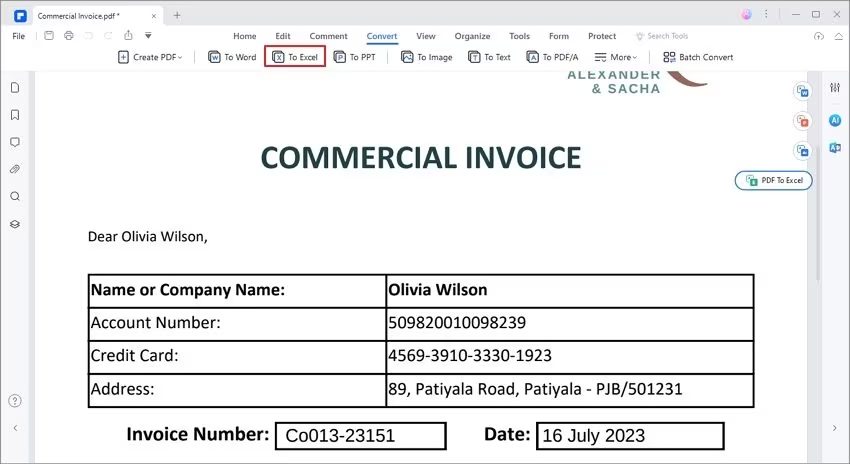
Step 2: Select the option “From Picture” and choose your file.
-
Step 3: Excel will scan the image and open a “Review Pane.” It will highlight cells where the AI is uncertain (e.g., distinguishing an “l” from a “1”).
-
Step 4: Once you fix any highlighted cells, click “Insert Data.”
This is a fast and accessible method for quick tasks, but it may struggle with very complex or multi-page documents.
Method 2: High-Precision Online Converters
If you don’t have Excel installed, or if you need to process files quickly in a browser, using an online ocr invoice converter is an excellent alternative. Platforms like jpgtoexcelconverter.com are designed specifically for this task.
-
Pros: No installation required, works on any device, and often utilizes the latest AI models for higher accuracy.
-
Cons: Users must be mindful of privacy. Always choose a reputable site that uses HTTPS encryption and has a clear data deletion policy.
The workflow is simple: upload your image, wait a few seconds for the AI to extract data from image files, and download your clean XLSX or CSV file. This is the most efficient way to handle a JPG to Excel conversion when you are in a hurry.
Method 3: Mobile Apps for Scanning on the Move
For field agents or traveling professionals, mobile apps like Adobe Scan or Microsoft Lens are essential. They allow you to convert JPG Invoice to Excel the moment you receive a receipt.
These apps use “Automated Edge Detection” to crop out the background, such as the wooden table or your hand, before starting the OCR process. A clear, focused crop is vital for the ocr invoice converter to achieve 99% accuracy. Once scanned, you can export the file directly to Google Drive or OneDrive as a structured spreadsheet.
Method 4: Enterprise AI-Powered Batch Processing
Large corporations cannot afford to process documents one by one. To convert JPG Invoice to Excel at scale, firms use enterprise-grade AI platforms that support batch processing.
These systems can handle hundreds of documents simultaneously. They integrate directly with ERP systems like SAP, Oracle, or QuickBooks. Using a professional image to spreadsheet service allows companies to automate their entire “Accounts Payable” workflow. The software can flag duplicate invoices, match them to purchase orders, and verify vendor details automatically, reducing the need for a large data entry department.
Expert Tips for Improving OCR Accuracy
Even the most advanced AI performs better with high-quality input. To ensure a perfect result when you convert JPG Invoice to Excel, follow these best practices:
-
Lighting and Contrast: Take photos in a well-lit room. Avoid shadows that might obscure the “Tax” or “Balance” lines.
-
Flat Surfaces: Keep the paper as flat as possible. Wrinkled documents create “wavy” text that confuses the ocr invoice converter.
-
Resolution: Aim for a high DPI (dots per inch). A low-resolution JPG will have “noisy” pixels that make it hard for the AI to distinguish between similar-looking characters like “5” and “S.”
-
Audit the Output: Always perform a quick check of the grand totals. While automation is fast, a quick manual verification ensures your financial records remain 100% perfect.
Data Security and Privacy in Financial Digitization
Invoices contain sensitive Personally Identifiable Information (PII), including bank account numbers and physical addresses. When you convert JPG Invoice to Excel online, security must be your top priority.
Always look for tools that follow GDPR or CCPA compliance standards. If you are handling extremely sensitive government or medical records, consider using an offline OCR tool that runs entirely on your local machine. This prevents your data from traveling over the public internet, providing the highest level of privacy for your image to spreadsheet projects.
Why jpgtoexcelconverter.com is The Right Solution For You?
At jpgtoexcelconverter.com, we specialize in high-precision data extraction. We understand that your business relies on accurate numbers. Our platform is engineered to convert JPG Invoice to Excel with unmatched speed and table structure preservation.
We prioritize your security by using bank-level encryption and ensuring your files are deleted after the conversion is complete. Whether you are an independent freelancer or a large accounting firm, our tools provide the scalability you need to eliminate the burden of manual typing once and for all.
Conclusion: Embrace the Future of Automated Finance
Choosing a digital workflow to convert JPG Invoice to Excel is a strategic move that pays for itself in labor hours and accuracy. The era of manual typing is rapidly coming to an end. By adopting AI-powered ocr invoice converter tools, you are positioning your business for growth and efficiency.
Don’t let your valuable data stay trapped in static images. Start using jpgtoexcelconverter.com today and experience the power of frictionless data entry. Whether you need to process one receipt or a thousand invoices, the technology is ready to help you succeed. Take control of your financial records and stay ahead of the curve in the digital economy.