 February 13, 2026
 11 min read
The fastest way to convert JPG to Excel is to use an AI-powered OCR tool that extracts structured data from your image in seconds, exports it as a clean .xlsx file, and maps every field (vendor, date, line items, totals) without a single keystroke of manual entry.
If your finance team is still typing numbers from receipt photos into spreadsheets, you are losing an average of 8 hours per week per employee to a task that software can complete in under 60 seconds. McKinsey Global Institute research estimates that 40% of data management activities in finance are fully automatable today. The gap between knowing that and acting on it costs businesses thousands of dollars every quarter in labor, errors, and delayed reporting.
This guide covers exactly how AI-powered document extraction works, how to set it up in four steps, and what to look for in a tool that handles real-world financial documents accurately and securely.
Why Businesses Can No Longer Afford Manual Data Entry
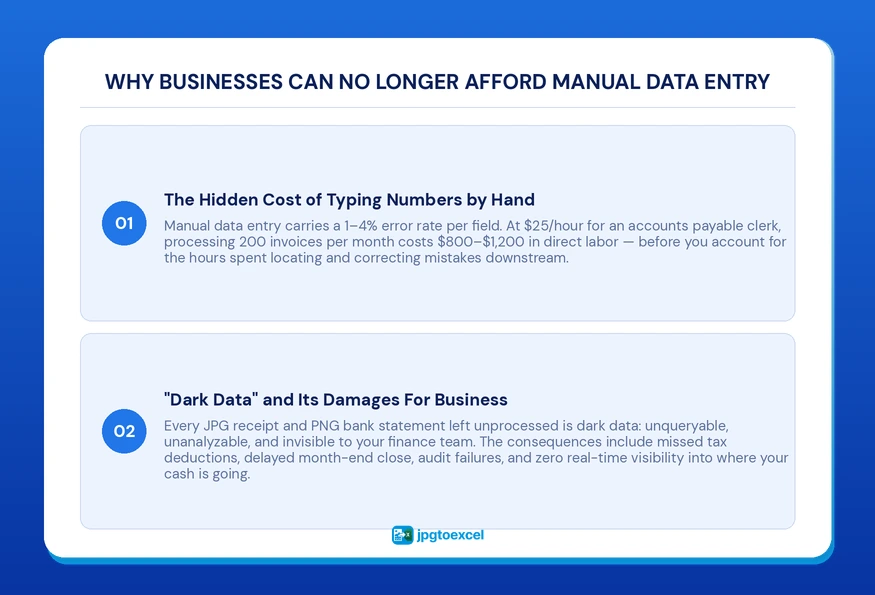
The Hidden Cost of Typing Numbers by Hand
Manual data entry carries a well-documented error rate of 1% to 4% per field, according to AIIM’s information management research. On a 50-line invoice, that means up to two errors per document. Multiply that across 200 invoices per month, and you have a data quality problem that silently distorts your financial reports.
At an average billing rate of $25/hour for an accounts payable clerk, processing 200 invoices manually costs approximately $800 to $1,200 per month in direct labor alone, and that’s before accounting for payroll documents and tax filings.
Automating receipt-to-Excel conversion eliminates both problems at the source.
Learn how teams are solving this in our guide to Payroll Document JPG to Excel: The 2026 Guide to HR Automation.
What Is “Dark Data” and Why It Hurts Your Bottom Line
Dark data is unstructured information stored in formats such as image files that cannot be searched, sorted, or analyzed without first being converted into a structured format.
Every JPG receipt, PNG bank statement, and smartphone photo of an expense sits in your file system as dark data. You cannot run a query on it. You cannot filter by vendor. You cannot calculate totals across 90 days of travel expenses without opening each file individually.
For a growing business, dark data means:
- Missed tax deductions because expense documentation was never properly categorized
- Failed audits caused by unverifiable figures
- Delayed month-end close because the team is still sorting through image folders
- No real-time visibility into cash flow
The solution is to convert the image to Excel spreadsheet format as soon as a document is received, not at the end of the month when the damage is already done.
How OCR Technology Converts JPG Files Into Structured Excel Data
What Is Optical Character Recognition (OCR)?
Optical Character Recognition (OCR) is a technology that analyzes the pixel patterns in a digital image, identifies characters, words, and numbers, and converts them into machine-readable, editable text.
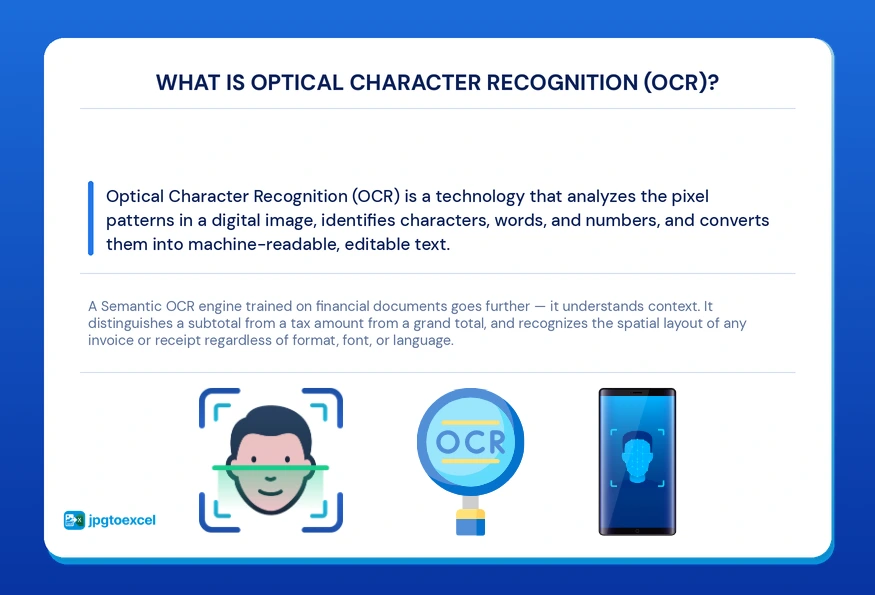
In the context of financial document processing, OCR does more than read text. A modern OCR engine trained on financial documents understands the spatial relationship between fields on a page. It recognizes that the number in the bottom-right corner of an invoice is likely the total, even if the word “Total” appears in a different font, position, or language.
Semantic OCR vs. Basic OCR: Why the Difference Matters for Finance
Basic OCR reads characters. Semantic OCR understands what those characters mean.
A basic tool scanning a restaurant receipt will return a block of raw text: a jumble of item names, prices, and dates with no structure. You still have to manually copy each value into the right column.
Semantic OCR, the engine behind jpgtoexcelconverter.com Receipts, assigns meaning to each value it extracts. It distinguishes between a subtotal, a tax amount, a tip, and a grand total regardless of how the receipt is formatted. This distinction matters because no two receipts are laid out the same way. A hotel folio looks nothing like a fuel station printout, which looks nothing like a SaaS subscription invoice.
Step-by-Step: How to Convert JPG to Excel With jpgtoexcelconverter.com Receipts
Converting a JPG financial document to Excel takes under 60 seconds. Here is exactly how it works.

Step 1: Capture a Clear Image
Place the document on a flat, evenly lit surface. Ensure all four corners are visible in the frame and no text is cut off. Natural daylight or a well-lit desk produces the cleanest results.
Supported input formats: JPG, PNG, PDF, TIFF. For documents already stored as PDFs, the same extraction pipeline applies.
Step 2: Upload to jpgtoexcelconverter.com (Single File or Batch)
Drag and drop your file into the jpgtoexcelconverter.com interface. No account configuration or technical training is required for standard use.
For finance teams processing high volumes, batch upload lets you queue an entire month of receipts at once. The system processes each file sequentially and assembles a unified spreadsheet, making it the most practical approach to scan invoices to Excel conversion at scale during tax season or month-end close.
Step 3: AI Extraction and Real-Time Preview
The extraction engine identifies and labels every relevant field:
- Vendor name and address
- Transaction date
- Tax ID or VAT number
- Individual line items with quantities and unit prices
- Subtotal, tax amount, and grand total
- Currency (auto-detected)
A preview screen displays the extracted data mapped to spreadsheet columns before export. If a field has low confidence, the tool flags it for manual review rather than silently outputting an incorrect value.
Step 4: Export and Integrate
Export your data as .xlsx or .csv with one click. Direct integrations push the cleaned data into QuickBooks, Xero, SAP, or Google Sheets without copy-pasting.
For teams using QuickBooks, refer to [How to import CSV data into QuickBooks] for field-mapping guidance to ensure your chart of accounts aligns correctly on import.
Key Features That Set jpgtoexcelconverter.com Apart From Generic Converters
The JPG to Excel converter market ranges from free browser tools with basic character recognition to enterprise platforms with full accounting integrations. If you want an in-depth breakdown of the top tools available, see our full comparison guide. Here is how the core capabilities compare:
| Feature | Basic OCR Tools | jpgtoexcelconverter.com Receipts |
| Semantic field recognition | No | Yes |
| Batch processing | Limited | Unlimited |
| Multi-currency support | No | Yes, auto-detect |
| Accounting software sync | No | QuickBooks, Xero, SAP |
| Data encryption (AES-256) | Varies | Yes, end-to-end |
| Accuracy on low-quality scans | 70 to 80% | 99%+ |
| Zero-retention image policy | Rarely | Yes |
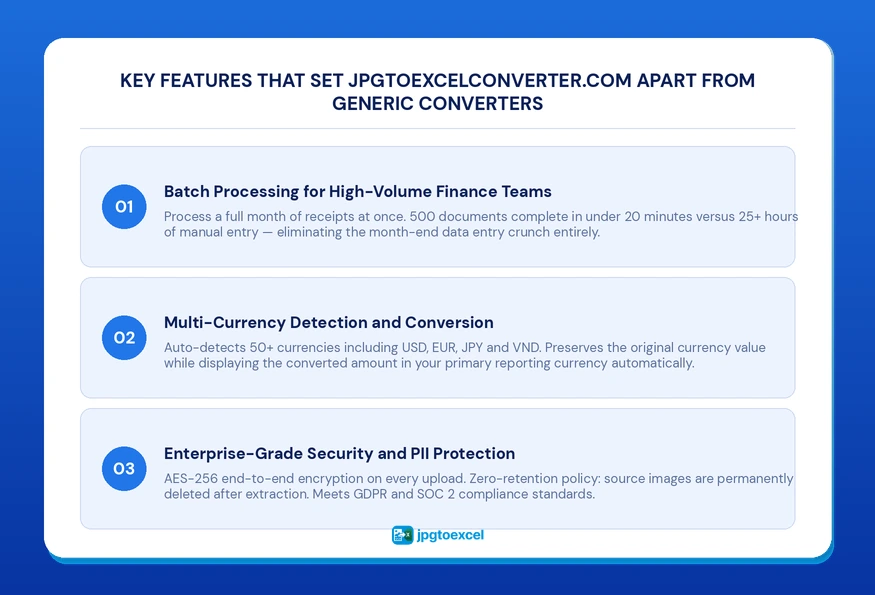
Batch Processing for High-Volume Finance Teams
During tax season, a mid-size business can accumulate 500 to 2,000 expense documents in a single quarter. Processing these one at a time, even with a fast converter, creates a bottleneck. Batch processing eliminates the bottleneck entirely.
A finance team processing 500 receipts manually at 3 minutes per document spends over 25 hours on data entry. The same volume processed through batch OCR financial document extraction takes approximately 15 to 20 minutes of active time, with the remainder handled automatically.
Multi-Currency Detection and Conversion
jpgtoexcelconverter.com auto-detects the currency on each document and supports 50+ currencies, including USD, EUR, JPY, GBP, and VND. For international expense reports, the platform preserves the original currency value while displaying the converted amount in your primary reporting currency.
This feature eliminates a common source of errors in cross-border expense management, where manual currency conversion at the wrong exchange rate creates discrepancies that are difficult to trace months later.
Enterprise-Grade Security and PII Protection
Financial documents contain some of the most sensitive data a business holds. Every file uploaded to jpgtoexcelconverter.com is protected by AES-256 end-to-end encryption in transit and at rest. After extraction is complete, source images are deleted under a zero-retention policy.
For businesses subject to GDPR or operating under SOC 2 compliance requirements, refer to NIST data security guidelines for financial information and the [jpgtoexcelconverter.com security and compliance overview] for full technical documentation.
Business Outcomes: What Changes When You Automate Document Processing
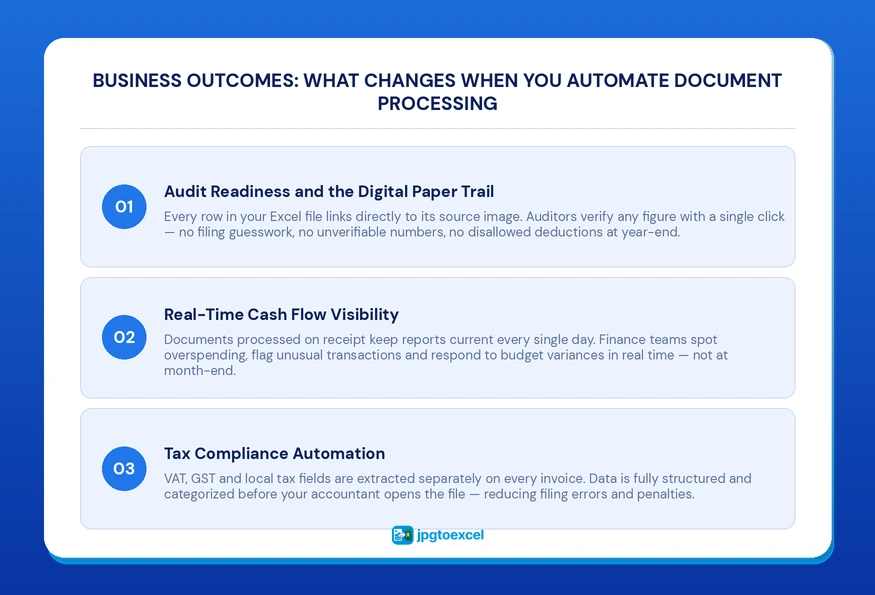
Audit Readiness and the Digital Paper Trail
Every row in your exported Excel file links directly back to the source image. An auditor can click any line item and immediately view the document it came from. This level of traceability is not achievable with manual entry, where the connection between a spreadsheet figure and its source document depends entirely on human filing discipline.
The IRS estimates that poor documentation is one of the leading causes of disallowed deductions in small business audits. A clean digital paper trail removes that risk.
Real-Time Cash Flow Visibility
When documents are converted to Excel on receipt rather than at month-end, your financial data is always current. Cash flow reports reflect this week’s spending, not last month’s. This shift from reactive to real-time reporting changes how quickly a finance team can identify overspending, flag unusual transactions, or respond to budget variances.
For teams looking to operationalize this, see [How to build a real-time cash flow dashboard in Excel] for a practical setup guide.
Tax Compliance Automation
jpgtoexcelconverter.com extracts VAT, GST, and local tax fields separately from the net amount on every invoice. This means your tax reporting data is already structured and categorized before your accountant touches it.
For a deeper look at how this works in practice, see our guide on Tax Document JPG to Excel: The Complete 2026 Guide to Tax Automation for a full breakdown of the digitization workflow.
Conclusion
The choice to convert JPG to Excel through automated document processing is not a productivity upgrade. It is a structural change in how your business handles financial data. Manual entry produces slow, error-prone records that fail under audit pressure and obscure real-time visibility. AI-powered extraction produces accurate, traceable, integration-ready data from the moment a document arrives.
jpgtoexcelconverter.com Receipts handles OCR financial document extraction with 99%+ accuracy, enterprise-grade security, and direct integrations into the accounting platforms your team already uses. The result is a finance operation that closes faster, files cleaner, and scales without adding headcount.
Your financial data should work for you. Start converting with jpgtoexcelconverter.com today.
FAQs: Convert JPG to Excel Answered
How do I convert a JPG file to Excel without losing data accuracy?
Upload your JPG to an AI-powered OCR tool, such as jpgtoexcelconverter.com Receipts. The engine extracts each field, including vendor name, date, line items, and totals, and maps them to labeled spreadsheet columns. Review the real-time preview before exporting to catch any low-confidence fields before they reach your records.
Can AI extract data from a blurry or low-quality receipt photo?
Yes. Semantic OCR engines trained on financial documents maintain 99%+ accuracy on low-quality images, including wrinkled receipts, faded thermal paper, and photos taken in poor lighting. The key is using a purpose-built financial OCR tool rather than a generic image-to-text converter not trained on invoice and receipt layouts.
What is the best OCR tool for financial documents in 2025?
The best tool depends on volume and integration needs. For businesses that need accounting software sync, batch processing, and multi-currency support, jpgtoexcelconverter.com Receipts offers the most complete feature set for financial document automation. For occasional single-file use, lighter tools may be sufficient, though accuracy on complex layouts will vary.
Is it safe to upload financial documents to an online converter?
It depends entirely on the platform’s security architecture. jpgtoexcelconverter.com uses AES-256 encryption for all uploads and operates a zero-retention policy, meaning source images are permanently deleted after extraction. Before using any online converter with financial data, verify their encryption standard, data retention policy, and whether they are compliant with GDPR or SOC 2.
How long does it take to convert a JPG invoice to Excel?
Under 60 seconds for a single document. Batch processing of 100 documents typically completes in 5 to 10 minutes, depending on file size and image quality. Both timelines are fixed regardless of document complexity, because the AI processes all fields simultaneously rather than sequentially.
- Email: contact@jpgtoexcelconverter.com
- LinkedIn: https://www.linkedin.com/in/jpgtoexcelconverter/
- X: https://x.com/jtoexcelconvert