 February 11, 2026
 11 min read
Convert financial JPG to Excel is the process finance teams now rely on to turn a photo or scan of a receipt, invoice, or bank statement into a clean, editable spreadsheet without retyping a single figure. In a digital economy where every transaction needs to be searchable and audit-ready, a financial document trapped in image format behaves like a paper file: present, but unusable.
What does it mean to convert financial JPG to Excel? It means using optical character recognition (OCR) software to scan an image of a financial document, identify its text and table structure, and export the result into a structured .xlsx file. The output mirrors the original layout, with vendor names, totals, and line items placed in matching rows and columns.
The bigger issue is not the file format itself. It is what manual transcription costs while that data sits untouched. Research compiled from IOFM and Aberdeen Group benchmarks puts the average cost of manually processing a single invoice at close to $15, and the cost of investigating and correcting one error at up to $53.50 once labor and downstream corrections are included. For a small accounts payable team handling a few hundred documents a month, that adds up to real money fast.
Why Manual Entry of Financial Documents Still Costs Businesses Money
Manual data entry remains one of the most persistent inefficiencies inside accounting departments, not because the task is hard, but because it is repetitive. Repetition produces fatigue, and fatigue produces mistakes. A misplaced decimal or a transposed digit can distort a cash flow report, trigger an incorrect tax filing, or strain a vendor relationship.
The Real Cost of Human Error in Financial Data Entry
Independent industry benchmarks place manual data entry error rates between 1 and 4 percent, depending on document complexity. Applied across a few thousand invoices and receipts a year, that range translates into dozens of mistakes, each one carrying its own correction cost in staff hours, vendor disputes, or inaccurate filings.
Picture a small business bookkeeper who processes roughly 60 vendor invoices a month by hand. At even a conservative 1 percent error rate, that is several misfiled amounts a year, each requiring a phone call, a corrected entry, and sometimes a delayed payment. Choosing to convert financial JPG to Excel with an automated tool removes this variability, since the software reads the same field the same way every time, whether it is the first document of the day or the four hundredth.
Why Time-to-Data Delays Hurt Cash Flow Visibility
Time is its own cost. While a stack of receipts or invoices waits for a human typist, the numbers inside them are invisible to your reporting. That delay can mean missing an early-payment discount, misjudging available cash, or reacting too slowly to a vendor price change. Automated OCR financial documents to Excel processing closes that gap by extracting the data the moment a file is uploaded, so your books reflect reality in minutes rather than days.
What Is OCR for Financial Documents?
Optical character recognition, or OCR, is the technology that allows software to read text inside an image the way a person would, then convert it into machine-readable data. On its own, basic OCR produces a loose block of text that still needs manual sorting. Pairing it with structure recognition is what makes a financial document JPG to Excel converter genuinely useful for accounting work, rather than just a faster way to get messy text onto a screen.
From Basic OCR to Intelligent Document Processing (IDP)
Intelligent Document Processing (IDP) is the broader category that OCR now sits inside. Rather than only reading characters, IDP also understands the spatial relationship between fields, distinguishing a Date of Sale from a Due Date, or a Bill To address from a Ship To address. Gartner’s research on the IDP market tracks this category as one of the fastest-growing areas of enterprise automation, which reflects how many finance teams now depend on it for routine processing rather than treating it as an experimental tool.
How Machine Learning Adapts to Different Document Layouts
Machine learning models used in modern OCR are trained on a wide range of formats, from multi-page corporate invoices to small thermal receipts. Industry benchmarks for 2026 show field-level accuracy of 95 to 99 percent on structured, machine-printed documents like standard invoices and receipts. Accuracy drops on handwritten or heavily damaged documents, often falling into the 70 to 85 percent range, which is why even the best tools still flag low-confidence fields for a quick human check rather than guessing silently on unclear text.
Step-by-Step: How to Convert a Receipt or Invoice JPG to Excel
Implementing this workflow does not require technical training or a dedicated IT project. Here is how to convert receipt JPG to Excel files in four steps:
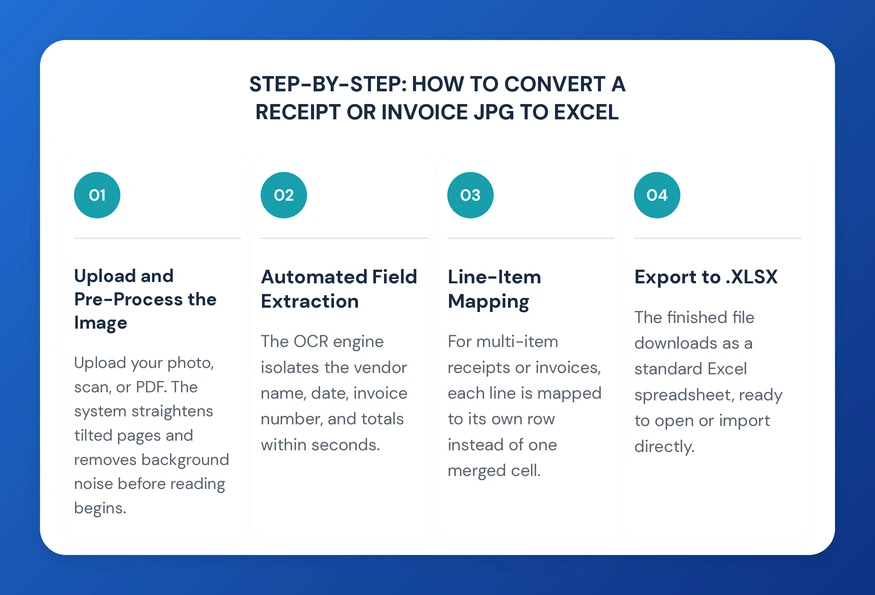
- Upload and Pre-Process the Image: Upload your photo, scan, or PDF to the converter. The system automatically straightens tilted pages, adjusts lighting, and removes background noise before the reading phase begins, which is especially useful for receipts photographed at an angle.
- Automated Field Extraction: The OCR engine isolates the vendor name, date, invoice number, and totals within seconds. This single step replaces what would otherwise be several minutes of manual reading and typing per document.
- Line-Item Mapping: For receipts or invoices with multiple items, the tool maps each line to its own row instead of dumping everything into one cell. This level of detail matters for expense tracking, inventory reconciliation, and three-way matching in accounts payable automation.
- Export to .XLSX: The finished file downloads as a standard Excel spreadsheet, ready to open, edit, or import directly into your accounting software, with no reformatting needed on your end.
Key Financial Data Points an OCR Tool Should Capture
A reliable financial document JPG to Excel converter should capture more than a single total. The following fields matter most for accuracy and audit-ready financial data:
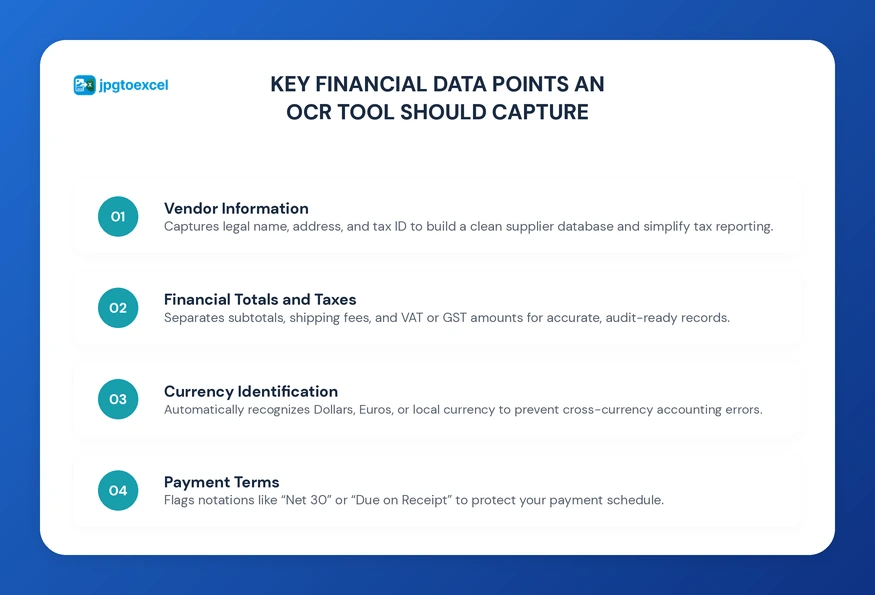
- Vendor Information: legal name, physical address, and tax ID, which helps build a clean supplier database and simplifies year-end tax reporting.
- Financial Totals and Taxes: subtotals, shipping fees, and VAT or GST amounts, separated cleanly so they can feed directly into tax compliance data entry without manual recalculation.
- Currency Identification: automatic recognition of Dollars, Euros, or local currency, which prevents the kind of cross-currency accounting errors that are easy to miss until reconciliation.
- Payment Terms: notations like “Net 30” or “Due on Receipt,” which protect your payment schedule and your standing with vendors.
Receipts vs. Invoices vs. Statements: Which Conversion Path Fits Your Need?
Not every financial document serves the same purpose, and the best conversion approach depends on what you are digitizing and what you plan to do with the data afterward.
| Document Type | Typical Use Case | Recommended Approach |
| Receipts | Expense tracking, reimbursement, petty cash | Convert receipt JPG to Excel for fast, single-document conversion |
| Invoices | Accounts payable, vendor billing, three-way matching | Convert JPG invoice to Excel with line-item mapping |
| Payroll & wage statements | HR reporting, payroll audits, reconciliation | Use a dedicated payroll document workflow |
If your documents are mostly receipts, the dedicated guide to convert receipt JPG to Excel free walks through the fastest single-file workflow for expense tracking. For vendor billing, the convert JPG invoice to Excel guide covers line-item mapping and three-way matching in more depth. And if wage slips or payroll statements are part of your monthly stack, the payroll document JPG to Excel guide is built specifically for HR and payroll teams handling that document type.
Data Security and Compliance When Digitizing Financial Records
Financial documents contain sensitive vendor, customer, and payment information, so security cannot be an afterthought. A trustworthy converter should use bank-level encryption for every file in transit and at rest, and should delete uploaded files automatically once conversion is complete.
Encryption and Compliance Standards
Encryption is explicitly named as an appropriate technical measure under GDPR Article 32, and regulators expect organizations handling financial or other sensitive data to apply it wherever unauthorized access could cause harm. Meeting that standard matters whether your business operates in the EU or simply serves clients who do, since data protection expectations increasingly travel with the customer, not just the company.
It is also worth being upfront about limits. No OCR tool, however accurate, replaces a final human review for unusually damaged scans, handwritten notes, or documents in non-standard languages. Treat automated conversion as the first and fastest step toward audit-ready financial reporting, not the only checkpoint, especially for documents that will eventually face external audit scrutiny.
Choosing the Right Tool to Convert Financial JPG to Excel
Picking the right financial document JPG to Excel converter affects how much time your team gets back every month. A few criteria are worth checking before you commit to one platform:
- Structured table recognition that preserves rows, columns, and merged cells exactly as they appear in the original document.
- Support for multiple file formats, including JPG, PNG, and scanned PDFs, so you are not stuck converting files twice.
- Transparent file-retention policy, ideally with automatic deletion after processing rather than indefinite storage.
- Multi-language support if your vendors or clients operate internationally.
What jpgtoexcelconverter Offers for Financial Document Conversion
jpgtoexcelconverter is built specifically to handle the layouts found in receipts, invoices, and statements. The platform recognizes table structure automatically, maps line items to the correct rows, and applies bank-level encryption to every upload, with files deleted permanently after processing. For teams comparing multiple converters side by side, the breakdown of the best JPG to Excel converters online covers how different tools stack up on accuracy and features.
Conclusion: From Image Files to Audit-Ready Spreadsheets
The era of manually retyping receipts, invoices, and statements is fading fast, and for good reason. Choosing to convert financial JPG to Excel turns scattered image files into structured, audit-ready financial data your team can search, report on, and trust. Whether you are digitizing a single receipt or processing hundreds of vendor invoices a month, an automated OCR workflow removes the fatigue-driven errors and delays that manual entry cannot avoid.
FAQs: Convert Financial JPG to Excel
How do I convert a JPG receipt to Excel?
Upload the JPG receipt to an OCR-based converter like jpgtoexcelconverter, let the engine detect text and table structure automatically, then download the result as an .xlsx file. The process typically takes under a minute and requires no manual formatting, since rows and columns are mapped directly from the original receipt layout.
What is the best software to convert receipts to Excel?
The best software combines accurate table detection with strong data security. Look for a converter that preserves original rows and columns, supports common formats like JPG and PNG, and automatically deletes uploaded files after processing. jpgtoexcelconverter meets all three criteria while handling multi-item receipts through automated line-item mapping.
Can OCR accurately read receipts and invoices?
Yes, modern AI-based OCR reaches 95 to 99 percent field-level accuracy on standard, machine-printed receipts and invoices. Accuracy drops on handwritten or heavily faded documents, sometimes to 70 to 85 percent, so reputable tools flag low-confidence fields for a quick manual check rather than guessing on unclear text.
Is it safe to upload financial documents to an OCR converter?
It is safe when the converter uses encryption in line with standards like GDPR Article 32 and deletes files automatically after processing. Avoid tools that store documents indefinitely or lack a clear privacy policy. jpgtoexcelconverter applies bank-level encryption and permanent deletion to every financial document uploaded for conversion.
How accurate is AI OCR for invoices and receipts?
AI OCR for invoices and receipts reaches 95 to 99 percent field-level accuracy on clean, machine-printed documents, based on 2026 industry benchmarks. That figure falls for handwritten notes, low-resolution photos, or unusual layouts, which is why scanning at 300 DPI or higher and keeping pages flat noticeably improves results.