 October 28, 2025
 11 min read
Managing your Excel workbook often means cleaning things up. You might have extra sheets from old data or calculations.
Deleting these sheets one by one can take a lot of time. This guide will show you fast ways to delete many sheets at once.
Remember, you can always count on jpgtoexcelconverter.com to generate your Excel file quickly from images at ease!
Quick Answer (2 ways)
There are two main ways to delete multiple sheets in Excel.
The first way is for sheets that are next to each other.
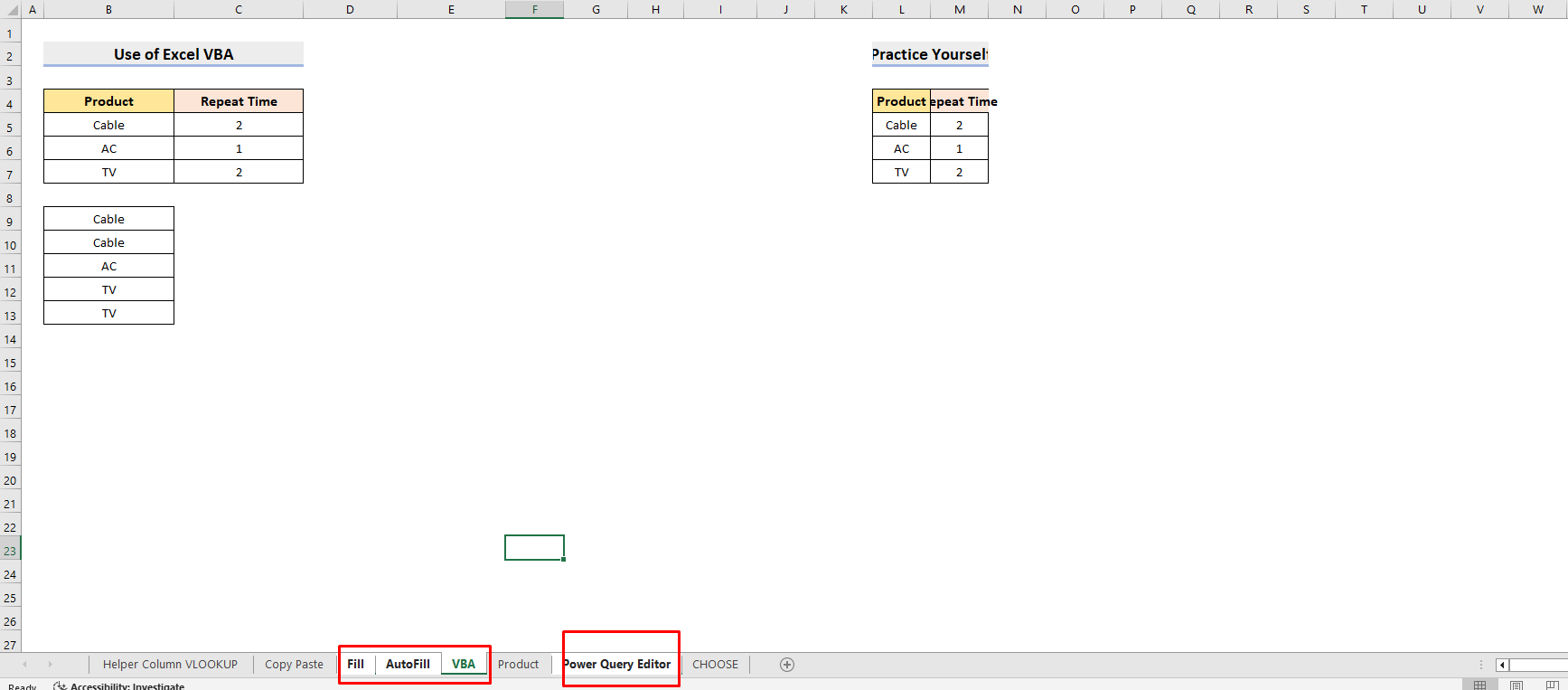
Step 1: You can select a group of sheets in a row and delete them together.
Step 2: imply do a left click on the 1st sheet you want to delete.
Step 3: Move to the last sheet you want to delete, push down Shift + left click.
Step 4: Then boom, every sheet in between will be highlighted as well.
Step 5: Right click on a wanted-to-delete sheet and choose Delete and you will complete the task.
The second way is for sheets that are not next to each other.
Step 1: Left click a sheet you want to delete.
Step 2: Hold down Ctrl + Left click on each and every sheet you want to delete.
Step 3: Right click on one of the sheet that you mean to delete and choose Delete and confirm your action.
Before You Start (Important Notes)
Before you delete any sheets, it is very important to know that this action cannot be undone.
Once you delete a sheet, you cannot get it back using the “Undo” button or by pressing Ctrl+Z.
Be sure you have saved a backup copy of your workbook if you think you might need the information later.
Excel will show you a warning message before it permanently deletes the sheets.
This is your last chance to make sure you have selected the correct sheets. Always double-check which sheets are selected before you confirm the deletion.
Also, remember that every Excel workbook must have at least one visible worksheet.
You will not be able to delete all the sheets in a workbook. If you try to, Excel will show you a message telling you that a workbook must contain at least one visible worksheet.
Method 1 – Delete Multiple Adjacent Sheets (Shift-Select)
This is your 1st choice in how to delete multiple sheets in Excel.
When you need to delete a group of sheets that are all in a row, the Shift-Select method is the fastest way.
This method allows you to select a continuous block of sheets with just a couple of clicks. Imagine you have a workbook with quarterly reports, and you want to delete the first three quarters to only keep the final one.
First, click on the tab of the first sheet you want to delete. For example, if you want to delete “Sheet1,” “Sheet2,” and “Sheet3,” you would start by clicking on the “Sheet1” tab.
The tab will become highlighted to show it is selected.
Next, press and hold the “Shift” key on your keyboard.
While holding down the “Shift” key, click on the tab of the last sheet in the group you want to delete. In our example, this would be “Sheet3.”
Once you click the last sheet tab, all the sheets between the first and the last one will be selected.
You will see that all the tabs from “Sheet1” to “Sheet3” are now highlighted. This indicates that they are all selected and ready for the next action.
With the sheets selected, you can now delete them. Right-click on any of the selected sheet tabs. A menu will appear, and from this menu, you should choose the “Delete” option.
After you click “Delete,” a confirmation pop-up will appear. This is to make sure you really want to permanently delete the selected sheets.
Click the “Delete” button in this pop-up to finalize the action. All the selected adjacent sheets will then be removed from your workbook.
This method is incredibly useful for cleaning up workbooks with many sequential sheets, like monthly logs or daily records. It turns a repetitive task into a quick, two-click process.
Method 2 – Delete Multiple Non-Adjacent Sheets (Ctrl/Cmd-Select)
Sometimes the sheets you want to delete are not next to each other.
For instance, you might want to delete the sheets for “January,” “March,” and “June” without touching the others. For this, you can use the Ctrl-Select (or Cmd-Select on a Mac) method.
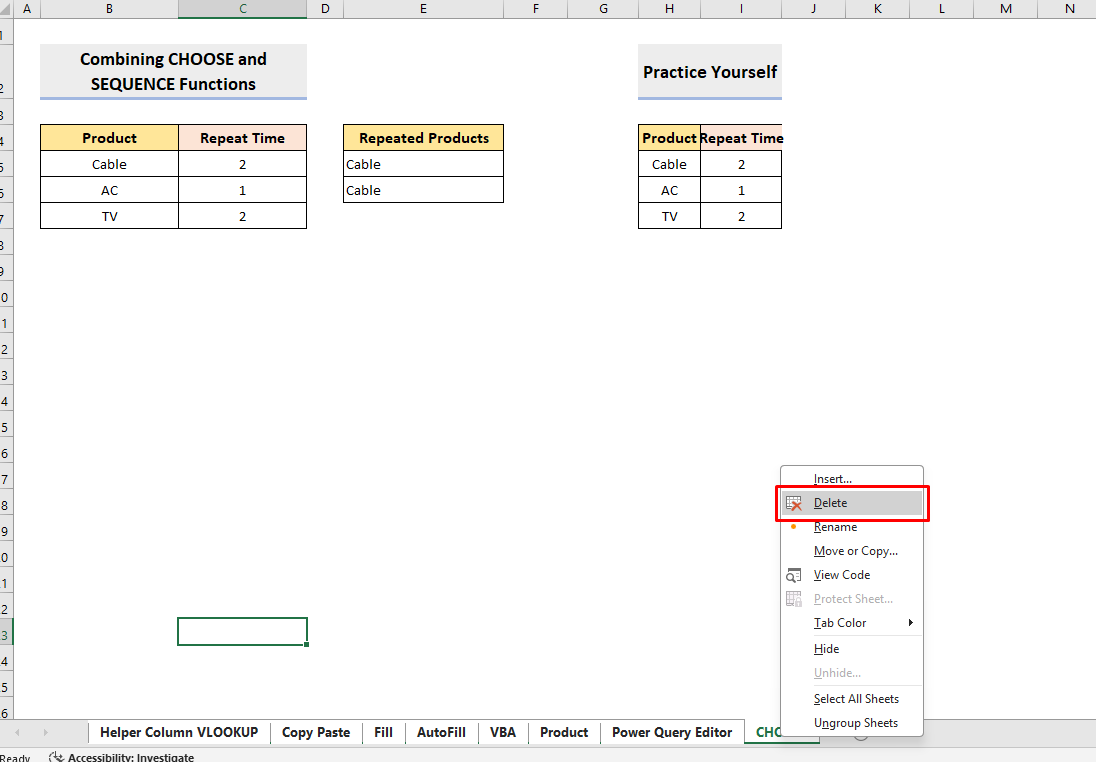
To start, click on the tab of the first sheet you want to remove. Let’s say you want to delete “January.” The tab will be highlighted.
Now, press and hold the “Ctrl” key (or the “Command” key if you are using a Mac). While holding the key, click on the other sheet tabs you want to delete.
You can select as many individual sheets as you need, no matter where they are in the workbook.
As you click on each tab while holding the “Ctrl” key, you will see them become highlighted. This shows that they are part of your selection.
After you have selected all the desired sheets, you can let go of the “Ctrl” key. The next step is to right-click on any one of the highlighted sheet tabs. This will open up a context menu.
From the menu that appears, click on “Delete.” Just like with the previous method, Excel will show a warning message to confirm that you want to permanently delete the selected sheets.
Click “Delete” on the pop-up to proceed.
The Ctrl-Select method is perfect for when you need to be selective about which sheets to remove.
It gives you the flexibility to clean up your workbook without having to rearrange your sheets first.
Ribbon & Right-Click Paths (Cheat Sheet)
This how to delete multiple sheets in Excel guide can’t be completed without this method
For those who prefer using the menus at the top of Excel, you can also delete sheets using the Ribbon.
The Ribbon is the toolbar at the top of the Excel window that contains all the commands. This can be a helpful alternative if you are not comfortable with right-clicking on the sheet tabs.
First, you need to select the sheets you want to delete using either the Shift-Select or Ctrl-Select method as described before.
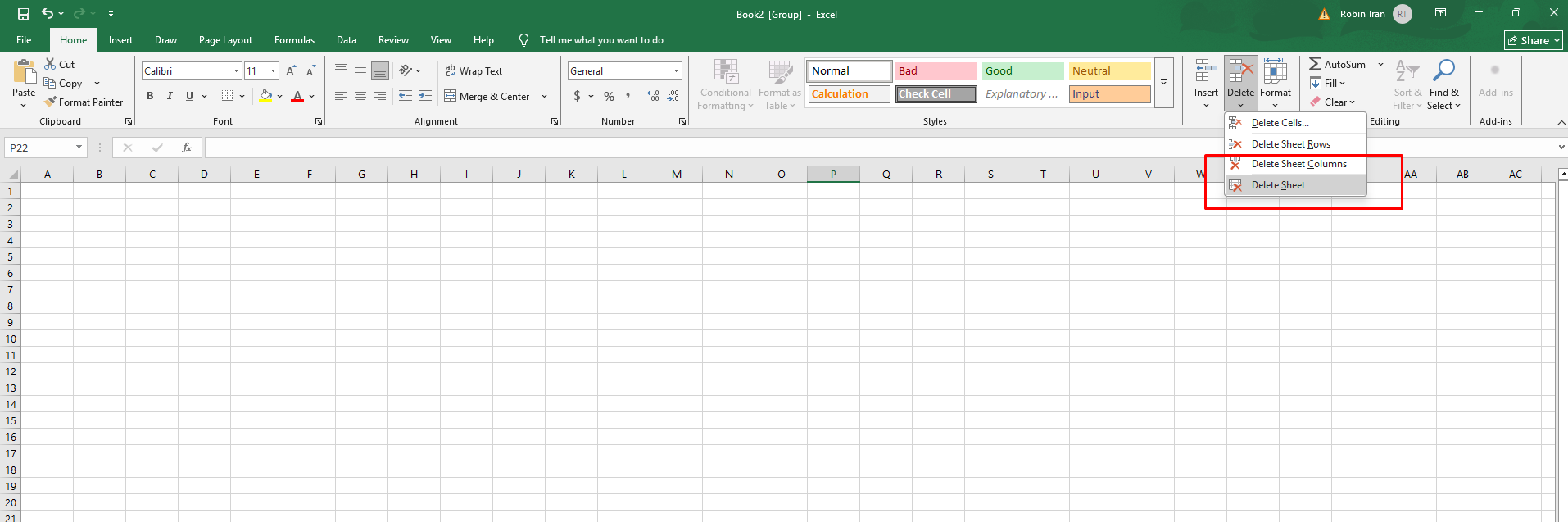
Once your desired sheets are selected, go to the “Home” tab on the Ribbon.
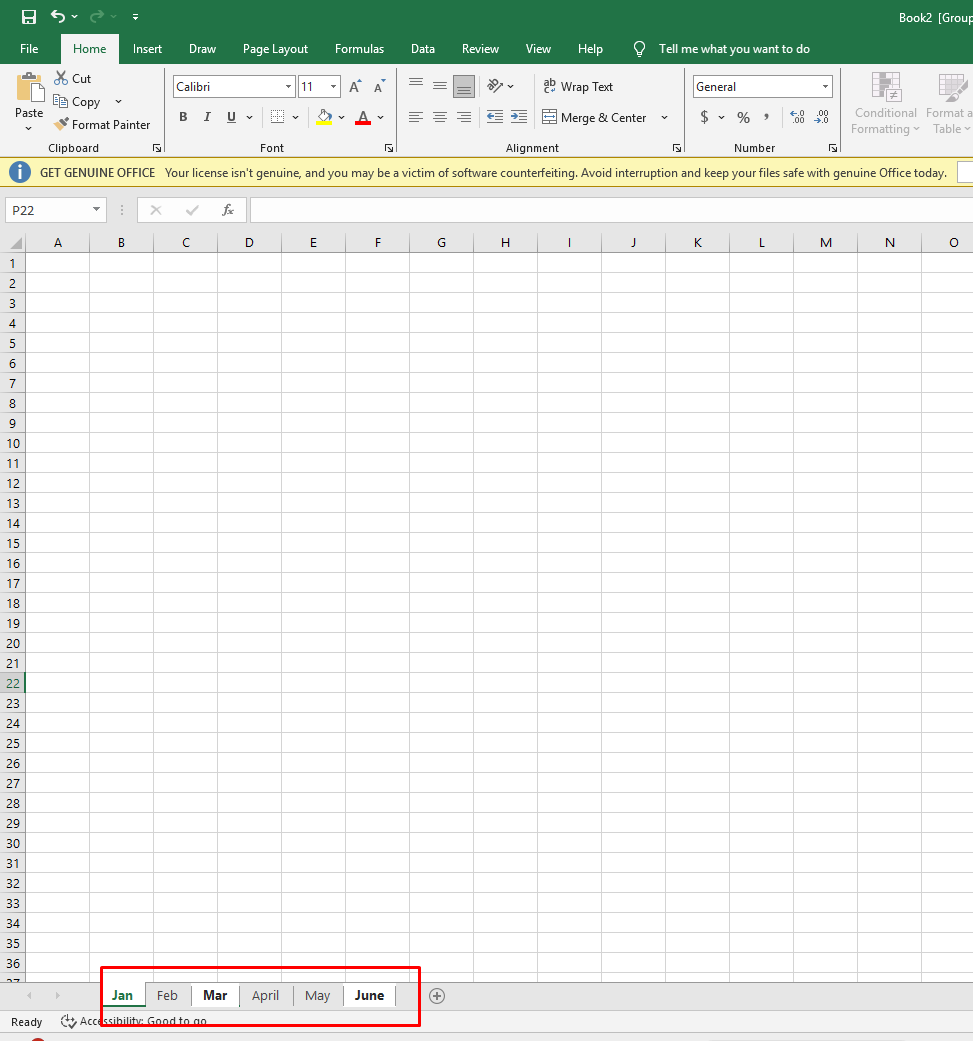
In the “Cells” group on the “Home” tab, you will find a “Delete” button.
Click on the dropdown arrow on the “Delete” button to see more options. From the dropdown menu, select “Delete Sheet.”
As with the other methods, a confirmation dialog box will appear.
Click “Delete” to permanently remove the selected sheets. This method achieves the same result as right-clicking but through the main Excel menu.
For quick reference, here is a cheat sheet of the paths:
Right-Click Method:
- Select sheets using Shift or Ctrl.
- Right-click on any selected sheet tab.
- Choose “Delete.”
- Confirm the deletion.
Ribbon Method:
- Select sheets using Shift or Ctrl.
- Go to the “Home” tab.
- In the “Cells” group, click “Delete.”
- Select “Delete Sheet.”
- Confirm the deletion.
There is also a keyboard shortcut for deleting a sheet.
After selecting the sheet or sheets, you can press Alt + H, then D, and then S in sequence. This will also trigger the delete sheet command.
Troubleshooting – “Delete” is Grayed Out or Does Nothing
There are times when you might try to delete a sheet, but the “Delete” option is grayed out or nothing happens when you click it.
This usually means the workbook is protected in some way. Workbook protection can prevent changes to the structure of the workbook, which includes deleting sheets.
To fix this, you need to unprotect the workbook.
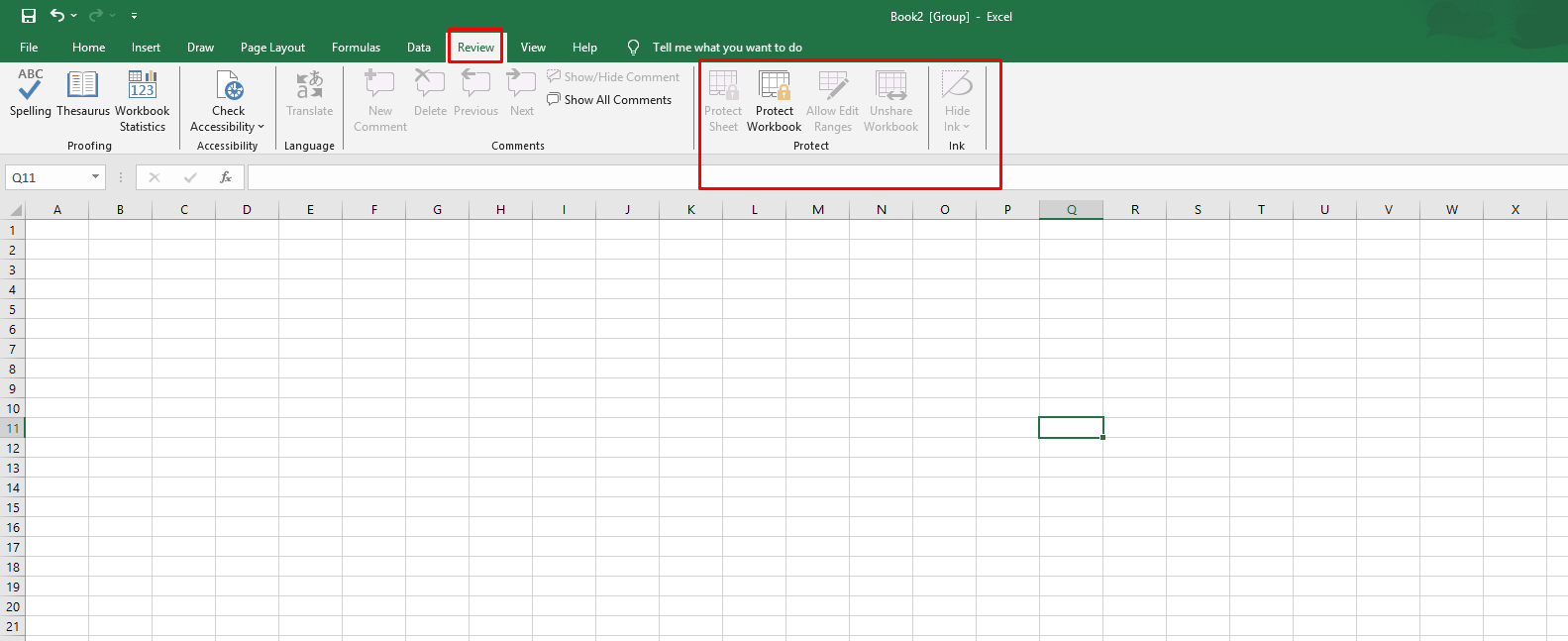
Go to the “Review” tab on the Ribbon. Look for the “Protect Workbook” button. If it is highlighted or appears to be active, it means the workbook is protected.
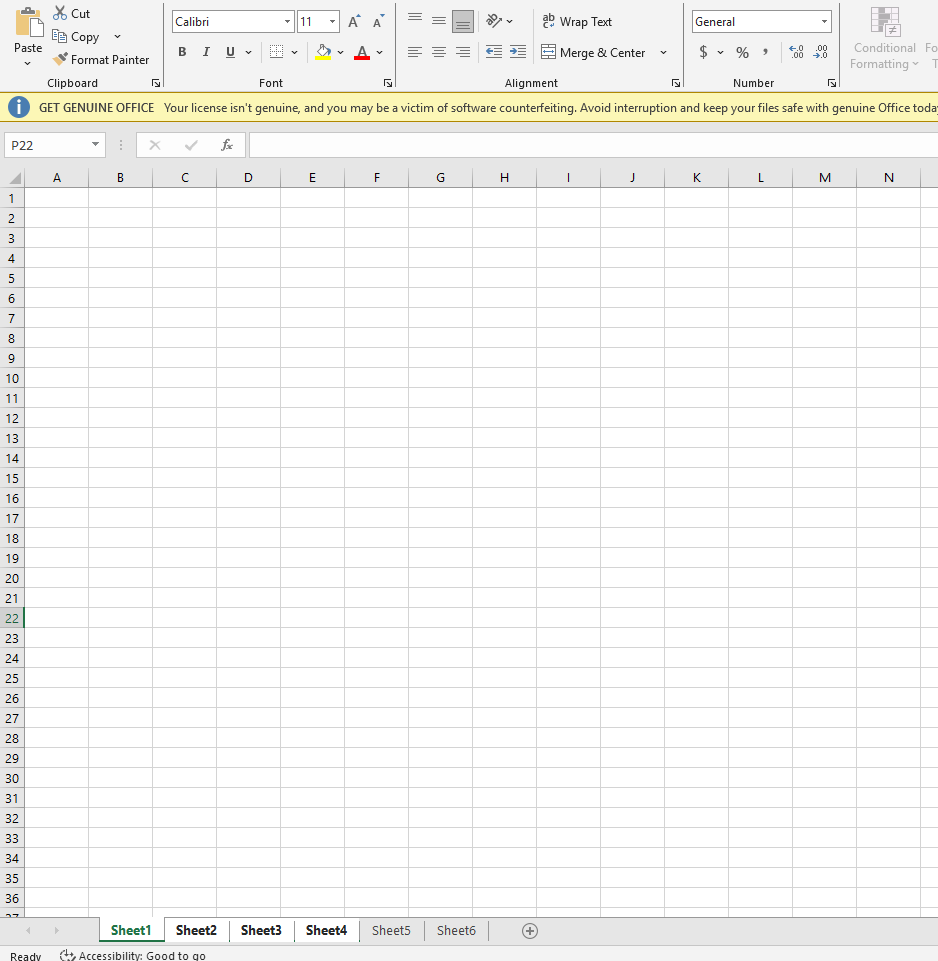
Click on “Protect Workbook.” A dialog box may appear asking for a password. If you know the password, enter it to unprotect the workbook.
Once the workbook is unprotected, you should be able to delete sheets as normal.
Another reason the delete option might be unavailable is if the workbook is shared.
Shared workbooks have limitations on the types of changes that can be made, including deleting worksheets. To disable sharing, you might need to go to the “Review” tab and click “Unshare Workbook.”
If you are using Excel online, the process can be different. In some online versions, you may not be able to select and delete multiple sheets at once.
You might have to delete each sheet individually in the web app.
Related (if you meant Google Sheets)
If you are a Google Sheets user, the process for deleting multiple sheets is very similar to Excel.
Just like in Excel, you can delete both adjacent and non-adjacent sheets. This is helpful for keeping your Google Sheets documents organized.
To delete multiple adjacent sheets, click on the first sheet tab you want to remove.
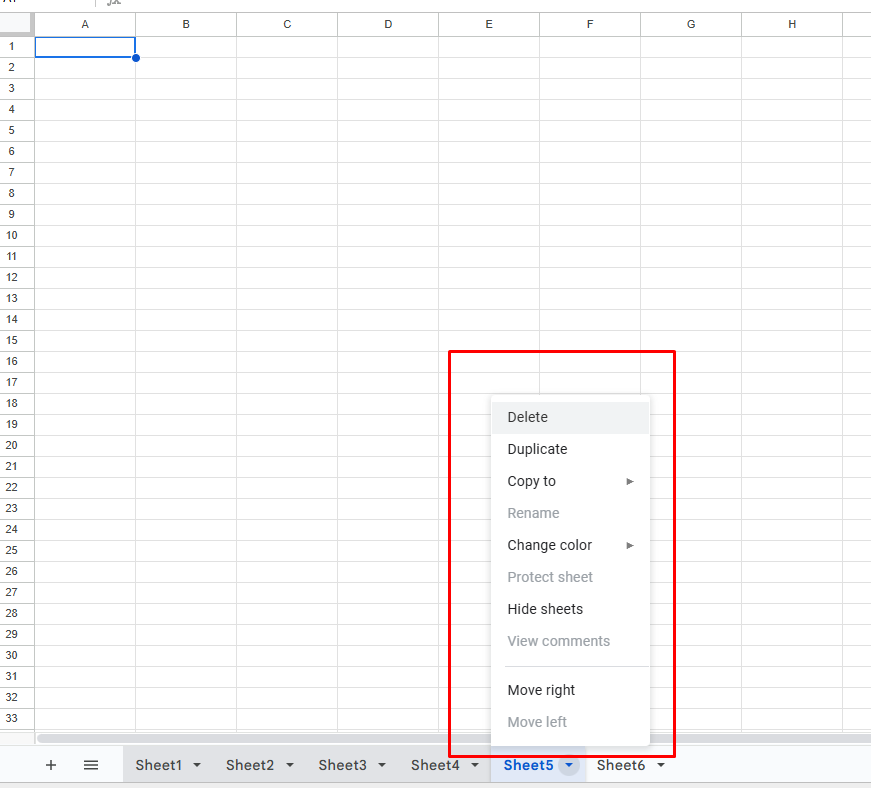
Then, hold down the “Shift” key and click on the last sheet tab in the sequence. This will select all the sheets in between.
For non-adjacent sheets, click the first sheet tab, then hold down the “Ctrl” key (or “Command” key on a Mac) and click on each additional sheet tab you wish to delete.
This allows you to pick specific sheets to remove.
Once you have selected the desired sheets, right-click on any of the highlighted tabs. From the menu that appears, choose “Delete.” A pop-up will ask you to confirm the deletion. Click “OK” to permanently remove the selected sheets.
FAQs
Can I delete multiple sheets with the Ribbon?
Yes, you can use the Ribbon to delete multiple sheets. First, select the sheets you want to delete by using the Shift-select or Ctrl-select method. Then, navigate to the “Home” tab, click on the “Delete” dropdown in the “Cells” group, and choose “Delete Sheet.”
How do I know multiple sheets are selected?
When you select multiple sheets, their tabs at the bottom of the workbook will be highlighted, usually in white or a lighter color than the unselected tabs. Additionally, the word ‘Group’ may appear in the title bar at the top of the Excel window, next to the file name.
Why is Delete disabled?
The “Delete” option for sheets is often disabled if the workbook’s structure is protected. It can also be grayed out if the workbook is shared, as this restricts structural changes. You will need to unprotect or unshare the workbook from the “Review” tab to enable sheet deletion.
Conclusion/Final Thoughts
Knowing how to delete multiple sheets in Excel is a simple yet powerful skill that can save you a significant amount of time.
By using the Shift-select method for adjacent sheets and the Ctrl-select method for non-adjacent sheets, you can clean up your workbooks efficiently. These techniques help you stay organized and focused on your data.
Remember the critical point that deleting sheets is a permanent action that cannot be undone.
Always be cautious and double-check your selection before confirming the deletion, and consider keeping a backup of important files.
By mastering these fast methods, you can handle large and complex workbooks with greater ease and confidence. This makes your workflow smoother and your productivity higher.