 December 15, 2025
 11 min read
Document Scanner Guide: Hardware, Mobile Apps, and Scanning to Excel Strategies
A Document Scanner is the most essential tool for any modern office looking to eliminate paper clutter and achieve digital transformation excellence. In today’s fast-paced business environment, paper piles up with alarming speed; you might find yourself buried under stacks of invoices, receipts, and contracts that occupy valuable physical space. Finding a specific document in these messy filing cabinets can take hours of manual searching, which is inherently inefficient. Fortunately, the solution is to transition from physical paper to digital formats, a process that cleans up your workspace instantly and makes your critical information globally accessible.
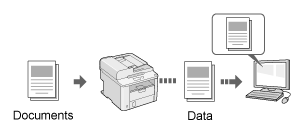
To make this digital shift happen, you need a high-quality document scanner. Modern technology has evolved significantly, moving beyond the heavy, beige machines in the corner of the office. Today, a document scanner can be a dedicated piece of high-speed hardware or a sophisticated mobile scanner app on your smartphone. Both tools serve the same vital purpose: converting physical items into professional digital files like PDFs or JPEGs. This guide will help you choose the right tools and strategies to build a truly paperless office.
Part 1: Physical Document Scanners for High-Volume Workflows
For businesses or home offices that process dozens of pages every single day, a dedicated physical machine is irreplaceable. A high-end document scanner is a workhorse built for endurance, speed, and high-resolution output. If you have boxes of historical archives to digitize, hardware is your most reliable investment.
Flatbed Scanners: The Choice for Precision and Fragile Items
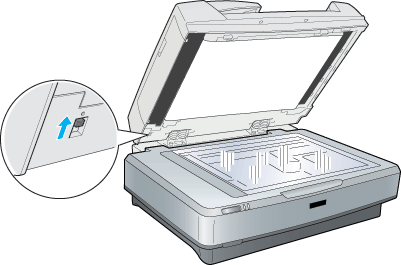
The flatbed is the most recognizable type of document scanner. It features a glass platen where you place the paper flat. This design is perfect for fragile items, old photographs, or bound books where you don’t want to damage the binding. While flatbeds offer exceptional quality, they are relatively slow for multi-page documents, making them less ideal for frequent scan to excel tasks where speed is a priority.
Sheet-Fed Scanners with ADF (Automatic Document Feeder)
The sheet-fed document scanner works by pulling paper through a series of rollers, much like a printer in reverse. These machines almost always feature an ADF (Automatic Document Feeder), allowing you to load a stack of 50 to 100 pages at once. Professional models also offer Duplex Scanning, which scans both sides of a page simultaneously. This is the gold standard for office efficiency, allowing you to digitize entire contract folders while you focus on higher-value work.
Portable and Handheld Scanners for Professionals on the Move
Sometimes you need to capture data on the road. A portable document scanner is small enough to fit in a laptop bag and is usually powered by USB or batteries. These are perfect for business trips where you need to scan receipts or business cards in a hotel room. While they aren’t as fast as desktop models, they offer unmatched flexibility for a mobile workforce.
Part 2: The Power of Mobile Scanner Apps
If you don’t have the budget or desk space for hardware, your smartphone camera is a powerful alternative. A mobile scanner app has become the primary tool for freelancers and small business owners. Modern apps use Artificial Intelligence to do more than just take a photo; they analyze the scene to find edges, crop out the background, and fix perspective distortions automatically.
Leading apps like Adobe Scan and Microsoft Lens turn every smartphone into a professional document scanner. They automatically adjust lighting and remove hand shadows, ensuring the final PDF looks like it came from a flatbed machine. This is the easiest way to start your “paper to digital” journey without any upfront hardware costs.
Part 3: Understanding Technical Specs (DPI, PPM, and Drivers)
To get professional results, you must understand the technical specifications of your document scanner:
-
DPI (Dots Per Inch): This measures the detail of the scan. For text-based invoices, 300 DPI is the perfect balance of clarity and file size. If you are scanning photos for archiving, look for 600 DPI or higher.
-
PPM (Pages Per Minute): This measures how fast the document scanner works. A professional office scanner should handle at least 30 PPM. High-end enterprise machines can reach 60 PPM or more.
-
Drivers (TWAIN/ISIS): Ensure your hardware supports TWAIN drivers. This is the universal language that allows your document scanner to talk to professional software like Photoshop, Word, or specialized OCR tools.
Part 4: The Role of OCR in Scanning to Excel
A scan is essentially just a “dumb” picture—a collection of pixels—until Optical Character Recognition (OCR) makes it readable. A document scanner creates an image, but it doesn’t know that the image contains a financial table or a legal clause. You need OCR to unlock the data within those pixels.
Making Scans Searchable and Actionable
OCR software analyzes the shapes of letters and converts them into real, searchable text. This turns a flat image into a Searchable PDF. This is the true power of a document scanner; it allows you to press “Ctrl+F” and find any keyword in seconds.
For many accountants and data analysts, the most powerful feature is the ability to scan to excel. Advanced OCR technology can recognize the structure of tables on a paper invoice and place those numbers directly into a spreadsheet. This eliminates the need for manual data entry, saving hours of work and preventing costly typos.
Part 5: Best Practices for High-Quality Digitization
To ensure your digital archive is professional and long-lasting, follow these best practices for your document scanner:
-
Preparation is Key: Always remove staples and paperclips. Metal can scratch the scanner’s lens or jam the feeder mechanism. Smooth out any wrinkles and fan the stack of paper to prevent “double-feeds.”
-
Choose the Right Format: Use PDF for standard business documents as it supports multi-page files and OCR. Use JPEG for photos and TIFF for high-resolution historical archiving.
-
Regular Maintenance: Clean the scanner rollers with alcohol once a month. Paper dust builds up and causes the document scanner to lose its grip, leading to jams or skewed images.
Why jpgtoexcelconverter.com is The Right Solution For You?
Managing a paperless office requires more than just a document scanner; you need a way to make that data work for you. At jpgtoexcelconverter.com, we bridge the gap between your physical scans and your professional spreadsheets.
We provide the ultimate platform to take the images from your document scanner and transform them into highly accurate, editable Excel files. Our advanced OCR technology preserves your data tables perfectly, ensuring that every number from your paper invoice lands in the correct digital cell. Whether you are using a professional sheet-fed machine or a simple mobile scanner app, our site acts as your central hub for high-precision digitization.
Stop struggling with manual data entry today. Choose jpgtoexcelconverter.com to turn your paper mountains into digital gold and experience the most efficient way to manage your business information.