 February 16, 2026
 11 min read
Convert JPG to Excel for free is the most sought-after solution for modern professionals, students, and small businesses looking to eliminate the slow, painful, and error-prone process of manual data entry. In today’s high-speed digital environment, many people work with paper documents every single day, often finding themselves stuck with critical data trapped inside non-editable image files. Whether you have a smartphone photo of a financial table or a scanned receipt, the ability to convert JPG to Excel for free helps you organize your information without any financial burden or administrative stress.
Manual data entry is notoriously slow and can cause significant eye strain after hours of staring at pixels. Most forward-thinking organizations want to find a faster way to handle their important records, moving toward a more automated workflow. By choosing to convert JPG to Excel for free, you are utilizing a technology called OCR (Optical Character Recognition). This tool acts as a sophisticated digital bridge between physical paper and searchable digital spreadsheets. This comprehensive guide will show you the most efficient ways to manage your data using modern technology to convert JPG to Excel for free with near-perfect accuracy.
What Is JPG to Excel Conversion and How Does OCR Work?
The Technology Behind Free Image to Excel Conversion
OCR (Optical Character Recognition) is a technology that analyzes the pixel patterns in an image, identifies characters and numbers, and converts them into machine-readable, editable text. In the context of a free JPG to Excel converter, OCR does not just extract raw text. It also maps the spatial layout of the original document, placing each value into the correct row and column inside a spreadsheet.
Traditional OCR engines worked by matching pixel shapes against a library of character templates. Modern AI-powered platforms go several steps further. They use neural networks trained on millions of documents to understand table structure, cell boundaries, and the logical relationship between data points. The result is a structured Excel file that mirrors the layout of your original image, not a jumbled block of text you need to reorganize manually.
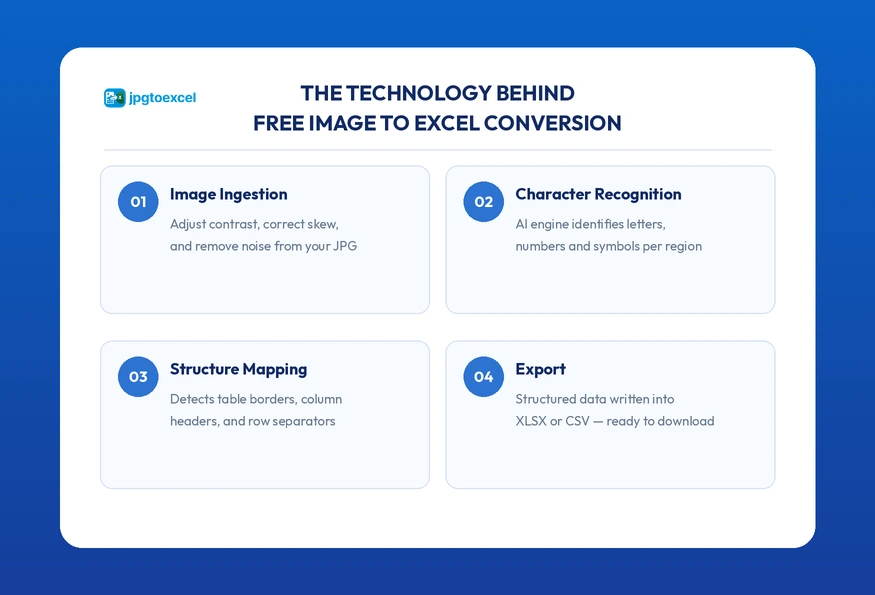
The core process works in four stages:
- Image ingestion: The platform receives your JPG file and preprocesses it (adjusting contrast, correcting skew, removing noise).
- Character recognition: The AI engine scans each region of the image and identifies letters, numbers, and symbols.
- Structure mapping: The engine identifies table borders, column headers, and row separators to build a logical grid.
- Export: The structured data is written into an XLSX or CSV file and made available for download.
Why Free Tools Can Now Match Paid Software in 2026
Five years ago, reliable OCR was expensive. Enterprise licenses from vendors like ABBYY or Adobe cost hundreds of dollars per year. Today, advances in open-source machine learning frameworks and cloud computing have made the same core technology accessible at zero cost.
The key shift is that accuracy no longer depends on expensive proprietary algorithms. It depends on training data and model architecture, both of which are now widely available. According to the 2025 Gartner Magic Quadrant for Intelligent Document Processing Solutions, leading AI-powered IDP platforms now extract unstructured data with over 95% accuracy. This benchmark was once exclusive to enterprise-grade paid software.
One important caveat: accuracy is conditional. A well-designed free image-to-Excel converter tool will consistently deliver 95% or higher accuracy on images with a minimum resolution of 300 DPI, even lighting, and clear horizontal alignment. Images that fall below these thresholds will produce lower-quality output regardless of which tool you use.
Top Use Cases: Who Needs to Convert JPG to Excel for Free?
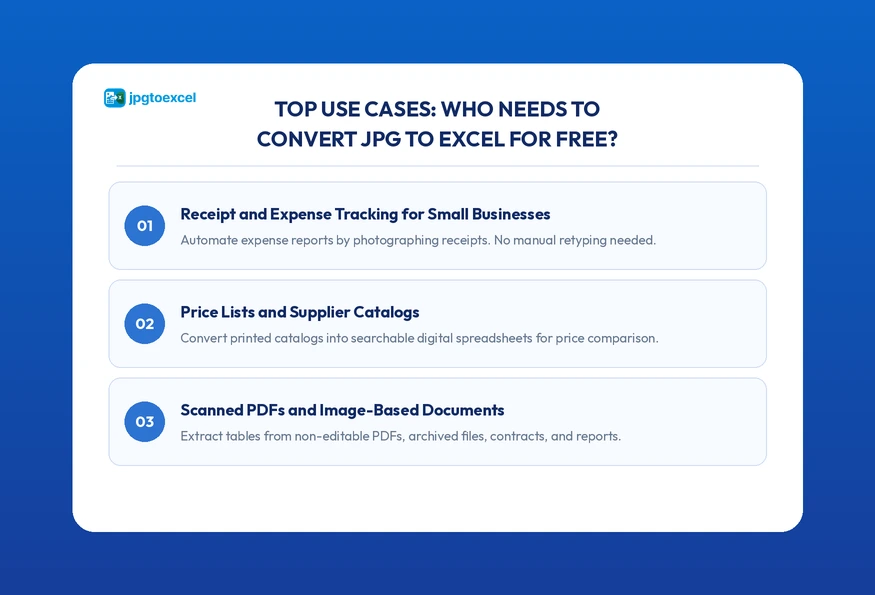
Receipt and Expense Tracking for Small Businesses
According to research by Parseur on manual data entry costs, managers spend an average of eight or more hours per week on manual data tasks, with 25% devoting 20 or more hours weekly. For small business owners and finance teams, a significant portion of that time goes toward retyping expense data from paper receipts. A photo-to-spreadsheet converter eliminates that entire workflow.
Instead of retyping vendor names, dates, and amounts, you photograph each receipt, upload it to a free JPG to Excel converter, and export a clean expense report in seconds. The resulting XLSX file integrates directly with accounting tools like QuickBooks, Xero, or even a simple Google Sheet. Tax season becomes a matter of reviewing a spreadsheet rather than sorting through a physical folder of paper.
For a deeper look at how this works during tax season, see our complete guide on Tax Document JPG to Excel: The 2026 Guide to Tax Automation.
Extracting Data from Price Lists and Supplier Catalogs
Suppliers regularly send printed or scanned catalogs that contain dozens or hundreds of product lines with pricing, SKUs, and specifications. Rekeying that data into your own inventory system is a significant time cost and introduces the risk of transcription errors. Research shows that the average manual data entry error rate reaches up to 4% per field for average operators, a margin that becomes costly at scale.
Using a free Excel scan tool, you can turn a multi-page catalog into a structured spreadsheet in minutes. That data can then be imported directly into your ERP or purchasing system, or used to build a real-time price comparison across multiple suppliers.
Converting Scanned PDFs and Image-Based Documents
Not all PDFs contain selectable text. When a PDF is created by scanning a physical document, it is essentially a sequence of images packaged inside a PDF container. You cannot copy or search the text because there is no text layer. It is just pixels.
A free JPG to Excel converter solves this by treating each PDF page as an image and applying OCR to extract the underlying data. Common use cases include:
- Digitizing archived financial reports and balance sheets
- Extracting tables from scanned contracts or legal agreements
- Converting academic transcripts or grade sheets into editable records
- Processing historical inventory records stored only on paper
How to Convert JPG to Excel for Free: Step-by-Step Guide
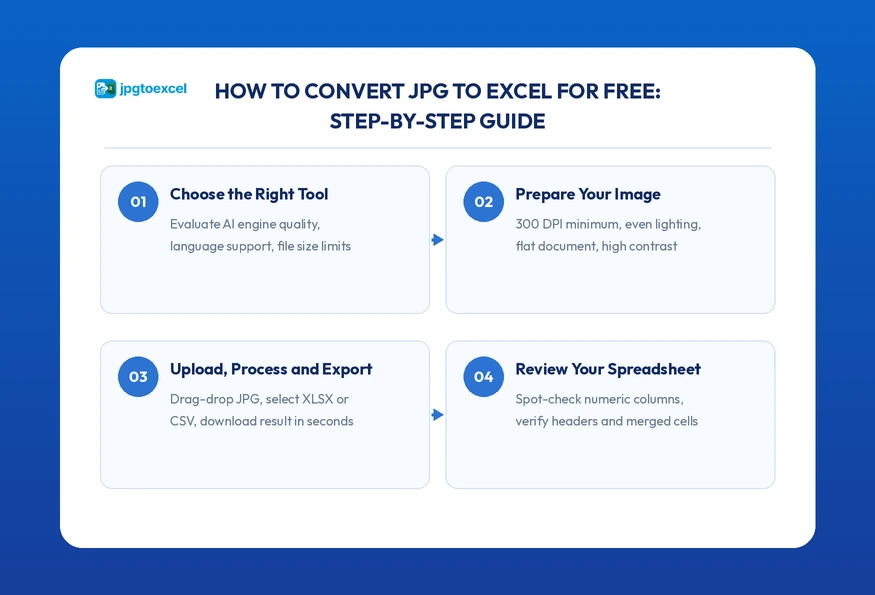
Step 1: Choose the Right Free JPG to Excel Tool
Not all platforms are equal. Before committing to a tool for a large batch of documents, evaluate it on three criteria:
- Engine quality: Does it use AI-powered table detection or basic template matching? AI-based tools handle merged cells, rotated text, and low-contrast images far more reliably.
- Language support: If your documents contain non-English characters, confirm the tool supports your target language.
- File limits: Some free tiers restrict file size or the number of pages per conversion. Check the limits before uploading a 20-page document.
Step 2: Prepare Your Image for Maximum Accuracy
The quality of your output is directly tied to the quality of your input image. Follow these preparation steps before uploading:
- Lighting: Photograph documents in natural or even artificial light. Avoid flash, which creates glare and washes out text. Shadows from your hand or a nearby object are the most common cause of recognition errors.
- Angle: Hold your camera or phone directly above the document. Even a 10-degree tilt can cause character distortion. Lay the paper flat on a dark, non-reflective surface.
- Resolution: Aim for a minimum of 300 DPI. Most modern smartphone cameras exceed this by default, but check your camera settings if you are scanning with a dedicated flatbed scanner.
- Contrast: High contrast between the text and background is critical. If you are working with a faded document, use your phone’s camera editing tools to increase contrast before uploading.
Step 3: Upload, Process, and Export to XLSX or CSV
Once your image is ready, the process on a well-designed free JPG to Excel online free platform takes under 60 seconds:
- Open jpgtoexcelconverter.com in your browser.
- Drag and drop your JPG file onto the upload area, or tap to browse your file system.
- Select your output format. Choose XLSX if you need full Excel compatibility with formatting. Choose CSV if you are importing the data into a database or a tool with its own import system.
- Click Convert. The AI engine will process your image, typically in 5 to 15 seconds for a standard single-page document.
- Download your file directly to your device.
XLSX vs CSV: which should you choose?
| Format | Best For | Limitations |
| XLSX | Excel, Google Sheets, Power BI | Larger file size |
| CSV | Database imports, Python/R data analysis | No formatting, single sheet only |
Step 4: Review and Clean Up Your Spreadsheet
Even the best free image-to-Excel converter tool will occasionally produce a minor error, particularly on documents with handwriting, unusual fonts, or heavy compression artifacts. Before using your data in a business context, run a quick review:
- Spot-check numeric columns by comparing totals against the original document.
- Look for merged cells that may have split incorrectly.
- Verify that column headers were captured as headers, not as data rows.
- Check for special characters or accented letters that may have been misread.
For most clean, high-resolution input images, this review step takes less than 2 minutes. If you find multiple errors in the same region of the spreadsheet, consider re-scanning that section of the document with better lighting or a higher resolution setting.
Comparing Free JPG to Excel Tools: What to Look For in 2026
| Feature | Basic OCR Tools | AI-Powered Tools (e.g., jpgtoexcelconverter) |
| Table border recognition | Limited, requires clear lines | Advanced, detects faint or missing borders |
| Merged cell handling | Often splits incorrectly | Preserves merged cell structure |
| Multi-language support | English only or basic | 50+ languages, including Asian scripts |
| Accuracy on low-contrast images | Low (below 70%) | High (above 90% with adequate resolution) |
| Processing speed | 30 to 90 seconds | 5 to 15 seconds |
| Free tier availability | Yes | Yes |
| Account required | Sometimes | No (jpgtoexcelconverter) |
Not sure which platform fits your needs? We’ve reviewed and ranked the best options in detail. See our full breakdown of the Top 5 JPG to Excel Converter Online Tools for 99.9% Accuracy.
When Free Tools Are Enough (and When They Are Not)
A free scan to Excel free tool delivers excellent results in the following scenarios:
- Single-page documents with clear, printed fonts
- Standard table layouts with visible horizontal and vertical borders
- Documents in common languages with standard character sets
- Images captured in good lighting at 300 DPI or above
Free tools struggle with:
- Handwritten text, particularly cursive or stylized scripts
- Nested tables with multiple header levels
- Documents printed on colored or textured paper
- Images with heavy JPEG compression artifacts
Being honest about these limitations is important. If your documents consistently fall into the second category, an AI-powered premium tier or a specialized intelligent document processing platform may be a better long-term investment.
Why AI-Powered Platforms Outperform Standard OCR
Standard OCR recognizes characters. AI-powered document intelligence recognizes meaning. That distinction matters when you are dealing with a complex financial table where a merged header cell spans five columns, or an invoice where the line items are separated by dotted lines rather than solid borders.
Neural network models like the one powering jpgtoexcelconverter are trained specifically on table structures across thousands of document types. They understand that a row of numbers below a bold header row is likely a data row, not a continuation of the header. They can infer column boundaries even when the vertical lines are partially obscured.
For international businesses, multi-language support is an equally important differentiator. A basic OCR engine will corrupt Chinese, Arabic, or Eastern European characters that it was not designed to recognize. An AI-powered free JPG to Excel converter trained on multilingual datasets handles these scripts correctly without any configuration on your end.
The market reflects this shift in capability. According to Straits Research, the global intelligent document processing market was valued at USD 2.44 billion in 2024 and is projected to reach USD 37.28 billion by 2033, registering a compound annual growth rate of 35.4%. That growth is driven by exactly the kind of AI-powered accuracy improvements that are now available in free tools.
Common Problems When Converting Images to Excel and How to Fix Them
Why Is My Converted Spreadsheet Misaligned?
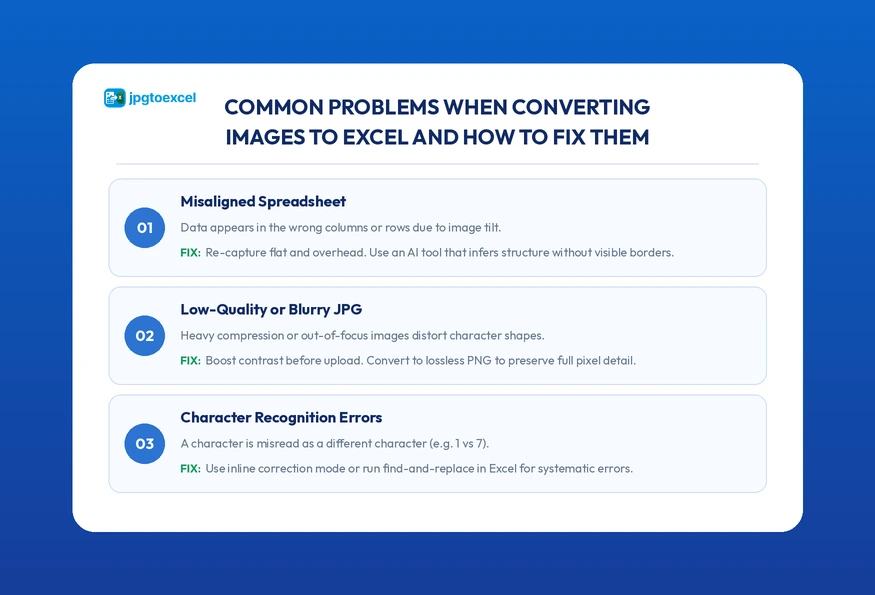
Misalignment, where data appears in the wrong columns or rows, is almost always caused by one of two things: a tilted input image or a document with no visible table borders.
If the original image was captured at an angle, the OCR engine interprets the slanted rows as a single horizontal line, causing it to lose track of the column boundaries. The solution is straightforward: simply re-capture the image with the document lying completely flat and hold your camera directly overhead.
If the document has no printed borders (a common layout in internally formatted reports), switch to an AI-powered tool that infers structure from spacing patterns rather than relying on visible lines. Basic OCR engines require explicit borders. AI-driven platforms do not.
How to Handle Low-Quality or Blurry JPG Files
If you cannot re-capture the original document (for example, it is an archived image or a file received from a third party), there are several ways to improve image quality before upload:
- Use a free image editing tool like Canva, Adobe Express, or your phone’s built-in photo editor to increase contrast and brightness.
- Apply sharpening filters to recover some definition in blurry text.
- If the image is heavily compressed, convert it to PNG before uploading. PNG is a lossless format that preserves pixel data better than JPEG at similar file sizes.
No enhancement will fully recover information that was never captured. If text is completely illegible in the original image, no OCR tool can read it.
What to Do When Text Is Not Recognized Correctly
Specific recognition errors, where a character is read as a different character, occur most often with:
- Handwritten numbers (1 misread as 7, or 6 as 0)
- Stylized fonts with unusual letter shapes
- Characters from non-Latin scripts, if the tool was not trained on them
- Text printed very close to a table border
The most efficient fix is to use a tool that includes an inline correction mode, where you can click on a misrecognized cell and edit it before exporting. jpgtoexcelconverter.com includes a review interface for exactly this purpose. For batch processing, it is faster to export and do a find-and-replace in Excel for systematic errors (such as every “0” that should be a “6” in a specific column).
Conclusion: Stop Losing Time to Manual Data Entry
The three takeaways from this guide are straightforward. First, choose an AI-powered tool rather than a basic OCR engine. The accuracy difference on real-world business documents is significant. Second, invest 60 seconds in preparing your image properly. Good lighting, a flat document, and a steady camera eliminate the most common errors before they happen. Third, always review your converted spreadsheet before using the data in a business context, particularly for numeric values.
Converting JPG to Excel for free is no longer a workaround. It is a standard, reliable workflow that thousands of businesses and professionals use every day to process receipts, price lists, contracts, and reports without touching a keyboard. As McKinsey research confirms, companies that automate data workflows grow revenue 1.5x faster than those that rely on manual entry.
Every hour spent on manual data entry is an hour that could go toward work that actually requires human judgment. The tools to automate the routine parts are free, fast, and accurate. There is no reason to wait.
FAQ: Convert JPG to Excel for Free, Your Questions Answered
How do I convert a JPG image to Excel for free?
Upload your JPG file to a free tool like jpgtoexcelconverter.com, select XLSX or CSV as your output format, and click Convert. The AI engine processes your image in seconds and delivers a structured spreadsheet. No account, no software installation, and no cost are required for standard conversions.
What is the best free tool to extract table data from an image to Excel?
jpgtoexcelconverter.com is one of the strongest free options in 2026 for table extraction. It uses an AI-powered engine that detects table structure, handles merged cells, and supports over 50 languages. Unlike basic OCR tools, it does not require visible table borders to correctly map rows and columns.
How accurate is free OCR when converting images to spreadsheets?
A well-designed free image to Excel converter tool achieves 95% or higher accuracy on clear, high-resolution images (300 DPI minimum, good lighting, printed text). For context, research shows automated data entry delivers 99.95% field-level accuracy versus 96 to 99% for human operators. Always do a quick spot-check on numeric columns before using converted data in business processes.
Can I convert a scanned PDF table to Excel without paying?
Yes. Scanned PDFs are essentially image files packaged in a PDF container. You can either extract the pages as JPG images and upload them to a free converter or use a tool that accepts PDF uploads directly. jpgtoexcelconverter.com supports both workflows at no cost.
What image quality do I need for accurate JPG to Excel conversion?
The minimum recommended resolution is 300 DPI. Beyond resolution, ensure even lighting with no shadows or glare, a flat document with no curl or fold distortion, and high contrast between the text and the paper background. Meeting these three conditions consistently produces results that require minimal manual correction.