 October 24, 2025
 11 min read
Introduction
The Problem
You have text in an image, screenshot, or scanned document, but you can’t select, copy, or edit it.
We have all been in this situation before. You are attending a virtual conference and the presenter displays a slide with a brilliant quote or some critical data, so you quickly take a screenshot to save it for later.
You might be reviewing a contract that was sent to you as a scanned PDF, which is essentially just a collection of images.
Or perhaps you’ve snapped a photo of a whiteboard covered in notes after a productive brainstorming session. In each of these cases, you have the visual information, but you quickly realize that the text is completely locked within the image.
You can see the words, but you can’t select them with your cursor, you can’t copy and paste them into an email or a report, and you certainly can’t edit them.
This creates a frustrating and inefficient digital roadblock.
The only way to get that text into an editable format, like a Word document or an Excel spreadsheet, seems to be the old-fashioned way: manually retyping everything by hand.
This process is not only incredibly slow and tedious but is also a recipe for errors. It is far too easy to mistype a number, misspell a name, or accidentally omit a key phrase, which can lead to significant problems, especially in a professional setting.
This manual transcription work is a major drain on productivity, turning a simple task into a time-consuming chore and preventing you from quickly using the valuable information you’ve captured.
The Solution
Use Optical Character Recognition (OCR) to extract the text. This guide shows you four simple ways to do it.
Fortunately, you do not have to resort to manual typing. The solution to this common problem is a powerful technology called Optical Character Recognition, or OCR. Think of OCR as a digital translator that can read the text in any image and convert it into real, usable text that your computer can understand.
It analyzes the shapes of the letters and numbers in the picture and transforms them into editable characters, effectively unlocking the information that was once trapped. This technology is the magic that bridges the gap between a static image and a dynamic, functional document.
The best part is that you don’t need to be a tech expert or buy expensive software to use OCR. This powerful capability is now widely available and integrated into many of the tools you probably already use every day.
Whether you need to grab text for a quick, one-time task or you need a reliable way to digitize documents on a regular basis, there is a simple method that will work for you.
This guide will walk you through four easy and accessible methods for copying text from an image, from free online tools to the built-in features on your own computer, ensuring that you can find the perfect solution for any device and any situation.
Method 1: Using a Free Online Image-to-Text Converter
Best for: Quick, one-off conversions without installing any software.
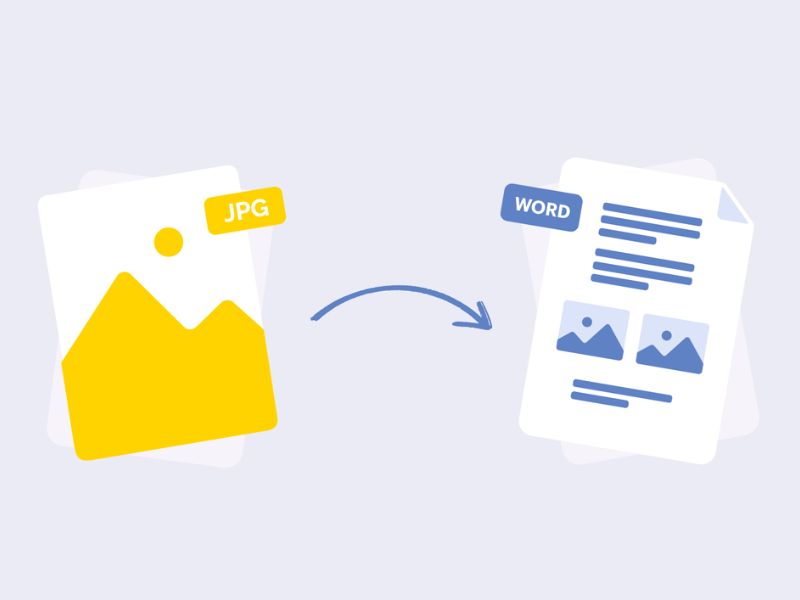
There are many situations where you just need to extract text from a single image quickly, without any fuss. You may not need to do this task often, so the idea of downloading and installing a new piece of software on your computer seems like overkill.
This is the perfect scenario for using a free online image-to-text converter. These web-based tools are incredibly convenient because they work directly in your internet browser, whether you are on a computer, a tablet, or a smartphone.
Online converters are designed for simplicity and speed, making them ideal for users who are not very tech-savvy or who are simply in a hurry.
Imagine you are a student who has a screenshot of a reference from an online article and you need to add it to your bibliography, or a marketer who wants to grab the text from a competitor’s social media graphic to analyze their messaging.
In these cases, you don’t need a complex, feature-rich program; you just need a fast and effective way to get the text, and an online tool is the most direct route to your goal.
How it works:
Using an online OCR tool is a straightforward and intuitive process that typically only takes a few moments to complete.
These websites are designed to be as user-friendly as possible, guiding you through the steps with clear instructions. While the exact layout may vary slightly from one site to another, the core workflow is almost always the same, involving just a few simple clicks to get your text.
The process begins with getting your image into the tool. You simply open your web browser and navigate to a popular free online converter, such as imagetotext.info or one of the many other options available.
Once you are on the website, you will typically see a large, prominent button or box that prompts you to upload your file. You can click this button to browse your computer’s files and select the image you want to convert, which can be in a common format like JPG, PNG, or GIF.
Many of these tools also offer the convenience of dragging and dropping your file directly onto the webpage or even pasting an image that you have already copied to your clipboard.
After your image has been uploaded, the next step is usually just a single click. You will see a button labeled something like “Convert,” “Submit,” or “Extract Text.” When you click this button, the website’s server will begin processing your image.
The OCR engine analyzes the picture, identifies all the characters, and converts them into digital text. This process is usually very fast, often taking only a few seconds, though it might take a bit longer for very large or complex images.
Once the conversion is complete, the website will display the extracted text in a simple text box right on the page.
From here, you have a couple of options. You can easily select all of the text with your mouse and copy it to your clipboard, ready to be pasted into another application like Microsoft Word, an email, or a messaging app.
Many online converters also provide a convenient “Download” button that allows you to save the extracted text directly to your computer as a plain text file (.txt), which can be useful for keeping a record of the conversion.
Pros: Free, easy, supports multiple languages and image formats.
One of the biggest advantages of using online image-to-text converters is that they are completely free to use. You don’t have to worry about subscription fees or hidden costs, which makes them an excellent option for individuals, students, or small businesses on a tight budget.
Their ease of use is another major selling point; the simple, step-by-step process means that anyone can use them without needing any special training or technical knowledge.
Furthermore, these online tools are surprisingly versatile. Most of them can handle a wide variety of common image formats, so you don’t have to worry about converting your file before you upload it.
They also often support multiple languages. This is a fantastic feature if you are working with documents that are not in English, as you can often select the correct language before you start the conversion process to ensure a much higher level of accuracy. However, it is important to be mindful of privacy.
Since you are uploading your file to a third-party server, it is generally not recommended to use these free online tools for documents that contain sensitive or confidential information, such as financial records or personal data.
Method 2: Using Built-in Windows & Mac Tools
Best for: Users who want a native, integrated solution without visiting a website.
While online tools are convenient, some users prefer to work with applications that are integrated directly into their operating system.
Using a native tool can feel faster, more secure, and more seamless than opening a web browser and uploading a file. You don’t have to worry about your internet connection, and you can be confident that your data is not being sent to a third-party server.
For users who need to extract text from their screen frequently, a built-in solution that can be activated with a simple keyboard shortcut is the most efficient option.
Both Windows and macOS offer excellent, free tools that bring OCR capabilities right to your desktop.
These utilities are designed to feel like a natural part of the operating system, providing a smooth and integrated experience.
Whether you need to grab an error message from a pop-up window, copy a paragraph from a protected PDF, or save a snippet of text from a video presentation, these native tools are perfectly suited for the job, allowing you to capture text from anywhere on your screen with just a few clicks.

For Windows Users (PowerToys Text Extractor):
If you are a Windows user, one of the best-kept secrets for power users is a free suite of utilities from Microsoft called PowerToys.
This application is a collection of handy tools designed to enhance the Windows experience, and one of its most useful features is called Text Extractor.
This tool allows you to copy text from any image or any location on your screen, even from applications that don’t normally allow you to select text. It is an incredibly powerful and convenient utility for anyone who works with a lot of on-screen information.
To get started, you will first need to install Microsoft PowerToys, which you can download for free directly from the Microsoft Store or from its official GitHub page.
The installation is simple and straightforward. Once it is installed and running, the Text Extractor tool is ready to use at any time. To activate it, all you need to do is press a simple keyboard shortcut, which by default is Windows key + Shift + T.
When you press the shortcut, your entire screen will dim slightly, and your mouse cursor will transform into a crosshair.
This indicates that the Text Extractor is active and ready to capture.
From here, you simply use your mouse to click and drag a box around the text you want to copy. It doesn’t matter where this text is; it could be in a YouTube video, on a button in a software application, or part of a picture you have open.
As soon as you release the mouse button, the tool automatically performs OCR on the selected area and copies the extracted text directly to your clipboard.
You can then paste this text anywhere you like, such as in a document, a search bar, or a chat window. It is an exceptionally fast and efficient workflow for on-the-fly text extraction.
For Mac Users (Live Text):
Apple has integrated a powerful OCR feature called Live Text directly into its recent versions of macOS, making it incredibly easy for Mac users to work with text in images.
Live Text is not a separate application you need to install; it is a system-wide capability that works seamlessly across many of the core apps, including Photos, Preview, and the Safari web browser.
This deep integration means that interacting with text in an image feels just as natural as interacting with regular text.
The way Live Text works is remarkably intuitive. Whenever you are viewing an image that contains text in a supported application, the operating system automatically recognizes it.
As you move your mouse cursor over the words in the image, you will notice that your cursor changes from an arrow into the familiar text selection I-beam.
This is your visual cue that Live Text has identified the text and it is now interactive.
Once the text is recognized, you can work with it just like you would with any other text on your Mac. You can click and drag to highlight a word, a sentence, or an entire paragraph. After you have selected the text you want, you can simply right-click (or control-click) on it to bring up the context menu, where you will find the “Copy” option.
You can also use the standard Command + C keyboard shortcut. Once copied, the text is on your clipboard, ready to be pasted wherever you need it.
Live Text can also recognize phone numbers, email addresses, and physical addresses, allowing you to click on them directly to make a call, send an email, or look up directions in Maps, making it a highly intelligent and useful feature for everyday tasks.
Method 3: Using Google Drive / Google Docs
Best for: Users who already use Google’s ecosystem.
For the millions of people who rely on Google’s suite of cloud-based applications for their daily work, there is a powerful and fully integrated OCR solution waiting for them in Google Drive.
This method is particularly useful for handling full-page documents, such as scanned letters, multi-page reports, or image-based PDFs. If you already use Google Docs for writing and editing, this approach will feel like a natural extension of your existing workflow, allowing you to digitize and edit your documents within the same familiar environment.
This method is especially powerful because it is not just for single images. It can process documents containing multiple pages and can often do a good job of retaining some of the basic formatting of the original document, such as paragraphs and line breaks.
This makes it an excellent choice for converting entire archives of paper documents into editable digital files.
For example, a small business could use this method to digitize all of their old invoices, or a researcher could convert a batch of scanned academic papers into a searchable format.
How it works:
The process of using Google Drive for OCR is surprisingly simple and leverages the power of Google Docs. The first step is to get your file into your Google Drive account.
You can do this by navigating to your Drive in a web browser and clicking the “New” button to upload your image file (like a JPG or PNG) or a PDF document. You can also simply drag and drop the file from your computer directly into the browser window.
Once your file has finished uploading and appears in your Drive, the OCR magic is just a couple of clicks away. You right-click on the file you just uploaded, which will bring up a context menu with various options. From this menu, you move your cursor over the “Open with” option, and then select “Google Docs” from the sub-menu that appears.
When you do this, Google Drive will automatically get to work in the background. It will process your image or PDF file through its powerful OCR engine and then open a brand new Google Docs document. Inside this new document, you will see two things.
At the top, Google Docs will display your original image so that you can easily reference it. Immediately below the image, you will find all of the extracted text, fully formatted and ready for you to edit, copy, or search.
This side-by-side presentation is incredibly helpful because it allows you to quickly compare the extracted text with the original image and make any necessary corrections.
Method 4: Using Microsoft OneNote
Best for: Users of Microsoft Office who regularly take notes.
If your work life revolves around the Microsoft Office suite, and you use OneNote as your digital notebook for organizing ideas, meeting minutes, and research, then you have a convenient OCR tool right at your fingertips.
OneNote has a built-in OCR capability that is perfect for users who are already comfortable within the Microsoft ecosystem. It provides a simple and effective way to make any text within the images you collect in your notes both searchable and copyable.
This method is particularly useful for students, researchers, or anyone who uses OneNote as a central hub for gathering information from various sources. Imagine you are in a lecture and you take a picture of a complicated diagram on the professor’s slide.
By inserting that picture into OneNote, you can later extract all the labels and notes from it.
Or, if you are doing research and you snip a picture of a chart from a website, you can use OneNote to grab the data and paste it into Excel for further analysis. It seamlessly integrates the process of text extraction into the act of note-taking.
How it works:
Using the OCR feature in Microsoft OneNote is exceptionally easy and feels like a natural part of the application.
The first step is to get your image onto a page in one of your OneNote notebooks. You can do this by going to the “Insert” tab and selecting “Pictures,” or you can simply copy the image from another source and paste it directly onto the page.
Once the image is placed in your note, OneNote’s OCR engine will automatically begin to process it in the background.
You won’t see a progress bar or any notification; it just happens quietly behind the scenes. It may take a few moments for the process to complete, especially if you are on a slower internet connection or if the image is very large.
After waiting a moment, you can access the extracted text with a simple right-click. Move your mouse cursor over the image you inserted and click the right mouse button to open the context menu. In this menu, you will see an option that says “Copy Text from Picture.”
When you select this option, OneNote will copy all of the text it was able to recognize from the image onto your clipboard.
The text is now ready for you to paste anywhere you need it, whether that is on the same OneNote page, in a Word document, or in another application. It’s a quick, no-fuss method for making your visual notes more functional.
Tips for Best Results
Use High-Quality Images
Clear, high-resolution images work best. Avoid blurry or pixelated pictures.
The accuracy of any OCR process is heavily dependent on the quality of the source image. An OCR engine works by analyzing the distinct shapes of characters, so if those shapes are not clear, the software will have a very difficult time making an accurate conversion.
Think of it like trying to read a book in a dimly lit room; if you can’t see the words clearly, you are much more likely to make mistakes.
For the best results, always start with the highest resolution image you can get.
If you are scanning a document, choose a resolution of at least 300 DPI (dots per inch), as this is the standard for reliable OCR. If you are taking a photo with your phone, make sure the camera is properly focused and hold it steady to avoid any motion blur.
A blurry or pixelated image with jagged edges will confuse the OCR software and lead to a higher number of errors in the final text output.
Ensure Good Lighting & Contrast
Avoid shadows and ensure the text stands out from the background.
Good contrast between the text and the background is another critical factor for accurate OCR.
The ideal source document is crisp, dark text printed on a clean, light-colored background. When you are taking a photo of a document, be mindful of the lighting.
Try to take the picture in a well-lit area to avoid casting shadows from your phone or your hand across the page, as these dark areas can be misinterpreted by the software.
If the lighting is poor, don’t be afraid to use your phone’s flash, but be careful to avoid creating a bright glare on glossy paper, as this can wash out the text.
The goal is to create an image where the text is as distinct and easy to read as possible.
If the original document has a colored background or text that is faded, the OCR process may struggle, so doing what you can to improve the contrast will pay off with a more accurate result.
Crop the Image
Tightly crop around the text you want to extract to help the OCR focus.
When you present an image to an OCR tool, it will try to analyze everything in the picture to find text. If your image includes a lot of extra visual clutter, such as graphics, borders, or parts of the desk in the background, it can sometimes confuse the software and slow down the process.
This extra “noise” can also occasionally lead to errors if the software mistakes a graphical element for a character.
To improve both the speed and the accuracy of the conversion, it is a good practice to crop your image so that it only includes the specific block of text you want to extract.
Most phones and computers have simple, built-in image editing tools that make cropping a quick and easy task.
By tightly cropping around the relevant text, you are helping the OCR engine focus its efforts on a smaller, cleaner area, which will almost always lead to a better and faster result.
Proofread
No OCR is 100% perfect. Always double-check the extracted text for errors.
While modern OCR technology is incredibly accurate, it is important to remember that it is not infallible. No OCR system is 100% perfect, and there will almost always be a few small errors in the extracted text, especially if the original image quality was less than ideal.
The software can sometimes get confused by unusual fonts, handwriting, or smudges on the page.
Common errors include mistaking similar-looking characters, such as the letter ‘O’ for the number ‘0’, the letter ‘l’ for the number ‘1’, or the letter ‘S’ for the number ‘5’. For this reason, it is absolutely essential to proofread the output text carefully before you use it for any important purpose.
Taking a few minutes to compare the extracted text with the original image and correct any mistakes will ensure that your final document is completely accurate and reliable.
Conclusion
Recap the four methods.
We have explored four simple yet powerful methods for copying text from an image, each suited for different needs and workflows.
For a quick and easy conversion without any installation, a free online image-to-text converter is an excellent choice.
For users who prefer a seamless experience integrated directly into their operating system, Windows users have the fantastic PowerToys Text Extractor, while Mac users can enjoy the native convenience of Live Text.
For those who are already invested in a specific productivity ecosystem, Google Drive offers a powerful way to convert entire documents within Google Docs, and Microsoft OneNote provides a simple right-click solution for users of the Office suite.
Provide a final recommendation:
For the quickest screen grabs, use PowerToys (Windows) or Live Text (Mac). For document-style images, Google Docs or an online converter are excellent choices.
Choosing the right tool ultimately depends on your specific task. If your primary need is to quickly grab snippets of text from anywhere on your screen—be it a video, a software menu, or a protected webpage—then the native tools are unbeatable.
The keyboard shortcut activation of PowerToys for Windows or the seamless integration of Live Text for Mac offers the fastest and most efficient workflow for these on-the-fly captures.
However, if you are dealing with full-page, document-style images, such as scanned contracts, invoices, or multi-page reports, then a more robust solution like the OCR feature in Google Docs is often the better choice, as it is designed to handle larger files and can help preserve the document’s structure.
For a quick, one-off document conversion, a free online tool also remains an excellent and highly accessible option.
Skip manual typing- convert images, scans, and PDFs into tidy Excel in seconds. Accurate OCR preserves rows/columns. Try it free at jpgtoexcelconverter.com.